How to know if your iPhone is refurbished: a practical guide
Learn practical steps to identify if an iPhone is refurbished, including warranty checks, serial verification, packaging cues, and official Apple tools. Avoid misrepresented devices with a thorough verification process.


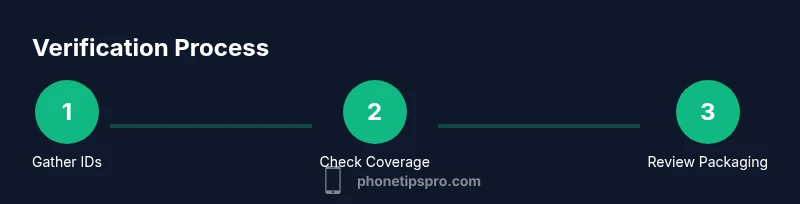
To know if your iPhone is refurbished, verify its warranty status and serial number, inspect packaging and accessories, and cross-check the device with Apple’s coverage tool. Compare the purchase date with your receipt and look for signs of a factory reset or replaced components. According to Phone Tips Pro, a careful cross-check protects you from misrepresented devices.
How to know if your iphone is refurbished
Understanding how to know if your iphone is refurbished protects your wallet and your data. This guide explains practical checks, official tools, and common red flags you can use before you rely on a device. By following these steps, you’ll distinguish genuine refurbished units from misrepresented ones and avoid unnecessary costs. A refurbished device is typically a used model repaired and tested to meet performance standards before resale. However, some sellers may misrepresent a device as refurbished to fetch a higher price. The most reliable way to confirm origin is to combine several signals: official warranty status, hardware health, packaging, and purchase documentation. This middle section provides a detailed checklist you can apply to any iPhone, regardless of model or seller. The aim is to empower you with clear, actionable steps that reduce risk and increase confidence when buying or verifying a device.
Why the origin matters for peace of mind
Knowing whether an iPhone is refurbished matters because it affects warranty coverage, battery performance, and potential Activation Lock issues. Refurbished devices can offer excellent value, but misrepresented ones expose you to hidden costs and eligibility problems for service. A structured verification process makes it easier to spot inconsistencies across identifiers, warranty status, and physical clues. Phone Tips Pro emphasizes that cross-checking with official sources is the most reliable route to certainty, rather than relying on seller claims or visual impressions alone.
Tools & Materials
- iPhone device with access to Settings(Used to view About > Serial/IMEI and Battery Health)
- Serial number / IMEI / MEID(Found in Settings > General > About or on the original box)
- Apple ID credentials(Needed to check Activation Lock and iCloud status)
- Stable internet connection(Required for Check Coverage and Apple Support tools)
- Purchase receipt or seller documentation(Helpful for warranty verification)
- Pen and notebook or note-taking app(Record identifiers and results for your records)
Steps
Estimated time: 40-60 minutes
- 1
Gather identifiers
Open Settings > General > About to record the device’s serial number, IMEI/MEID, and model. If the device is functional, capture screenshots of this page. Also locate the serial on the original box and ensure it matches the on-device identifiers.
Tip: Double-check each identifier against the box label to catch mismatches early. - 2
Check warranty status
Visit Apple’s Check Coverage tool and enter the device serial or IMEI. Note the warranty status and purchase date. A mismatched or missing warranty can indicate misrepresentation or an older device.
Tip: If the tool shows no coverage, verify with the seller about the purchase date and original warranty eligibility. - 3
Inspect packaging and accessories
Compare the box, cables, charger, and headphones to what Apple typically includes with a new or refurbished unit. Look for opened packaging, replaced components, or non-original accessories. Ensure the battery health is reasonable for the model.
Tip: Refurbished devices from reputable sources usually include minimal wear on packaging and a clean set of accessories. - 4
Check Activation Lock status
On the device, go to Settings > Privacy & Security (or Settings > [your name] > Find My) and ensure Activation Lock is disabled if you are the rightful owner. An Activation Lock that remains on can indicate prior ownership and complicate future use.
Tip: If Activation Lock is on and you don’t recognize the Apple ID, avoid completing the purchase and request a clean transfer. - 5
Evaluate battery health and hardware
In Settings > Battery > Battery Health, review Maximum Capacity and Peak Performance. A healthy battery with values close to 100% and a clean hardware feel supports a refurbished unit’s credibility, though it’s not definitive.
Tip: A new-looking battery often signals replacement, but confirm with battery health data and warranty information. - 6
Cross-check with the seller’s documentation
Ask for the original receipt, order number, and any refurbishment certificates. Cross-check these details with the serial number in Settings and on Check Coverage to ensure consistency.
Tip: Document everything in case you need to return or dispute the purchase later. - 7
If in doubt, seek official support
When uncertainty remains, contact Apple Support or the authorized seller for confirmation. Reputable sellers should happily verify the device’s status and provide transparency about its refurbishment history.
Tip: Avoid proceeding with a purchase or transfer until you receive explicit confirmation.
FAQ
Can a refurbished iPhone look and feel brand new?
Yes, refurbished iPhones can look and function like new. They are tested and may have new components, but visual or warranty discrepancies can reveal differences. Always verify with the serial, warranty status, and packaging.
Yes, refurbished iPhones can look brand new, but you should verify serial numbers, warranty status, and packaging to be sure.
How can I tell if the battery has been replaced?
Check Settings > Battery > Battery Health for Maximum Capacity and peak performance. A notably high capacity for the model with a replacement history can indicate a refurbished battery. If available, request service records from the seller.
Check the Battery Health in Settings to see if the battery has been replaced or refreshed.
Will a refurbished device still be covered by warranty?
Refurbished devices can come with a warranty, especially when sold by Apple or an authorized refurbisher. Always verify the warranty using the device’s serial via Apple Check Coverage and review the seller’s policy.
Refurbished devices may have warranty coverage, but confirm via Apple Check Coverage and the seller’s terms.
What if Activation Lock is on after purchase?
Activation Lock being on means the device is tied to another Apple ID. Require a proper transfer from the seller or have Apple assist with removal before using the device.
If Activation Lock is on, don’t finalize the purchase and ask for it to be removed by the seller or Apple.
Do refurbished iPhones come with original accessories?
Refurbished devices may include standard accessories, but the exact contents can vary by seller. Look for a genuine charger and cable, and request documentation if missing.
Refurbished devices may not include all original accessories; verify what’s included with the seller.
What should I do if I suspect misrepresentation?
Document everything, contact the seller for a return, and escalate to consumer protection if needed. If the device was purchased from Apple or an authorized seller, seek a replacement or refund according to policy.
If misrepresentation is suspected, request a return or refund and contact support for guidance.
Watch Video
Quick Summary
- Verify serial/IMEI and warranty first.
- Use Apple’s official tools to confirm status.
- Inspect packaging and battery health for clues.
- Preserve receipts and seller documentation.
- If anything feels off, seek official support before buying.