How to Make iPhone Screen Turn Off: Practical Lock Tips
Learn reliable methods to turn off your iPhone screen quickly and safely. From the side button to Auto-Lock settings, master steps to lock your display and protect privacy, with expert tips from Phone Tips Pro.


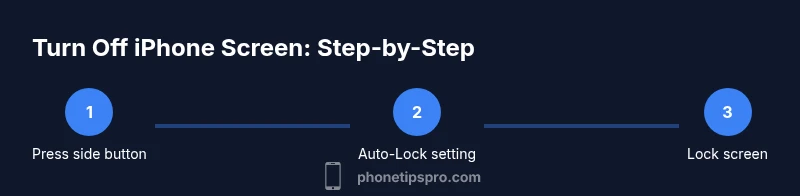
If you’re wondering how to make iphone screen turn off, the fastest method is to lock the display with a single press of the side button. You can also shorten Auto-Lock time in Settings so the screen powers down automatically after a short period. For reliability, ensure your iPhone is updated and you know your passcode if required.
Quick Lock: The Fastest Way to Turn Off the Screen
The instant way to make the iPhone screen turn off is to press the side button once. This locks the device and sends the current session to sleep, turning off the OLED display to preserve battery and protect privacy. No data is lost; apps remain in the background. This method works on iPhone X and later, including iPhone 11, 12, 13, 14, and beyond. If you have Face ID enabled, the phone will require authentication to wake up again, which adds a security layer when you’re away from your device. In day-to-day use, keeping this as your go-to option ensures the screen turns off quickly when needed. If you’re in a noisy environment or wearing gloves, you can still press the side button with less precision to lock the screen.
Why this matters: a quick lock protects privacy when you step away and conserves battery by stopping the display, which is especially helpful on OLED screens where every illuminated pixel drains power.
Auto-Lock: Let iPhone Power Down the Display
Auto-Lock is a built-in timer that turns off the screen after a period of inactivity. Configuring Auto-Lock is the most convenient long-term method to ensure the screen turns off automatically. Go to Settings > Display & Brightness > Auto-Lock. Choose a shorter interval such as 30 seconds or 1 minute. Shorter intervals improve privacy and battery life, but you may find it annoying if you’re reading or watching content and keep tapping the screen—adjust to a balance that fits your usage.
Some models support even shorter options; newer iOS versions provide more granularity. If you’re sharing your device or using accessibility features, consider pairing Auto-Lock with a strong passcode for enhanced security.
Note: If Auto-Lock is set to Never, the screen will stay on until you manually lock it, which can drain the battery and increase risk if you leave the phone unattended.
Accessibility and Convenience Options
Beyond the physical button and Auto-Lock, iPhone offers accessibility and convenience options to help you lock the screen when needed. Enable AssistiveTouch (Settings > Accessibility > Touch > AssistiveTouch) and add a Lock Screen action to the on-screen menu. This is useful if you’re wearing gloves or using a device with a case that makes the side button harder to press. You can also assign a triple-click to lock the screen via Accessibility Shortcuts.
AssistiveTouch provides a reliable on-screen alternative without requiring button presses. This is particularly helpful for users who rely on switch control or people who want a one-tap lock from the home screen.
Security and Privacy: Passcodes and Lock Behavior
When the screen turns off, your iPhone enters a locked state. Decide how quickly you want authentication required after the screen turns off by adjusting Settings > Face ID & Passcode > Require Passcode. Choosing Immediately minimizes opportunities for others to access your data if you leave the device unattended. If you enable Face ID, the first unlock after the screen turns off will use biometric authentication, which is fast and convenient while keeping your data secure.
If you frequently forget to lock your screen, Auto-Lock is a good safeguard. Pair it with a reliable passcode and biometric unlock to maintain both convenience and security.
Troubleshooting: Screen Won’t Lock or Turn Off
If your screen won’t turn off when expected, start with the simplest checks:
- Verify Auto-Lock isn’t set to Never.
- Check for a buggy app that prevents the lock from triggering; force-quit suspect apps and test.
- Restart your iPhone to clear temporary glitches.
- Make sure the screen isn’t stuck due to a hardware issue (tap sensitivity, power button damage).
If issues persist, consider restoring settings or updating iOS to the latest version. In severe cases, contact Apple Support or visit an Apple Store for diagnostics.
Battery, Screen Burn, and Usage Tips
Using Auto-Lock with shorter intervals can reduce screen-on time and save battery life, especially on OLED displays where prolonged illumination drains power. If your background activity is high, you may want to slightly lengthen Auto-Lock to avoid frequent lock interruptions. Always pair a shorter Auto-Lock with a strong passcode and biometric unlock for quick access without sacrificing security.
Keep software updated; firmware updates often improve battery management and screen responsiveness, which can help ensure the screen turns off reliably after inactivity.
Practical Scenarios: Meetings, Travel, and Bedtime
At meetings, a quick press of the side button ensures your screen turns off immediately, preventing interruptions. While traveling, Auto-Lock helps conserve battery in tight spaces where charging may be limited. At bedtime, configure Auto-Lock to the shortest comfortable interval so your screen goes dark shortly after you finish using your device.
Tools & Materials
- iPhone with iOS 14 or newer(Ensure the device is updated to receive the latest lock behaviors and security features.)
- Access to Settings app(You’ll adjust Display & Brightness and Passcode options here.)
- Knowledge of device passcode(Needed to set security after lock (e.g., Immediately).)
Steps
Estimated time: 5-10 minutes
- 1
Open Settings
Launch the Settings app to access the display controls that govern when the screen turns off. This is the first step to customize how your iPhone locks and sleeps.
Tip: If you use Multiple Apps, consider doing this step near a quiet moment to avoid interruptions. - 2
Go to Display & Brightness
In Settings, select Display & Brightness to reach the core display options including Auto-Lock and display features.
Tip: This path is common across iPhone models and iOS versions, but menu wording can vary slightly. - 3
Tap Auto-Lock
Choose Auto-Lock to set how long the screen stays on before turning off automatically after inactivity.
Tip: 30 seconds or 1 minute is a good balance for privacy and usability. - 4
Select a shorter interval
Pick a time such as 30 seconds or 1 minute to ensure the screen locks quickly when you stop interacting.
Tip: Avoid extremely short times if you frequently read or watch content without touching the screen. - 5
Lock the screen with the side button
Press the side button once to manually turn off the screen and lock the device, immediately securing your data.
Tip: This is the fastest manual method and works in all conditions. - 6
Adjust Passcode behavior (Optional)
If you want tighter security after the screen turns off, adjust Settings > Face ID & Passcode to Require Passcode Immediately.
Tip: Immediate passcode requirements protect privacy in crowded or shared spaces. - 7
Test the setup
Leave the device idle briefly and observe if the screen turns off as configured and requires authentication to wake.
Tip: Testing confirms the settings behave as expected before you rely on them.
FAQ
How do I quickly turn off the iPhone screen?
The fastest method is to press the side button once to lock the screen. This powers down the display and secures the device. You can also shorten Auto-Lock in Settings to automate this process.
Press the side button to lock the screen, or set Auto-Lock in Settings to a short interval for automatic display shutdown.
What is Auto-Lock and how do I set it?
Auto-Lock is a timer that turns off the screen after inactivity. Go to Settings > Display & Brightness > Auto-Lock and choose a short duration like 30 seconds or 1 minute. This helps save battery and keeps your data private when you’re away.
Auto-Lock automatically turns off the screen after you stop using your iPhone; customize the timing in Display & Brightness.
Will turning off the screen affect ongoing calls or apps?
Locking the screen does not end an active call. Apps remain in memory, and you can wake the device with Face ID or Touch ID when ready. If you rely on a long call, avoid setting Auto-Lock too short.
Locking the screen won’t end a call; you’ll resume when you unlock.
Why is Auto-Lock greyed out on my iPhone?
Greyed-out Auto-Lock usually means there are restrictions from Screen Time, a managed device profile, or a software glitch. Check Screen Time settings, any device management, and update iOS.
If Auto-Lock isn’t available, check Screen Time and device management settings, then update iOS.
Can I lock the screen without using the side button?
Yes. You can enable AssistiveTouch and add a Lock Screen action to the on-screen menu, or use a triple-click shortcut if configured. This provides a button-free way to lock the screen.
You can use AssistiveTouch or a shortcut to lock the screen without pressing the side button.
Does turning off the screen affect Always On Display (AOD) features?
On supported models, Always On Display remains off when the screen turns off, preserving battery. Auto-Lock and screen-off behavior work independently of AOD settings.
Turning off the screen stops the display; Always On Display behavior depends on your device model and settings.
Watch Video
Quick Summary
- Lock the screen quickly with the side button
- Set Auto-Lock for automatic privacy and battery savings
- Enable immediate passcode to protect data when screen is off
- Use Accessibility options as an alternative to hardware buttons
- Keep iOS updated to maintain reliable screen behavior