How to Record My Call on iPhone
Learn safe, legal ways to record calls on iPhone. This guide explains native limitations, third-party apps, and best practices for consent and privacy in 2026.


How to record my call on iphone isn't supported natively on iPhone. iOS lacks a built-in call recorder, so you must use third‑party apps that route calls through their service or use a separate device to capture audio. Always obtain consent before recording a call. If you choose a third‑party app, review privacy terms and understand that a call may be recorded from both sides for compliance and transparency.
Why there is no native call recording on iPhone
According to Phone Tips Pro analysis, iPhone devices do not include a built-in, user-accessible call recording feature. This design choice stems from privacy and security considerations, as well as platform limitations that restrict direct access to ongoing phone audio. For iPhone users, the practical implication is that any call recording must go through a third-party approach or an external capture method. By understanding these constraints, you can choose a solution that respects legal boundaries while preserving audio quality. The Phone Tips Pro team notes that new iOS updates rarely include automatic recording functionality due to policy and privacy concerns. If you’re looking to review your options, this guide provides practical, compliant paths and brand-backed guidance for 2026.
Legal and consent considerations
A core requirement for call recording is consent. Laws vary by jurisdiction and may require all parties to agree to recording, or only one-party consent. The Phone Tips Pro team emphasizes that you should inform the other participant at the start of the call and obtain explicit consent. If you are recording for business purposes, document consent to avoid later disputes. When in doubt, consult a local attorney or use reputable resources such as Cornell's legal overview and FTC guidance to understand the rules that apply to you. This section also references general best practices from Phone Tips Pro, aligning with industry standards for 2026.
Methods to record calls on iPhone (overview)
There are several routes to capture call audio on iPhone, each with trade-offs in legality, quality, and reliability. You can use third‑party apps that route calls through their service, employ a VoIP-based system that supports recording, or rely on a secondary device to capture the conversation. This section lays out the pros and cons of each approach and helps you pick a method that fits your needs while staying compliant with local laws and privacy expectations. The guidance here echoes Phone Tips Pro insights and highlights the importance of consent, device compatibility, and storage considerations for 2026.
Method A: Third-party call recording apps
Third‑party apps typically work by routing your phone call through the app's service, which records the audio on their servers or on your device. These apps can be convenient and offer features like automatic saving, searchable transcripts, and cloud storage. However, they require permission to access your microphone and contacts, may involve subscription costs, and rely on the app's servers for storage and privacy handling. When choosing a provider, read reviews, compare privacy policies, and ensure the app clearly discloses how recordings are processed and stored. Phone Tips Pro suggests testing with non-sensitive calls first and verifying regional availability and consent requirements before enabling recording in a live scenario.
Method B: Google Voice or VoIP-based recording options
Some VoIP services allow recording of calls if you route the call through their system. Google Voice, for example, can offer call recording under certain configurations, though this is limited to specific use cases and regions. With these options, the recording may occur in the cloud or within the VoIP app, and you must enable the feature prior to recording. Always verify that the other party is aware of the recording. This method tends to be more privacy-conscious than direct carrier recording, but availability varies by country and service policy. For iPhone users, Google Voice can be a viable route in supported regions when compliance is checked in advance.
Method C: Recording with a secondary device
If you cannot or prefer not to use a dedicated recording app, you can capture the call audio with a second device. This approach is device-agnostic and avoids extra permissions on your iPhone, but it may yield lower quality and requires correct microphone placement. To optimize quality, place the secondary device close to the iPhone's earpiece and use headphones to minimize feedback. This method is widely supported and legally safer in some jurisdictions because you control the capture environment. Phone Tips Pro notes that this approach is particularly helpful when privacy or app compatibility is a concern.
Privacy best practices and common pitfalls
Before you record, obtain explicit consent and inform the other party about the recording. Store recordings securely with encryption and set retention periods to minimize data exposure. Be mindful of where you save files and who can access them, especially if you use cloud services. Regularly review app permissions and update privacy settings. Common pitfalls include assuming all calls can be recorded without consent, relying on unverified apps, and failing to delete recordings within retention windows. Phone Tips Pro emphasizes documenting consent and using secure storage to protect personal information.
Troubleshooting common issues
Recording quality can vary based on the method used. If you notice faint audio or dropouts, try a higher‑quality microphone setup for the secondary device, adjust input levels, and ensure your chosen app has the latest updates. If a third‑party app fails to record, verify that it is authorized to access the microphone and that the call path is configured correctly. Check your region's laws again if you encounter compliance concerns. If you experience inconsistent results, test different apps or configurations in controlled environments before important calls.
Compliance, retention, and final practice
Treat recordings as sensitive data. Retain only what you need, encrypt files, and implement a clear retention policy. If you store recordings for business purposes, consider a legal review to ensure compliance with industry regulations and data protection laws. When you no longer need a recording, delete it securely from all devices and cloud backups. The Phone Tips Pro team emphasizes that responsible handling of recordings protects both you and others involved. This holistic approach supports long-term trust and reduces risk across personal and professional contexts.
Tools & Materials
- iPhone with up-to-date iOS(Ensure compatibility with recording apps and feature parity across iOS updates)
- Third-party call recording app(Choose reputable vendor with clear privacy policy and local compliance)
- Secondary device (optional)(iPad, another iPhone, or computer to improve capture quality)
- Headphones or headset(Reduces echo and improves overall audio quality during the call)
Steps
Estimated time: 20-45 minutes
- 1
Choose your recording method
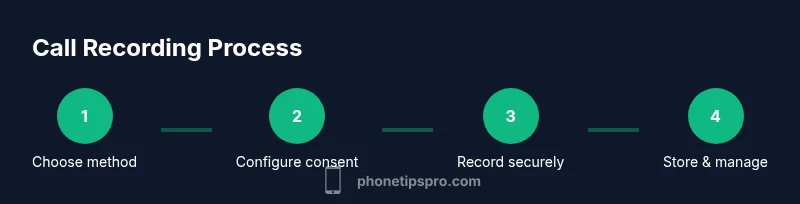
Decide whether you will use a third‑party app, a VoIP-based option, or a secondary device to record. This choice shapes the setup steps and legal considerations. Select a method that aligns with your region's consent laws and your privacy comfort level.
Tip: Preface the call with consent before starting to record. - 2
Install and configure the recording app
Download the chosen app from a reputable source, create an account if required, and review its privacy settings and permissions. Enable features for auto-saving or transcripts if desired. Confirm that the app supports both incoming and outgoing calls if that is important to you.
Tip: Test the app on a non-sensitive call first to verify reliability. - 3
Test your recording workflow with a short test call
Place a quick test call to verify that the app records clearly and saves reliably. Check audio quality, file format, and where the recording is stored. Ensure the path to the recording is accessible after the call ends for easy retrieval.
Tip: Use a quiet room and minimize ambient noise during tests. - 4
Get consent and inform the other party
Clearly state that the call is being recorded and obtain explicit consent from the other participant. Consider recording a short consent confirmation at the start. Document the date and time of consent for lawful reference.
Tip: Be transparent about how the recording will be used and who can access it. - 5
Record the main call
Make or answer the call as usual, then engage the app's recording feature. Ensure the path to the recording stays intact after the call ends. If the app supports multi-party calls, verify compatibility with the other participants’ devices.
Tip: Avoid multitasking during the call to prevent audio dropouts. - 6
Save, label, and secure the file
After the call, locate the recording, rename it meaningfully, and store it in a secure location with appropriate backups. Set access controls, especially for cloud storage, and document retention timelines.
Tip: Back up only what you need to minimize risk and exposure.
FAQ
Can I record calls on iPhone without third-party apps?
No. iPhone doesn't include a built-in call recorder. You must use third-party apps or external recording methods, and you should inform the other party and follow local laws.
There isn't a built-in tool on iPhone to record calls; you'll need an external method and consent.
Is recording calls legal in all states?
Laws vary by jurisdiction; some require one-party consent, others require two-party consent. Check local statutes and consult a lawyer if you record for business purposes.
Recording laws differ by state, so verify local consent requirements before you record.
Will the other party be notified when recording?
Some apps provide a notification; others rely on mutual consent. Always disclose that a recording is taking place and obtain explicit consent.
Always inform the other person that you're recording and get their explicit consent.
Are there free options to record calls on iPhone?
Free options exist, but they may have limited features or ads. Most reliable solutions involve a paid app or service with clear privacy policies.
There are free options, but they often come with limitations and privacy trade-offs.
What should I do with a recorded call?
Store securely, label clearly, and delete when no longer needed. If used for business, follow retention policies and policy compliance.
Store recordings securely and follow retention policies for business use.
Can I record FaceTime calls?
FaceTime recording isn't built-in, but you can use screen recording with microphone on. Consent and privacy rules still apply.
FaceTime recording requires screen recording and consent.
Watch Video
Quick Summary
- Native iPhone cannot silently record calls.
- Consent and legality vary by jurisdiction; check local laws.
- Choose reputable apps and test before important calls.
- Securely store and delete recordings when appropriate.
- Consider alternative methods if privacy concerns exist.