How to Reset iPhone When It Won’t Boot or Freeze
Learn how to reset your iPhone when it won't boot or becomes unresponsive. This guide covers soft resets, Recovery Mode, factory reset, and restoring data with practical steps and safeguards.


To reset an iPhone when it won’t respond, start with a soft restart. If that fails, use Recovery Mode to reinstall iOS, or perform a factory reset as a last resort. Always back up first, charge the battery, and then restore from backup afterward to recover your data and settings.
Why Resetting iPhone Helps
According to Phone Tips Pro, resetting can clear minor software glitches and refresh the device’s state. When your iPhone feels sluggish, apps crash, or the screen freezes, a reset often resolves the issue without deeper troubleshooting. Remember that resets vary in impact: a soft restart preserves data, while a factory reset wipes everything and reinstalls iOS. The goal is to restore stability with the least disruption to your data. If you’re unsure which option to pick, start with the simplest method and proceed cautiously. Phone Tips Pro’s guidance emphasizes backups as an essential first step before any reset, especially if you plan to erase content.
Reset Options at a Glance
There are three common reset levels you can consider, depending on the problem and your data needs:
- Soft Restart (force restart): Quick reboot that clears RAM and stops stuck processes without affecting data.
- Recovery Mode: Reinstalls iOS via a computer when the device is unbootable but data may be preserved depending on the approach.
- Factory Reset: Erases all content and settings, restoring the device to factory state. This is the last resort when all else fails or you’re preparing to sell or give away your iPhone.
Each option has trade-offs. Start with the least disruptive method and only move to deeper resets if the issue persists. For many users, a simple soft restart resolves most problems and avoids data loss. Phone Tips Pro’s analysis highlights that data loss is most likely with a factory reset, so backups are non-negotiable.
Before You Begin: Backups, Battery, and Prep
Before performing any reset, prepare by backing up your data to iCloud or a computer, ensuring you have your Apple ID credentials, and charging the device or connecting it to power. A backup allows you to restore apps, photos, and settings after a reset, reducing post-reset frustration. Check your battery level; resets can take longer if the device is low on power. If you rely on Find My iPhone, consider temporarily disabling it only after you’ve completed the reset and secured access, since it can affect re-activation in some scenarios. Planning ahead minimizes data loss and downtime during the reset process.
Soft Reset: Force Restart by Model
A soft reset (force restart) is the safest first step when the iPhone is unresponsive. The exact method depends on your model:
- iPhone 8 and later: Quickly press and release the Volume Up button, then the Volume Down button, then press and hold the Side button until the Apple logo appears.
- iPhone 7: Press and hold both the Volume Down button and the Sleep/Wake (Side) button until the Apple logo appears.
- iPhone 6s and earlier: Press and hold the Home button and the Top (or Side) button until the Apple logo appears.
If the device restarts and behaves normally, you’ve solved the problem without data loss. Tip: perform the steps in one continuous sequence without releasing the buttons prematurely; this increases the likelihood of a successful restart.
Recovery Mode: Reinstall iOS via Computer
If a soft reset doesn’t fix the issue, Recovery Mode lets you reinstall iOS through Finder (macOS Catalina and later) or iTunes (Windows or macOS older versions). Steps:
- Connect iPhone to your computer with a working cable.
- Open Finder or iTunes and locate your device.
- Choose Restore or Update when prompted. If Restore is chosen, you’ll reinstall iOS and may erase data if you choose a full restore from backup later.
Recovery Mode can fix deeper software problems that prevent normal boot. Ensure you have a recent backup to minimize data loss.
Factory Reset: Erase All Content and Settings
A factory reset wipes all data and reinstalls iOS, returning the phone to its original state. This should only be used when other options fail or you’re preparing to sell or give away the device. To perform a factory reset: go to Settings > General > Transfer or Reset iPhone > Erase All Content and Settings. You’ll need your Apple ID password to turn off Activation Lock and complete the reset. After the reset finishes, you can restore from a backup or set up the iPhone as new.
After Reset: Restore Data and Troubleshooting
Once the reset completes, you’ll be prompted to restore from a backup during setup. If you backed up, select Restore from iCloud or from your computer to recover most content. If problems persist after a reset, consider checking for hardware issues, updating to the latest iOS version, or contacting Apple Support. Phone Tips Pro suggests recording notable glitch patterns (time of day, apps involved, battery level) to help diagnose recurring problems and inform support discussions.
Authority Sources & Final Guidance
For authoritative guidance on iPhone resets, consult Apple’s official support resources and trusted tech publishers. The Phone Tips Pro team also recommends reviewing security practices around backups and Activation Lock to prevent data loss. As a final note, always verify your data has been restored after a reset and monitor for any recurring issues that could indicate hardware faults.
Tools & Materials
- Official Apple USB charger and cable(Ensure the cable is in good condition and supports data transfer)
- A computer with Finder (macOS Catalina or later) or iTunes (Windows/macOS)(You may need to trust the computer on the iPhone during the process)
- Backups available (iCloud or iTunes/Finder)(Back up before factory reset)
- Apple ID credentials(Needed to re-activate after reset)
- Stable internet connection(Helpful for backing up and updating iOS during recovery)
- Fresh charge or power source(Prevents shutdown mid-process)
Steps
Estimated time: 60-120 minutes
- 1
Back up your iPhone data
Begin by backing up your data to iCloud or your computer. A complete backup protects photos, messages, apps, and settings in case you need to restore after a reset. Verify your backup before proceeding and ensure you have access to your Apple ID credentials.
Tip: If you have limited Wi‑Fi, use a computer backup to speed up the process. - 2
Force restart for iPhone 8 and newer
Quickly press and release Volume Up, then Volume Down, and hold the Side button until the Apple logo appears. This is the standard soft reset for modern iPhones and often resolves temporary glitches without data loss.
Tip: Perform the sequence in one continuous motion—timing is key. - 3
Force restart for iPhone 7
Hold the Volume Down button and the Side button together until the Apple logo shows. If the device becomes responsive, you’ve completed the reset successfully and can test app performance.
Tip: If you hear a chime but still see a blank screen, keep holding a moment longer. - 4
Force restart for iPhone 6s and earlier
Press and hold the Home button and the Top (or Side) button until the Apple logo reappears. This catches frequent freezes on older devices without erasing data.
Tip: If you rely on older apps, ensure you’ve updated to the latest compatible iOS version after reboot. - 5
Enter Recovery Mode and reinstall iOS
If a force restart doesn’t help, connect the iPhone to a computer and use Finder/iTunes to reinstall iOS. Select Restore or Update when prompted. A restore reinstalls the OS; data load depends on your backup choice.
Tip: Back up again before performing a Restore in Recovery Mode to minimize data loss. - 6
Factory reset via Settings
If you must erase all content, go to Settings > General > Transfer or Reset iPhone > Erase All Content and Settings. Enter your Apple ID password to disable Activation Lock and confirm the reset.
Tip: Only use this if you’ve exhausted other options or are selling the device. - 7
Restore from backup after reset
During setup, choose Restore from iCloud or from your computer to recover apps, data, and settings. Verify that key data appears after restoration before continuing to use the device daily.
Tip: If some apps don’t restore, re-download them from the App Store.
FAQ
What’s the difference between a soft reset and a factory reset?
A soft reset restarts the device and clear temporary issues without data loss, while a factory reset erases all content and settings. Use soft reset first, and reserve factory reset for unresolved problems.
A soft reset reboots without wiping data, while a factory reset wipes everything. Start with a soft reset.
Will resetting erase my data?
Soft resets do not erase data. A factory reset erases all data unless you have a recent backup to restore from afterward.
Only a factory reset erases data; backups let you restore later.
Do I need a computer to reset my iPhone?
No for soft resets or factory reset from Settings. A computer is needed for Recovery Mode reinstallation if the device won’t boot.
You can reset without a computer for common options, but Recovery Mode requires one.
How should I back up before resetting?
Back up to iCloud or a computer prior to any reset. Verify the backup is complete and accessible, then proceed with reset choices.
Back up to iCloud or your computer, then proceed with reset.
What if Find My iPhone is on during reset?
If Find My iPhone is on, you may need your Apple ID to reactivate after the reset. Turn it off or ensure you can sign back in post-reset.
Activation Lock can require your Apple ID after reset.
Is DFU mode safe for beginners?
DFU mode is a deeper restore method and is riskier for beginners. Use Recovery Mode first, and only attempt DFU if you have clear guidance.
DFU is more advanced; proceed with care if you choose to try it.
Watch Video
Quick Summary
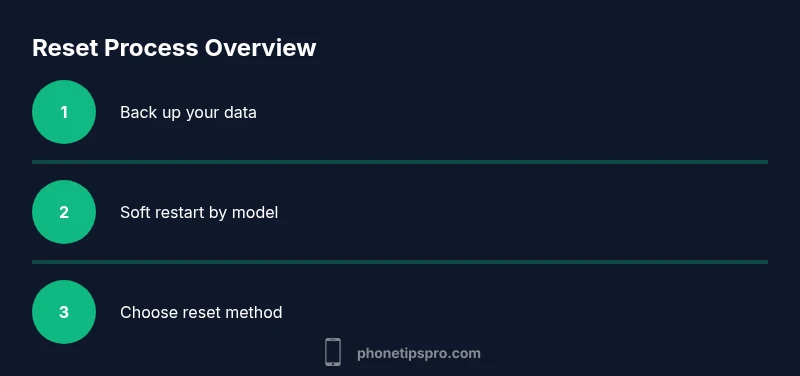
- Back up before resetting to protect data
- Start with a soft restart before deeper resets
- Use Recovery Mode if the device won’t boot
- Factory reset is last resort due to data loss
- Restore from backup to recover apps and data