How to Restart an iPhone When It’s Frozen
Learn model-specific force-restarts, what to try when the screen is unresponsive, and best practices to prevent future freezes. This Phone Tips Pro guide covers step-by-step methods, safety tips, and when to seek help.


Learn how to restart an iPhone when it’s frozen. This guide covers model-specific force-restart methods, what to do if the screen won’t respond, and safe steps to prevent data loss. By following the exact button combinations for your iPhone, you can usually restore normal operation without data loss. The steps vary by model, so this article breaks down each method clearly.
Why Your iPhone Freezes and How Restart Helps
iPhones freeze for a variety of reasons, from a single unresponsive app to a system-wide software hiccup. When the device becomes unresponsive, a restart is often the fastest, safest remedy. This is especially true if the screen is dark or the device isn’t reacting to taps or button presses. The action you take depends on the model, but the core idea is the same: restart clears temporary memory, resets running processes, and reinitializes the operating system state without wiping your data. If you’re asking iphone is frozen how to restart, you’ll usually be able to resolve the issue with a model-specific force restart. Keep in mind that frequent freezes can indicate deeper problems, such as low storage, an misbehaving app, or an outdated iOS version. In these cases, a broader cleanup (storage management, app updates, or a full iOS update) may be required after the restart.
How to Read This Guide
This article is organized to help you quickly locate the restart method for your specific iPhone model, walk you through what to do if the device remains unresponsive, and provide practical steps to prevent future freezes. We’ll also cover safety considerations, data preservation, and when it’s time to contact support. By the end, you’ll know exactly which button sequence to use and what actions to take afterward to keep your device stable.
Common Causes Behind Freezes and Quick Remedies
Freezes often happen due to apps that don’t close properly, software bugs introduced by an iOS update, or running out of storage space. A restart helps by terminating stuck processes and freeing up RAM. If you notice freezes after installing a new app or after an iOS update, suspect that particular app or the update itself as the root cause. Clearing storage, updating apps, and performing a system restart are practical first steps. If freezing recurs after a restart, there’s a stronger case for deeper troubleshooting.
Identify Your iPhone Model for Correct Restart Method
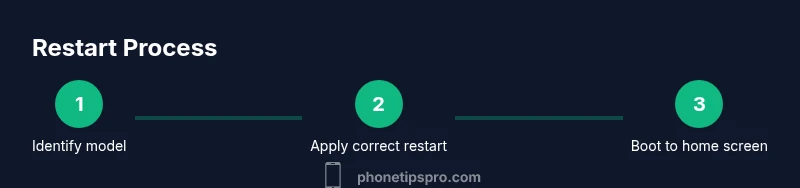
Restart methods are not one-size-fits-all. The three broad categories are iPhone 8 and newer, iPhone 7, and iPhone 6s and earlier. Checking your model is essential to avoid attempting the wrong sequence, which could be ineffective or confusing. You can confirm your model by going to Settings > General > About and looking at the Model Name or Model Number. If you’re unsure, you can also physically examine the device for a Home button (present on older models) versus a solid side button setup on newer devices.
Step-by-Step: Forced Restart Methods by Model
The following sections outline the exact button combinations for each model group. A successful restart does not erase data, but you should back up regularly to prevent data loss in the event of a crash. If the screen becomes responsive during any step, you can release the buttons and allow the device to boot normally. If you’re uncertain, perform the action calmly and avoid applying force beyond what’s required.
What to Do If the Screen Remains Unresponsive
If the screen stays dark or unresponsive after attempting the recommended restart, connect the iPhone to a charger and wait a few minutes. A completely drained battery can mimic a frozen screen. If nothing shows on the display after a charge, you may need to repeat the restart, try a different charging cable, or consult Apple Support. Do not attempt risky actions like opening the device yourself; rely on official guidance and service providers.
After Restart: Quick Checks to Prevent Re-Freeze
Once the device boots, perform quick checks to minimize future freezes. Close recently installed apps, check for available iOS updates, and ensure you have adequate storage. Run a storage check under Settings > General > iPhone Storage and remove or offload unused apps or large files. Also consider reviewing recent app updates if the issue began after an installation. Regular backups safeguard your data should a freeze occur again.
Safety and Data Considerations
Restarting your iPhone is generally safe and should not erase data. However, if you’re troubleshooting persistent freezes, back up your data before attempting more invasive steps like a reset or DFU restore. Use iCloud or iTunes/Finder to back up your device so you can recover photos, contacts, and app data if problems escalate. Always perform steps in a calm, methodical manner to avoid accidental data loss or misconfiguration.
When to Seek Professional Help
If your iPhone freezes repeatedly despite following restart steps, if the device won’t show the Apple logo after multiple attempts, or if you notice signs of hardware issues (unusual warmth, screen blackout, or battery swelling), contact Apple Support or visit an authorized service provider. Hardware problems require expert diagnosis and may be beyond consumer DIY fixes.
Tools & Materials
- iPhone (any model)(Know your model to apply the correct restart method.)
- Charged battery or reliable power source(Best practice to avoid mid-restart shutdown.)
- Official Apple support contact information(Use if the device remains unresponsive after standard steps.)
Steps
Estimated time: 10-15 minutes
- 1
Identify your iPhone model
Open Settings, go to General > About, and locate the Model Name or Model Number. Classify the device as one of three groups: iPhone 8 and newer, iPhone 7, or iPhone 6s and earlier. This classification determines which restart sequence to use.
Tip: If you can’t access Settings, compare physical features: iPhone models with a Home button retain the older layout. - 2
Restart iPhone 8 and newer (forced restart)
Quickly press and release Volume Up, then Volume Down, and immediately press and hold the Side button until the Apple logo appears. Release when you see the logo. This restarts the device without erasing data.
Tip: Don’t hold the Side button too long initially—release if the screen changes to the Apple logo mid‑sequence. - 3
Restart iPhone 7 (forced restart)
Press and hold the Volume Down button and the Side button together until the Apple logo appears. Release both buttons once you see the logo. This method is specific to iPhone 7.
Tip: If the Apple logo doesn’t appear after 20 seconds, keep holding and then release; try again after a short pause. - 4
Restart iPhone 6s and earlier (forced restart)
Press and hold the Home button and the Power button together until the Apple logo shows. Release after the logo appears. Older models use this combination.
Tip: If the device doesn’t respond, ensure the Power button isn’t physically stuck. - 5
What to do if the screen is still unresponsive
If there’s no response after the restart, connect the iPhone to a charger and wait 15–20 minutes. Try the restart again. If there’s still no display, proceed to official support or a diagnostics appointment.
Tip: Avoid jumping between steps too quickly; give the device a moment to boot after each restart. - 6
Post-restart checks and prevention
Open Settings and review battery health, storage capacity, and recent app updates. Clear cache by offloading unused apps and update apps from the App Store. Consider a system update if freezes persist.
Tip: Regular backups ensure you don’t lose data if future freezes require deeper troubleshooting. - 7
Advanced troubleshooting and limits
If issues persist after a restart and standard updates, you may need a DFU restore or professional diagnosis. This is more invasive and should be guided by official instructions.
Tip: Consult Apple Support for step-by-step DFU guidance to avoid bricking the device.
FAQ
What is a force restart, and does it erase data?
A force restart reboots the iPhone by forcibly terminating processes and restarting the system. It does not erase data. Use this when the screen is unresponsive or the device won’t boot.
A force restart reboots the iPhone without erasing data.
My iPhone won't show the Apple logo after a force restart—what now?
If the Apple logo doesn’t appear after a restart, ensure the device is charged and try again. If it still doesn’t respond after several attempts, contact Apple Support for guidance or a service check.
If you don’t see the Apple logo after trying, contact Apple Support for help.
Is it safe to restart while charging?
Restarting while the iPhone is charging is safe and can help if the battery was low. If the device still doesn’t respond, use the appropriate restart method for your model.
Yes, restarting while charging is safe and can help.
Should I back up before troubleshooting?
Backing up data regularly is best practice, especially before attempting deeper resets or DFU restores. This protects your photos, contacts, and apps in case of data loss during troubleshooting.
Yes, back up routinely before deeper troubleshooting.
Can apps cause the device to freeze after restart?
Yes. An app running in the background can cause instability. Update apps, remove problematic ones, and monitor device performance after a restart.
Yes, apps can cause freezes; update and manage them.
What if nothing fixes the freeze?
If none of the standard steps fix the issue, you may need a professional diagnostic, hardware check, or a DFU restore with official guidance.
If nothing works, seek professional help.
Watch Video
Quick Summary
- Identify your iPhone model before restarting
- Use the correct force-restart sequence for your model
- If unresponsive, charge and retry, then seek support if needed
- Back up data before advanced repairs
- Persistent freezes require professional help