How to Reset iPhone Without Passcode and Computer
Learn safe, step-by-step methods to reset an iPhone without a passcode and without a computer, using Find My iPhone and iCloud, plus data implications and post-reset setup.


Yes—you can reset an iPhone without a passcode and without a computer by using Find My iPhone to erase the device remotely. This requires internet access and that Find My iPhone is enabled on the device prior to loss. If you don’t meet these conditions, you’ll need access to a computer for a full restore.
Why you might need to reset without a passcode
An iPhone reset without the passcode is sometimes necessary when the device is locked because you forgot the code, or you’re helping someone else who can’t access the device. The most reliable method in this scenario is to erase remotely via Find My iPhone, which doesn’t require entering the current passcode. According to Phone Tips Pro, planning ahead with Find My iPhone enabled minimizes data loss and gives you a legitimate path to regain control without passing the device to another party. It’s essential to understand that a reset will wipe all data on the device; you’ll only be able to recover data if you have a backup on iCloud or another service. If you don’t have these prerequisites, a remote reset isn’t possible and a different route will be needed.
In practice, the fastest result comes from having the device connected to the internet and Find My iPhone activated before you lose access. If you’re reading this after the fact, you’ll need to verify whether you can still access Find My iPhone on another device and sign in with the same Apple ID. This section explains the implications and best practices so you aren’t guessing at the last moment, and you’ll understand what to expect in terms of data loss and reconfiguration.
Why you might need to reset without a passcode: true
Tools & Materials
- Apple ID password(Needed to sign in to Find My iPhone on iCloud or iCloud.com)
- Access to another device with internet(A tablet, another iPhone/iPad, or computer with a web browser)
- Trusted access to the device’s prior account(You may need to confirm ownership if asked by Apple)
- Optional: Backup location(iCloud backup or computer backup can help restore data later)
Steps
Estimated time: Estimated total time: 10-25 minutes
- 1
Check prerequisites and sign in securely
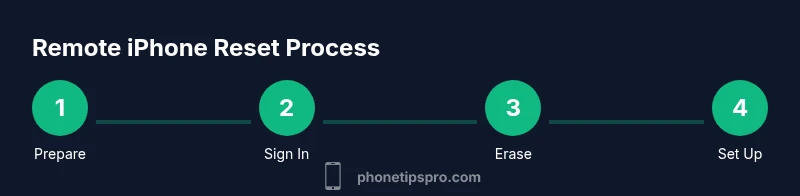
Confirm you are authorized to reset the device and that you know the Apple ID and password. Ensure the device has internet access so it can communicate with Find My iPhone services. If two-factor verification prompts appear, have a trusted device handy to complete the sign-in.
Tip: Have your Apple ID password ready and be prepared for a verification code sent to a trusted device. - 2
Open Find My iPhone on a trusted device
Using a web browser on another device, go to icloud.com/find (or open the Find My app on another iPhone/iPad). Sign in with the Apple ID associated with the iPhone you want to reset. This step is crucial because it authorizes the remote erase without needing the current passcode.
Tip: Only sign in on trusted devices to avoid credential phishing. - 3
Select the target iPhone and erase
From the device list, choose the iPhone you want to reset and select Erase iPhone. Confirm the action; the device will erase itself the next time it connects to the internet. This permanently deletes all data on the device.
Tip: If Activation Lock is enabled, you’ll need the Apple ID credentials to reactivate after the reset. - 4
Wait for the erase to complete and verify
Allow time for the erase to propagate when the device reconnects online. Once complete, the iPhone will restart as a new device. You can set it up as new or restore from a backup if available.
Tip: If the device never connects, the erase cannot complete; ensure it has internet connectivity. - 5
Set up the iPhone post-reset
Follow Setup Assistant to configure the iPhone. Sign in with your Apple ID to restore from a backup if you have one, and re-enable Find My iPhone for future recoveries.
Tip: Immediately re-enable Find My iPhone after setup to simplify any future resets or lost-device scenarios.
FAQ
Can I reset an iPhone without a passcode and without a computer?
Yes, you can erase remotely using Find My iPhone on another device via iCloud. You still need access to the Apple ID and the device must be online.
Yes. You can erase the iPhone remotely using Find My iPhone from another device, as long as you know the Apple ID and the device is online.
What happens to data after a remote erase?
All content on the iPhone is deleted. You can recover only if you have a backup stored in iCloud or elsewhere.
All data is erased; you can only recover it if you have a backup available.
What if the iPhone is offline when I try to erase it?
The erase will occur the next time the iPhone comes online. Until then, the device remains in its current state.
If the device is offline, the erase will wait until it connects to the internet.
Will Activation Lock cause problems after reset?
If you sign in with the Apple ID after reset, Activation Lock may reappear when setting up again. You’ll need those credentials.
After reset, Activation Lock can come back during setup if you sign in with the original Apple ID.
Is it legal to reset someone else’s iPhone?
Only reset devices you own or have explicit permission to manage. Resetting without authorization is illegal in many jurisdictions.
Only reset devices you own or have explicit permission to manage.
Watch Video
Quick Summary
- Remote erase via Find My iPhone can reset without a passcode or computer
- You must have internet access and Find My iPhone enabled beforehand
- A reset wipes data; backups determine data recovery options
- If Find My iPhone isn’t available, contact Apple Support for alternatives
- Always re-enable Find My iPhone after setup to simplify future recoveries