How to Tell If Your iPhone Is Unlocked
Learn how to tell if iPhone is unlocked with practical checks in Settings, SIM testing, and carrier verification. This Phone Tips Pro guide covers clear methods, edge cases, and tips to verify unlock status confidently.


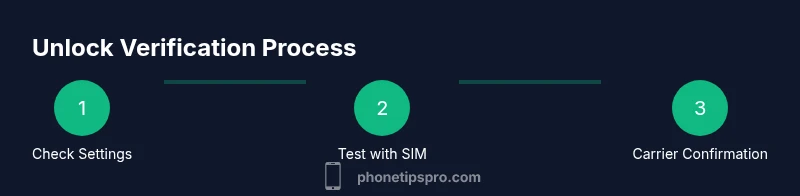
By the end of this guide, you’ll know how to tell if your iPhone is unlocked. Start with a quick Settings check for Carrier Lock, then test with a SIM from another carrier, and finally confirm with your carrier. You’ll need a compatible second SIM and access to Settings to complete the checks.
Understanding the unlocked state on iPhone
Knowing how to tell if iphone is unlocked is essential for travelers, buyers, and daily users. An unlocked iPhone is not tied to one carrier and should accept SIM cards from other networks. According to Phone Tips Pro, the most reliable approach combines a quick Settings check with a real SIM test and, when needed, a direct confirmation from the carrier. Since indicators vary by iOS version and by model (physical SIM, eSIM, or dual-SIM), you should look for explicit carrier-lock notes in Settings and, if uncertain, test a different SIM to confirm access to the network. In short, this is how to tell if iphone is unlocked: verify the carrier lock status in Settings, then try a second carrier’s SIM to see if service and data work as expected.
How to tell if iphone is unlocked in Settings
When you want a quick, low-friction check, start with Settings. On many iPhones, you’ll find a Carrier Lock or similar entry under Settings → General → About. If the screen shows "No SIM restrictions" or "Unlocked," that’s a strong signal the device isn’t bound to a single operator. Remember that some iOS versions and devices (especially those with eSIM or dual-SIM) don’t spell out unlock status in the same way. If you can’t find a clear lock status, proceed to a SIM test to be sure. This heading emphasizes the keyword so readers can quickly navigate to the exact Settings path for verification.
Testing with a different SIM: practical steps and outcomes
Testing with a different SIM is the most practical way to confirm unlock status. Power off, remove the current SIM, insert a SIM card from another carrier, and power the device back on. If you can make calls, use data, and see signal bars with the new SIM, your iPhone is likely unlocked. If you receive messages like "SIM Not Supported" or you see no cellular service, the phone may be carrier-locked or the new SIM may be incompatible. Always ensure the second SIM is active and compatible with the iPhone’s SIM tray (nano-SIM) or eSIM setup. This step is crucial because it directly demonstrates whether the device accepts another network.
Carrier checks and official unlock verification
If Settings and the SIM test don’t clear things up, contact your carrier’s support line or visit their official unlock verification page. Share your iPhone’s model, IMEI (Settings → General → About), and your account details. Carriers often have online tools or call centers to confirm unlock eligibility and provide a timeline. In some cases, you may need to fulfill contract terms, service obligations, or a waiting period before the lock is removed. This section highlights the importance of official verification for long-term reliability.
Edge cases: eSIM, dual-SIM, and recent iPhone models
Newer iPhone models frequently use eSIM or dual-SIM setups, which can complicate unlock verification. In dual-SIM configurations, one SIM might be locked while the other is not, or both may be unlocked but require separate carrier confirmations. For eSIM, ensure you know how to switch active profiles and test with a second carrier’s profile if available. These edge cases are where many buyers stumble, so take extra care to test both SIMs and confirm that both profiles can function on the desired network.
What to do if your iPhone remains locked after verification
If all checks indicate the device is still locked, return to the carrier for a formal unlock request. Gather the device’s IMEI, model, carrier account status, and any unlock reference numbers you received. If the carrier denies the unlock, request a written explanation and the steps needed to meet unlock criteria. In rare cases, there may be an eligibility issue tied to outstanding balances or device eligibility windows. Keep records of all communications for future reference.
Tips for buyers and sellers: spotting unlocked devices before you buy
When shopping for a used iPhone, ask for the IMEI, request a carrier unlock status update, and insist on testing with a second SIM if possible. Check that the device shows no carrier lock in Settings and perform a live SIM test in-store or via video call. Document the results with photos or a short video. This proactive approach helps prevent post-purchase disappointments and ensures you’re getting what you paid for.
Signs and quick indicators that it's likely unlocked
Here are rapid cues that an iPhone is unlocked: a clear "No SIM restrictions" message in Settings, successful network connection with a second carrier’s SIM, ability to place calls and use data on the test SIM, and a carrier-confirmed unlock status from the service provider. Always cross-check with both device settings and carrier documentation to avoid false positives. These signals, when combined, reduce the risk of buying a locked device.
Practical checklist you can follow today
- Check Settings → General → About for Carrier Lock status.
- If present, read the exact lock status (Unlocked/No SIM restrictions).
- Test with a second carrier SIM and verify calls/data work.
- Contact your carrier for final confirmation if the SIM test is inconclusive.
- Keep a written record of unlock status and carrier confirmation for resale or travel.
Tools & Materials
- Second SIM card from a different carrier(Ensure the SIM is active and compatible with iPhone (nanoSIM) or supports the device’s eSIM setup.)
- SIM ejector tool or paperclip(To safely access the SIM tray.)
- iPhone with latest iOS update(Updated software helps standardize unlock indicators.)
- IMEI number (Settings > General > About)(Needed for carrier unlock requests or verification.)
- Carrier account details (optional)(Helpful for speeding up official unlock requests.)
Steps
Estimated time: Estimated total time: 25-40 minutes
- 1
Check Settings for carrier lock
Open Settings, go to General, then About. Look for Carrier Lock or a similar entry to see the device’s status. If you see "No SIM restrictions" or "Unlocked," you have a strong indicator the iPhone is not tied to a single carrier.
Tip: If you don’t see a clear lock status, proceed to test with a second SIM to confirm. - 2
Prepare the test SIM
Power off the iPhone, remove the current SIM, and prepare a SIM from a different carrier. Ensure the test SIM is active and compatible with the device’s SIM type (physical nano-SIM or eSIM).
Tip: Handle the SIM tray gently to avoid damage. - 3
Insert the test SIM and test service
Insert the second SIM and power the iPhone back on. Observe signal bars, try a call, and load a webpage or app that uses mobile data.
Tip: If you can’t connect or see an error, note the exact message for troubleshooting. - 4
Confirm with carrier unlock status
If the test SIM works, the device is likely unlocked. If it fails, contact the original carrier and provide your IMEI and device details for official confirmation.
Tip: Use the carrier’s official unlock tool or customer support for authoritative status. - 5
Double-check with additional checks
If possible, repeat the SIM swap with another carrier or re-check Settings to corroborate results. This reduces false positives/negatives.
Tip: Consistency across multiple tests strengthens confidence. - 6
Document results
Take photos or a short video of the test in action and save any carrier confirmations. This helps with resale or travel planning.
Tip: Store the documentation in a known location for quick access later.
FAQ
What does 'Carrier Lock' mean on iPhone?
Carrier Lock indicates the phone is restricted to a specific carrier. If unlocked, the device should work with SIMs from other networks. Testing with a different carrier’s SIM is the most reliable confirmation.
Carrier Lock shows whether the phone is tied to a single operator; testing with another SIM confirms unlock status.
How can I tell if my iPhone is unlocked without a second SIM?
You can look for the Carrier Lock status in Settings → General → About, but absence of a lock indicator doesn’t guarantee unlocked. Use a SIM test if possible.
Without a second SIM, rely on Settings; if unsure, get carrier confirmation.
Can an iPhone be unlocked after purchase?
Yes, many iPhones can be unlocked by the carrier after meeting terms. Contact the carrier for eligibility, processing times, and any required steps.
Yes, you can request unlock from the carrier and follow their steps.
What about prepaid or eSIM devices?
Unlock rules apply to both physical SIMs and eSIMs. Verify unlock status for each active profile and confirm with the carrier if needed.
Unlocked applies to all SIM types; check both eSIM and physical SIM settings.
What if unlock is denied?
Ask the carrier for the reason and required steps. If eligible, request escalation or alternative options.
If denied, get a clear reason and the next steps from the carrier.
Watch Video
Quick Summary
- Check Settings for carrier lock first
- Test with a second SIM to confirm unlock status
- Carrier unlock times vary by operator
- Document results for resale or travel