How to Update an iPhone: A Complete 2026 Guide
Learn how to update an iPhone safely with a step-by-step process, backups, and troubleshooting tips for 2026. Phone Tips Pro explains compatibility, best practices, and post-update checks for a smooth upgrade.


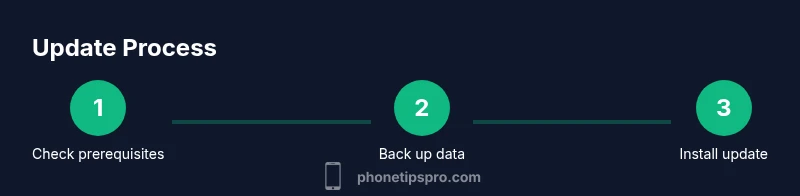
In this guide you’ll learn how to update an iPhone safely and efficiently. You’ll verify compatibility, back up data, and install the update using Settings or a computer, with guidance on choosing between major and minor iOS releases. We’ll cover automatic vs. manual updates, Wi‑Fi versus cellular downloads, and post‑update checks to ensure your device runs smoothly. Follow these steps to minimize data loss and maximize performance.
Why Keeping Your iPhone Updated Matters
Phone Tips Pro emphasizes that regular iOS updates patch security flaws, fix bugs, and improve performance. Updates also add new features and ensure compatibility with apps and services you rely on. Skipping updates can leave devices exposed to vulnerabilities and slower over time. In this guide we explore practical reasons to stay current and how updates impact everyday use, battery life, and reliability. Understanding the benefits helps you stay motivated to complete updates promptly and safely, especially when you rely on your iPhone for work, photos, and communication.
Prerequisites: Check Compatibility and Free Space
Before you update, confirm your model supports the latest iOS version and review any release notes from Apple. Check that you have sufficient free storage space for the download and installation. Ensure you’re connected to a reliable power source or have a charged battery, and use a stable network—Wi‑Fi is highly recommended for large downloads. If you’re unsure about compatibility, consult Apple’s official support pages or Phone Tips Pro’s troubleshooting notes for model-specific guidance.
Back Up Your Data Before Updating
Backing up protects your photos, messages, app data, and settings in case something goes wrong during the update. You can back up to iCloud or to a computer (Finder on macOS or iTunes on Windows). With iCloud Backup, enable iCloud Backup in Settings and perform an immediate backup, then verify the backup completed. If you prefer a local backup, connect your iPhone to a computer and create a fresh backup before proceeding.
Update Options: Major vs Minor Updates
iOS updates come in two broad flavors: minor security and bug fixes, and major feature upgrades. Minor updates are typically faster and more frequent, focusing on stability and security. Major updates introduce new features and interface changes, which may slightly alter workflows. In general, apply the latest minor update promptly, and plan for major upgrades when you have time to review new features and test settings. Phone Tips Pro recommends prioritizing security fixes and compatibility patches regardless of update size.
Manual Update via Settings: Step-by-Step Overview
The Settings path is the most common route: Settings > General > Software Update. If an update is available, tap Download and Install, enter your passcode, and accept terms. The device will download, verify, and install the update, which may restart several times. After completion, revisit key settings (Privacy, Notifications, and App Permissions) to ensure everything aligns with your preferences. This approach works for most users and requires no cables or computers.
Update Using a Computer (Finder or iTunes)
If you prefer updating via a computer, connect your iPhone, open Finder (macOS Catalina or later) or iTunes (Windows or older macOS), select the device, and check for an update. If available, click Download and Update. This method can be useful for large updates or when you want to create a local backup beforehand. Follow the on-screen prompts and avoid disconnecting the device during the process for a smooth install.
Automatic Updates and Scheduling Best Practices
Enabling automatic updates can help you stay current without manual checks. Go to Settings > General > Software Update > Automatic Updates and toggle on Download iOS Updates and Install iOS Updates. This is especially helpful for background downloads during off-peak hours. If you manage multiple devices, consider a maintenance window to review new features and adjust preferences after updating.
Post-Update Checks and Troubleshooting
After the update finishes, verify the iOS version to confirm successful installation (Settings > General > About). Check that essential apps open correctly and that settings reflect your preferences. If you encounter issues, try a reboot, check for additional after-update patches, or revert to a backup if problems persist. Consult official Apple support or Phone Tips Pro for guidance on persistent errors.
Tools & Materials
- iPhone (any model with supported iOS version)(Verify compatibility with the latest iOS before updating)
- Charging cable (Lightning or USB-C)(Keep the device plugged in during larger updates)
- Stable internet connection (Wi‑Fi preferred)(Avoid metered cellular connections to prevent data charges)
- Backup destination (iCloud or computer backup)(Back up before updating to protect data)
- Sufficient device storage space(Free up space by removing unused apps or large files if needed)
Steps
Estimated time: 30-60 minutes
- 1
Check prerequisites and plan
Review the latest iOS version and your device model for compatibility, confirm you have a backup, and ensure you have a reliable power source and network. Planning avoids mid‑update pauses and minimizes risk.
Tip: Start with a backup and ensure the device is plugged in before you begin. - 2
Back up your iPhone
Choose iCloud or a computer backup. Run a complete backup so your data is recoverable if something goes wrong during the update. Confirm the backup completed successfully.
Tip: If using iCloud, perform an immediate backup and verify the timestamp. - 3
Connect to power and a stable network
Plug the iPhone into power and connect to a stable Wi‑Fi network to avoid interruptions. Avoid updates over a weak or metered cellular connection to prevent data issues.
Tip: Prefer a 5 GHz Wi‑Fi network for faster download speeds. - 4
Open Settings and start the update
Navigate to Settings > General > Software Update. If an update is available, tap Download and Install, enter your passcode, and follow prompts. Do not disconnect during installation.
Tip: If asked, select Install Now to start immediately. - 5
Wait for download and installation
The update will download, verify, and install. This may take several minutes to an hour depending on the update size and network speed. The device may restart multiple times.
Tip: Keep the device plugged in and do not interrupt the process. - 6
Verify the update and sign back in
After installation, confirm the iOS version in Settings > General > About. Re-enter passwords if prompted and review key settings to ensure they reflect your preferences.
Tip: Check Privacy and App Permissions to confirm access is as expected. - 7
If update fails, try an alternate method
If the update doesn’t install, retry with a computer via Finder/iTunes or troubleshoot network/storage issues. Consider restoring from a backup if problems persist and contact support if needed.
Tip: Free up space and retry with a wired connection if possible.
FAQ
Can I update a low-storage iPhone?
Update downloads require free space. If storage is tight, free up space first by offloading photos or apps, then try the update again. Backups ensure you won’t lose data if you need to restore.
It's possible, but you may need to free space before updating. Try backing up and removing unneeded files first.
Is there a difference between updating via Settings vs Finder/iTunes?
Both methods install the same iOS version; updating via Settings is simpler and recommended for most users, while Finder/iTunes provides a computer-based path and can be useful for managing backups and troubleshooting.
Both paths install the same version; choose the easier method unless you need a computer backup.
Will updates erase data?
Official iOS updates should not erase personal data. However, backups give you a safety net in case something goes wrong during installation.
No, updates don’t typically erase data, but keep a backup just in case.
What should I do if the update gets stuck?
If the update stalls, wait a bit, check connectivity and storage, then retry. If it still fails, try updating via Finder/iTunes or contact Apple Support for guidance.
If the update is stuck, check your connection and space, then try again or use a computer for the update.
Should older devices delay updates?
Security patches and feature improvements still apply, but you should monitor performance. If an update slows your device, consider waiting a minor release or resetting preferences after backing up.
In general, don’t delay security updates, but test major features to ensure performance on older devices.
Watch Video
Quick Summary
- Back up before updating
- Update over Wi‑Fi when possible
- Plug in or stay charged during the process
- Verify post-update settings and health
- If issues arise, try a computer-based update or restore from backup