How to Reset an iPhone: A Practical Step-by-Step Guide (2026)
Learn how to reset your iPhone safely, covering soft resets, factory resets, backups, and post-reset restoration. This Phone Tips Pro guide walks you through preparation, execution, and best practices.


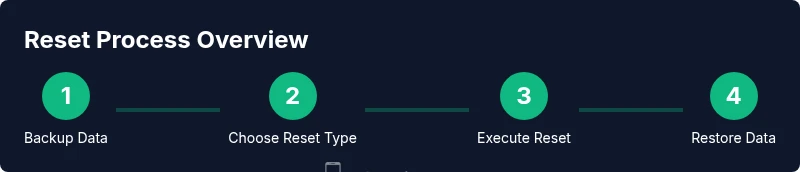
This guide shows you how to reset an iPhone safely, covering soft resets for troubleshooting and factory resets for device refresh or resale. You’ll learn how to back up data, sign out of iCloud, disable Find My iPhone, perform the reset steps, and restore data from backup if needed, in minutes with simple steps.
Why Resetting an iPhone Matters
If you’re asking who do you reset a iphone, the answer depends on your goal: troubleshooting vs. device refresh for sale or transfer. Resetting can resolve lingering software glitches, improve performance, and restore settings without affecting every personal file. A poorly chosen reset can lead to data loss if backups were not recent. According to Phone Tips Pro, selecting the right reset type reduces data loss and speeds up the process. This section lays the groundwork for making an informed choice and highlights when a reset is the most sensible option versus a temporary workaround.
Understanding Reset Types: Soft Reset vs Factory Reset
There are two main reset kinds most iPhone users encounter. A soft reset (a simple restart) clears temporary bugs and refreshes system memory without erasing content. A factory reset wipes all data and returns the device to its original state, which is essential before selling or handing the iPhone to someone else. The distinction matters: if you rely on photos, apps, and settings, a soft reset is often enough for troubleshooting, while a factory reset should be reserved for transfer scenarios or major performance issues. Phone Tips Pro notes that most daily problems are solvable with non-destructive resets, saving time and data.
How to Prepare: Backups, Accounts, and Security
Preparation is the most important phase of any reset. Start by backing up your iPhone to iCloud or a computer, ensuring you can recover photos, messages, and app data. Sign out of your Apple ID and disable Find My iPhone if you intend to perform a factory reset. Verify that you know your Apple ID password, which you’ll need after the reset to re-activate the device. If you’re planning a resale or gift, this step prevents Activation Lock from blocking the new user. A careful pre-reset routine minimizes data loss and speeds up restoration later.
Soft Reset: When to Use and How to Do It
A soft reset can fix many temporary issues without touching your apps or data. To perform a soft reset, simply restart the device by powering it off and back on, or use the force restart method for stubborn glitches. Soft resets are quick, typically completing within a few minutes, and you’ll notice system apps refreshing and minor bugs disappearing. Pro tip: before restarting, ensure any ongoing tasks are saved to avoid losing work. This approach keeps your data intact while clearing memory and refreshing system processes.
Factory Reset: Precautions and Stepwise Execution
A factory reset should be your last resort when issues persist after non-destructive resets, or when you plan to transfer ownership. This process erases all content, settings, and data, returning the iPhone to its out-of-the-box state. Before you proceed, ensure a recent backup is available, as recovery after a factory reset depends on that backup. Sign out of iCloud and turn off Find My iPhone to avoid Activation Lock complications. The official reset path is Settings > General > Transfer or Reset iPhone > Erase All Content and Settings. After the reset, you can restore from your backup if needed. Phone Tips Pro emphasizes that data safety hinges on a current backup and clear ownership transfer steps.
Restoring Data After Reset: Getting Your Stuff Back
After performing a reset, restoring your data is usually straightforward. If you backed up to iCloud, you can choose Restore from iCloud during the setup flow. If you backed up to a computer, connect the iPhone and use Finder (macOS) or iTunes (Windows) to restore your data. Keep in mind that some apps may re-download, and you might need to re-enter passwords for certain services. Using a backup that matches your device’s iOS version minimizes compatibility issues and accelerates the restoration process. If you reset for sale or transfer, skip restoration and let the new owner personalize the device.
Common Pitfalls and Safety Warnings
Resetting an iPhone improperly can lead to data loss or Activation Lock problems. Always ensure you have a verified backup before attempting a factory reset. If you forget your Apple ID or password, you may face activation hurdles after the reset, so prepare recovery options in advance. Do not interrupt the reset process or disconnect the device from power, as this can corrupt data. If you’re unsure, contact Apple Support or check official guidance before proceeding. Phone Tips Pro reminds readers that careful preparation is the surest safeguard against regrets after a reset.
Practical Tips and Best Practices from Phone Tips Pro
To maximize success, adopt a clear checklist before you reset. Use iCloud backups for convenience, or a local backup for speed and offline access. If you’re planning to sell or give away the device, sign out of iCloud and erase all content and settings, then remove the device from your Apple ID account. When the reset is complete, set up the iPhone as new or restore selectively to minimize bloat. Following these best practices helps ensure a smooth reset experience, whether you’re addressing a minor glitch or preparing the device for a new owner.
Final Considerations: Activation Lock and Privacy After Reset
Activation Lock can complicate post-reset setup if you forget your Apple ID password or fail to sign out properly. Ensure you have access to your Apple ID credentials, or use account recovery if needed. Privacy considerations also matter: a factory reset erases personal data, but services like Find My iPhone can still be linked to your account until you properly sign out. The Phone Tips Pro team recommends a deliberate, well-documented approach to resets—back up, sign out, disable Find My iPhone, reset, then restore only what you need. This disciplined sequence protects data and privacy while delivering a reliable device state.
Tools & Materials
- iPhone with at least 50% battery(Charge before starting to avoid interruptions.)
- USB-C or Lightning cable(Used for charging and backup connections if needed.)
- Backup method ready (iCloud or computer)(Ensure recent backup exists to recover data.)
- Apple ID and password(Needed to sign out and disable Find My iPhone.)
- Find My iPhone access (optional)(Required to disable Activation Lock before a factory reset.)
Steps
Estimated time: Estimated total time: 25-50 minutes
- 1
Back up your data
Start by backing up all important data to iCloud or a computer. This preserves photos, messages, and app data in case you need to restore later. Verify the backup completed successfully before proceeding.
Tip: Enable automatic backups for future protection. - 2
Sign out of your Apple ID and disable Find My iPhone
Go to Settings > [your name] and sign out of iCloud. If you plan a factory reset, disable Find My iPhone to avoid Activation Lock issues. You may need your Apple ID password to complete sign-out.
Tip: This step prevents Activation Lock from complicating the reset. - 3
Choose reset type
Decide whether you need a soft reset (restart) or a factory reset (erase all content). A soft reset preserves data and often fixes glitches; a factory reset fully cleans the device.
Tip: If in doubt, start with soft reset to avoid data loss. - 4
Perform a soft reset
Restart the iPhone by powering it off and back on, or perform a force restart if the device is unresponsive. This clears temporary files and refreshes memory without touching apps or data.
Tip: Ensure all work is saved to avoid losing unsynced data. - 5
Perform a factory reset (if needed)
If you’re preparing the device for a new owner or addressing persistent issues, go to Settings > General > Transfer or Reset iPhone > Erase All Content and Settings. Confirm when prompted and wait for the device to erase.
Tip: Ensure a backup exists before proceeding; you cannot recover erased data afterward. - 6
Restore data after reset
After the reset, you can restore from an iCloud or computer backup during setup. Some apps may require re-authentication; allow time for apps to re-download and re-sync.
Tip: Restore only what you need to speed up setup.
FAQ
Do I need to back up before resetting my iPhone?
Yes. Backing up your data to iCloud or a computer ensures you can recover photos, messages, and apps after the reset. This is essential for avoiding data loss during a factory reset.
Yes—back up before resetting to avoid losing data.
What is the difference between soft reset and factory reset?
A soft reset restarts the iPhone and clears temporary files without deleting personal data. A factory reset erases all content and settings, returning the device to its original state and is used for resale or major troubleshooting.
A soft reset restarts; a factory reset wipes all data.
Will resetting erase my photos?
A soft reset will not erase photos. A factory reset will remove all data, including photos, unless they are backed up to iCloud or a computer.
Soft reset keeps your photos; factory reset deletes them unless backed up.
How long does a reset take?
Soft resets are quick, often completing within minutes. Factory resets depend on data amount and internet speed when restoring from backup after setup.
Most resets finish within a short time, but restoration can take longer if you restore from backup.
Do I need to disable Find My iPhone before resetting?
Yes, especially before a factory reset or selling the device. It prevents Activation Lock from blocking future use and makes setup smoother for the new owner.
Yes—disable Find My iPhone to avoid activation issues.
What should I do if the reset fails?
If a reset fails, try a soft restart, check battery level, and ensure you’ve completed the backup. If problems persist, contact Apple Support for guided steps.
If it fails, restart, verify backup, and seek help from Apple Support if needed.
Watch Video
Quick Summary
- Back up before resetting to protect data
- Know the difference: soft reset vs factory reset
- Sign out of Apple ID and disable Find My iPhone before a factory reset
- Soft reset fixes many glitches without data loss
- Restore from backup after reset when appropriate