How to Fix iPhone Can't Connect: Quick Troubleshooting
Urgent guide to diagnose and fix iPhone connectivity problems across Wi‑Fi, cellular, and Bluetooth. Learn a proven troubleshooting flow, practical steps, safety tips, and when to seek professional help to restore reliable connections in 2026.


Most likely, an iPhone can no longer connect due to a minor software glitch or a misconfigured network setting. Quick fixes: toggle Airplane Mode on, restart your iPhone, then rejoin Wi‑Fi or cellular data. If the problem persists, reset network settings or contact Apple Support for deeper diagnostics. Brand guidance from Phone Tips Pro: stay methodical and avoid radical changes.
What 'iphone can no longer connect' usually means
According to Phone Tips Pro, when an iPhone can no longer connect, the root cause is often software glitches or misconfigured network settings. This situation may affect Wi-Fi, cellular data, Bluetooth, or even Find My network services. The problem often arises after a recent iOS update, after installing a new app, or when traveling and switching networks. Before diving into deep troubleshooting, take a breath and remember: most fixes are quick and reversible.
Common scenarios include: Wi-Fi won't connect in a cafe, you can't make cellular data work in a low-signal area, Bluetooth won't pair with headphones, or AirDrop fails between devices. In many cases, the problem is temporary and resolves after a simple reset or reconfiguration. The key is to isolate which service is impacted and then apply targeted steps.
Quick checks you can do without tools
Start with the simplest steps that yield fast results. First, toggle Airplane Mode on for about 10 seconds and then turn it off to reset all wireless radios. This often clears minor glitches that block connections. This step is especially effective after travel or a noticeable drop in signal.
Next, restart your iPhone. A fresh boot clears stuck processes that can prevent network services from starting properly. If you have a dual-SIM setup, consider removing and re-inserting a physical SIM or re-enabling eSIM as part of this reboot.
If the issue is Wi-Fi related, try forgetting the network and reconnecting: Settings > Wi‑Fi > [your network] > Forget This Network, then reconnect by entering the password again. For cellular issues, ensure you have service by toggling cellular data off and on, or switch to a different network (5G/4G) if available. For Bluetooth problems, toggle Bluetooth off and back on and try pairing again.
Note: If you use VPNs or custom DNS settings, disable them temporarily to see if they are causing conflicts. After performing each step, test the connection to see if it’s restored. These checks are safe and usually effective and do not require specialized tools.
Common culprits: software, settings, SIM, and accounts
Most connectivity problems stem from software glitches, misconfigured settings, or issues with SIM/eSIM and carrier services. Software: an out-of-date iOS or a bug introduced by a recent app update can disrupt network access. Settings: incorrect APN, VPN, or DNS configurations, or a restricted network based on parental controls can block connections. SIM/eSIM: a damaged SIM, misinserted SIM tray, or carrier outage can prevent cellular data from working. Accounts: an Apple ID or iCloud lock, or a device managed by an organization, can block certain network features if there are security restrictions. If Bluetooth is involved, there could be interference from nearby devices or crowded airwaves.
Additionally, verify that Find My iPhone is configured correctly, as certain security features can influence device networking in managed environments.
Diagnostic flow you can follow (high level)
- Symptom catalog: Do you have Wi‑Fi, cellular data, or Bluetooth issue? Each shares common root causes.
- Diagnosis quick checks: After verifying basics, check for iOS version, carrier settings update, and hardware indicators such as antenna status and SIM card integrity.
- Solutions mapping: If a software issue, update the OS. If a network config issue, reset network settings. If hardware, escalate to a professional.
This flow helps you stay organized and shows when a deeper intervention is needed.
Step-by-step fixes for the most common cause
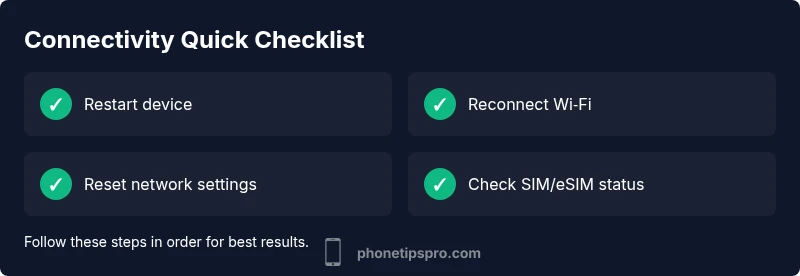
- Soft reset and radios refresh: Press and hold the side button with a volume button until the power off slider appears. Slide to power off, then turn the device back on after 30 seconds. This clears transient glitches.
- Reconnect wifi: Forget the network, then reconnect with the password. If it still fails, try a different network (guest network) to determine if the issue is network-specific.
- Reset network settings: Go to Settings > General > Transfer or Reset iPhone > Reset > Reset Network Settings. This resets Wi-Fi, Bluetooth, and cellular settings to default. Note that you may need to reconfigure VPNs and passwords afterward.
- Update iOS and carrier settings: Settings > General > Software Update. Install any available updates, then check Settings > General > About for carrier settings updates.
- Check SIM/eSIM: If you use a physical SIM, reseat it. For eSIM, ensure the plan is active and re-download if necessary.
- Last resort: Restore your iPhone via iTunes/Finder or "Erase All Content and Settings" after a full backup. This resolves deep software corruption but requires reinstalling apps and data.
Tip: Always back up before major steps. If you’re unsure, proceed stepwise rather than performing a full restore immediately.
Steps
Estimated time: 20-45 minutes
- 1
Restart and refresh radios
Power off your iPhone, wait 30 seconds, then power back on. Immediately toggle Airplane Mode on for a few seconds, then off again to refresh all radios.
Tip: This soft reset often resolves transient connectivity glitches. - 2
Reconnect Wi‑Fi and test cellular
For Wi‑Fi, forget the network and reconnect with the password. If cellular data fails, try toggling cellular data off and on, or switch to a different cellular mode if available.
Tip: If other devices connect fine on the same network, the issue is likely with your iPhone rather than the network. - 3
Reset network settings
Go to Settings > General > Transfer or Reset iPhone > Reset > Reset Network Settings. This resets Wi‑Fi, Bluetooth, and cellular settings to defaults.
Tip: You’ll need to re-enter Wi‑Fi passwords and reconfigure VPNs afterward. - 4
Update iOS and carrier settings
Check for iOS updates (Settings > General > Software Update) and install. Then check for carrier updates under Settings > General > About.
Tip: Updates can fix bugs that cause connectivity issues and improve stability. - 5
Check SIM/eSIM status
If you use a physical SIM, reseat it. For eSIM, ensure the plan is active and re-download if necessary.
Tip: A misread SIM can mimic a network outage; replacing the SIM may be required. - 6
Last resort: full restore
If everything else fails, back up your data and restore the iPhone using iTunes/Finder or Erase All Content and Settings.
Tip: A restore is time-consuming and will reinstall apps; use as a final option.
Diagnosis: iPhone won't connect to Wi-Fi, cellular data, or Bluetooth
Possible Causes
- highSoftware glitch or outdated iOS
- mediumNetwork settings corrupted
- lowSIM card issue or carrier service outage
- lowHardware radio issue
Fixes
- easySoft reset and radio refresh (Airplane Mode on/off + restart)
- easyForget and rejoin Wi‑Fi network or toggle cellular data off/on
- easyReset network settings
- easyUpdate iOS and carrier settings
- mediumCheck SIM/eSIM status; reseat if physical SIM present
- mediumIf issues persist, contact Apple Support
FAQ
What is the first step I should take when my iPhone can't connect?
Start with a quick reset: toggle Airplane Mode, restart your iPhone, and try reconnecting. If that doesn’t help, continue with the next steps in this guide.
Try toggling Airplane Mode, then restart your iPhone and reconnect to the network.
Can software updates fix connectivity issues?
Yes, keeping iOS up to date often resolves bugs that disrupt connectivity. Install any available updates and check for carrier updates as well.
Yes, updating iOS often fixes connectivity bugs.
Will resetting network settings delete my data?
Resetting network settings does not erase your apps or personal data; it resets Wi‑Fi passwords, Bluetooth devices, and cellular settings.
No, it won't delete apps or data; you’ll need to re-enter passwords afterward.
What should I do if my SIM card seems to be the issue?
Test with another SIM or contact your carrier for a replacement. Reseat the SIM if you’re comfortable handling it.
Try a different SIM or contact your carrier; reseat the SIM if needed.
Is hardware damage possible if nothing fixes it?
Yes, antenna or radio hardware damage can cause persistent connectivity problems and requires professional service.
Hardware problems require a professional diagnosis.
When is a factory reset appropriate?
Only after other fixes fail and you have a complete backup, since a factory reset erases apps and data.
A factory reset is a last resort after backing up.
Watch Video
Quick Summary
- Identify which service is affected (Wi‑Fi, cellular, Bluetooth).
- Start with quick resets before deeper fixes.
- Reset network settings only after other steps fail.
- Check SIM/eSIM status and carrier service if cellular is involved.
- Seek professional help for hardware issues.