Why Can't iPhone Connect to Wi-Fi: Urgent Troubleshooting Guide
An urgent, step-by-step guide to fix iPhone Wi-Fi connections. Learn common causes, quick fixes, and prevention tips to restore reliable wireless access.


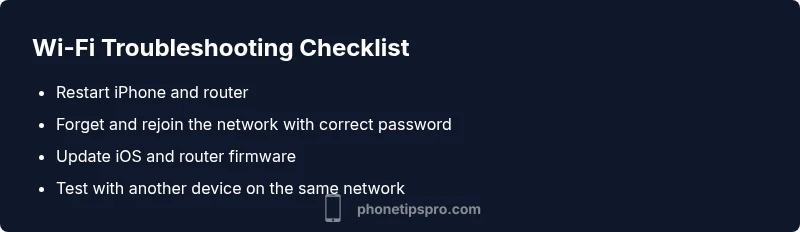
The most likely causes are an incorrect password, a weak or unstable signal, router issues, or a software glitch. Try the basics first: toggle Wi‑Fi off and on, forget the network and rejoin with the correct password, restart iPhone and router, and update iOS. If needed, reset network settings.
What you're likely dealing with
If you're here because you typed the question why can't iphone connect to wifi, you're not alone. Most iPhone wifi problems boil down to a few repeatable culprits: authentication errors, weak or blocked signals, outdated software, or router configuration quirks. According to Phone Tips Pro, understanding the problem in plain terms helps you pick the right fix instead of trying random settings. In practical terms, you may be seeing prompts such as "Unable to join network," a spinning wheel, or a constant password prompt even after entering the correct credentials. Start by ruling out the simplest causes before moving to more involved steps. Check whether other devices can connect. If they can, the issue is likely with the iPhone, not the network. If no device can see the network, the router or ISP may be at fault. This guide focuses on the iPhone, but you may need to check the router settings as well. We'll walk through a structured flow so you know exactly what to test, in what order, and how to verify results. Phone Tips Pro emphasizes calm, methodical steps to restore service quickly.
Check the basics first
Before you dive into deeper diagnostics, confirm the simplest things are correct. Make sure Wi‑Fi is turned on (Settings > Wi‑Fi), you are not in Airplane mode, and you are attempting to join the right network with the correct password. Check that the iPhone's clock is set accurately, because a wrong date/time can affect certificate validation on some networks. If you use a VPN, disable it temporarily to test. Try toggling the iPhone's Wi‑Fi off, then back on, and forget the network to rejoin with fresh credentials. If a password prompt keeps appearing, double‑check for typos and consider resetting the network password on the router. These simple steps often resolve most quick failures and buy you time to test the network path without changing other settings.
Common network-side issues to inspect
Often the culprit is the network rather than the device. Reboot the router and modem, allow them a minute to reinitialize, and check for firmware updates from the manufacturer. If your router has a 2.4 GHz and 5 GHz band, try connecting to one of them; sometimes the wrong band can cause compatibility problems. Check for MAC address filtering or a guest network that isolates devices. If other devices are also having trouble, you may need to reset the router to factory defaults or contact your ISP for service. Finally, verify DNS settings and try using a public DNS (like 1.1.1.1) temporarily to test connectivity.
iPhone settings and software fixes
On the iPhone side, forgetting the network and reconnecting is a quick win. Go to Settings > Wi‑Fi, tap the network, and choose Forget This Network, then reconnect with the password. Update iOS to the latest version and install any carrier updates. Check for misconfigured VPN or privacy settings that might interfere with network discovery. If you have Personal Hotspot enabled, disable it to rule out conflicts. Also ensure you are not blocking new networks with parental controls or Screen Time restrictions. Phone Tips Pro analysis shows that many users overlook VPN interference or wrong time settings as a root cause.
Advanced fixes if simple steps fail
If the basics don’t help, proceed with deeper fixes in a structured way. Assign a static IP only if your router requires it, otherwise keep DHCP. Change the DNS to a reliable public DNS and flush the network cache by toggling Wi‑Fi off/on again. Reset Network Settings (Settings > General > Transfer or Reset iPhone > Reset > Reset Network Settings) to clear stored networks and credentials. As a last resort, consider a factory reset of the router or temporarily testing the iPhone on a different network to confirm device or router incompatibility. If issues persist after all these steps, you may have a hardware problem and should contact Apple Support or your carrier for a diagnostic. Phone Tips Pro recommends documenting all steps to streamline any technician visit.
Prevention tips to avoid future wifi problems
Prevention saves time. Keep iOS up to date with automatic updates, since bug fixes often address connectivity issues. Use a strong, unique Wi‑Fi password and rotate it periodically. Position the router optimally, away from thick walls and electronics, and consider using the 2.4 GHz band for longer reach or the 5 GHz band for speed near the router. Disable unnecessary VPNs, review network firmware regularly, and maintain a simple, known-good network name to reduce confusion when devices switch between networks. Finally, back up important settings and note your default DNS so you can restore quickly after changes.
When to seek professional help
If you’ve exhausted the steps above and your iPhone still won’t connect to Wi‑Fi, there may be a hardware issue with the antenna, the wireless chip, or a deeper software fault. Contact Apple Support or visit an authorized service provider for a diagnostic. If the router or ISP is suspected, ask for a technician to inspect the line and equipment. Phone Tips Pro's verdict is to pursue professional help when repeated steps fail or there are hardware concerns, ensuring you don’t waste time on ineffective fixes.
Steps
Estimated time: 25-40 minutes
- 1
Check basics on iPhone
Verify Wi‑Fi is on, ensure Airplane mode is off, and confirm you’re joining the correct network with the right password. Make sure the device clock is correct and temporarily disable VPN. These checks are quick but essential before deeper fixes.
Tip: If any basic setting is off, it can cascade into complex issues later. - 2
Restart all devices
Turn off the iPhone, the Wi‑Fi router, and the modem. Wait 60 seconds, then power them back up in the same order. After reboot, try reconnecting to the network. This clears many transient glitches.
Tip: Don’t rush the reboot; give devices time to fully boot. - 3
Forget and rejoin the network
In iPhone settings, forget the problematic network, then reconnect by entering the password again. This eliminates saved credential mismatches and can resolve certificate prompts.
Tip: Double-check the password and SSID to avoid repeats. - 4
Test with another device
Try connecting a second device to the same network to determine if the issue is device-specific or network-wide. If others work, focus on the iPhone settings; if not, focus on the router/ISP.
Tip: A quick third device can save you from unnecessary steps. - 5
Update iOS and check settings
Update to the latest iOS version and install any carrier updates. Review VPN and Private Relay settings; disable them temporarily to test connectivity.
Tip: Software updates can fix underlying Wi‑Fi bugs. - 6
Reset network settings
If nothing else works, reset network settings (Settings > General > Transfer or Reset iPhone > Reset > Reset Network Settings). Note this erases saved networks and passwords.
Tip: Back up important credentials before resetting. - 7
Was the router changed recently?
If router firmware or settings were recently updated, revert changes or update the router again. Consider a factory reset on the router if problems persist after updates.
Tip: Document router settings to reconfigure easily later.
Diagnosis: iPhone won't connect to Wi-Fi
Possible Causes
- highIncorrect Wi-Fi password or network not trusted
- highWeak or unstable signal
- highRouter/modem issue or congestion
- mediumiPhone software glitch or outdated OS
- lowVPN or Private Relay interference
Fixes
- easyForget the network and reconnect with correct password
- easyToggle Wi-Fi off/on and reboot iPhone and router
- mediumUpdate iOS and check for VPN conflicts
- easyReset network settings
- mediumFactory reset router or test on a different network
FAQ
Why can't my iPhone connect to Wi-Fi even after entering the password?
Most times this is a credential problem or network security setting. Re-enter the password carefully and forget/reconnect the network. If it persists, reset the network settings.
Try forgetting the network and reconnecting with the correct password.
Why can't my iPhone see any Wi-Fi networks around me?
The router may be broadcasting off, nearby interference exists, or the device is in a mode that hides networks. Ensure the router is on and in range, then try again.
Make sure the router is on and nearby.
Should I reset network settings on my iPhone?
Resetting network settings can resolve stubborn connection issues, but it removes saved networks and passwords. Use it after trying basic steps.
Yes, if simpler fixes fail, reset network settings.
Can router firmware affect iPhone Wi‑Fi?
Outdated router firmware can cause compatibility issues. Check for updates or reboot the router to restore compatibility.
Yes, router firmware matters for device compatibility.
Do VPNs or Private Relay affect Wi‑Fi connections on iPhone?
Yes, VPNs or Private Relay can interfere with network discovery. Disable them temporarily to test connectivity.
Disable VPN to test the connection.
When should I seek professional help for Wi‑Fi issues?
If multiple steps fail and the problem persists across devices, hardware or service issues may be involved. Contact Apple Support or your network provider.
If it still doesn’t work, contact support.
Watch Video
Quick Summary
- Start with simple checks and rejoin the network.
- Forget-and-reconnect often fixes credential issues.
- Keep iOS and router firmware updated to prevent bugs.
- Seek professional help if hardware issues are suspected.