How to Handle iphone lost: Locate, Lock, and Protect
Learn to locate, lock, and protect your data when your iPhone is lost. This comprehensive guide covers Find My, Lost Mode, carrier steps, and preventive practices to keep your information safe in 2026.


By following this guide, you’ll learn how to handle an iphone lost device: locate or secure it with Find My, lock the screen, and protect data with a remote erase if needed. You’ll also coordinate with your carrier and Apple ID access. Have another device ready and verify Find My is enabled before you start.
What qualifies as iphone lost and why it matters
When we talk about iphone lost, we aren’t just worried about a missing device. The real risk is the data and access it could expose if the phone falls into the wrong hands. A lost iPhone may still be trackable if Find My is enabled, and you can take steps to protect your information even before the device is recovered. According to Phone Tips Pro, the first moments after realizing a device is missing determine how much risk you face and how quickly you can regain control. This guide walks you through practical steps to locate, lock, and secure an iPhone that’s out of sight. You’ll learn how to use Find My to see the device’s last known location, put the device into Lost Mode, and initiate a remote erase if the data is at serious risk. The goal is to reduce exposure, preserve your evidence if needed for a report, and give you clear options for recovery. By understanding the protections built into iOS and with careful execution, you can turn a stressful moment into a controlled response.
Phone Tips Pro’s analysis emphasizes that proactive measures and clear procedures minimize data exposure during an iphone lost incident. This section sets the stage for practical steps you can take immediately and in the days after loss. Remember: your Apple ID and device settings are your first line of defense, so review them now and then practice what you’ve learned in a test scenario to stay prepared.
Immediate actions you should take within the first minutes
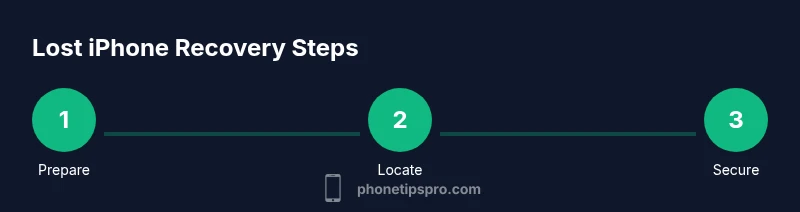
The moment you suspect your iPhone is lost, begin a fast race to protect data, alert your trusted contacts, and prepare for a possible recovery. First, sign in to your Apple ID on a secure device and confirm Find My is enabled on the missing device. Then, open Find My (on iPhone, iPad, or iCloud.com) and attempt to locate the device. If the location is visible, use the map to guide your next steps and share the location with a trusted contact. Activate Lost Mode to lock the device, set a custom message with a contact number, and keep a watchful eye on location updates. If no location is found, still activate Lost Mode to lock the screen and prevent further access. Finally, consider notifying your mobile carrier to place a temporary block on the device and suspend service to prevent misuse. These actions help constrain risk while you work toward recovery.
How Find My iPhone helps locate or secure
Find My iPhone is the heart of a rapid response when a device is lost. You can locate the device on a map, play a sound to help you locate it if it’s nearby, enable Lost Mode to lock the screen and display a message, and remotely erase if the data is at imminent risk. If the device is offline, you can still receive a notification when it comes back online. Activation Lock remains active, which prevents others from reactivating the device without your Apple ID credentials. The combination of location data, a locked device, and optional erase provides a protective triangle: you may recover the device, deter misuse, or minimize data exposure while acting through the appropriate channels.
Data protection: Locking, Lost Mode, and Erase
Interacting with data protection tools is essential once a device is lost. Locking the screen via Lost Mode prevents access to apps and data, while displaying a contact message can aid in return. If you believe the data is at risk, you can initiate a remote erase to wipe personal information, photos, and accounts. However, erasing removes Activation Lock bypass and the ability to locate the device later, so this option should be considered carefully and preferably after discussing with authorities or your carrier. Always ensure Activation Lock remains enabled, and maintain awareness of your Apple ID security. These features together help preserve privacy even in difficult circumstances, aligning with best practices that Phone Tips Pro recommends for 2026.
If Find My is not set up or offline
If Find My isn’t set up on the iPhone before loss or if the device is offline, your options become more limited. You can still take steps to protect your data by changing your Apple ID password and reviewing trusted devices. Contact your carrier to place a temporary hold on the line and to report potential loss or theft, which can help block fraudulent access. In some cases, you can still receive a last known location via network activity, but this depends on the phone’s last contact and connectivity. The key is to act quickly and leverage any available signals to minimize risk and simplify recovery when the device reappears.
What to do if the device is stolen
If law enforcement or a carrier report indicates the device has been stolen, provide the serial number and IMEI/MEID when possible. Keep records of all actions you’ve taken, including notifications to Apple and your carrier. Report the loss to your carrier to suspend service and prevent fraudulent use. For insurance purposes or if the device is covered by a policy, retain receipts and relevant documentation. In parallel, review your Apple ID security by enabling two-factor authentication and updating credentials. A stolen device is a serious event, but a well-documented response improves your chances of accountability and quick recovery of any data that remains accessible.
Preventive measures for the future
Prevention is the best cure. Ensure Find My iPhone is always enabled and that Activation Lock is on. Regularly review your Apple ID account security settings, enable two-factor authentication, and keep your contact information up to date. Maintain a trusted backup plan using iCloud or iTunes so you can restore data if you ever need to erase and replace a lost device. Consider enrolling in security features like screen time passcodes and device notifications for suspicious activity. Practicing these steps reduces risk and speeds up recovery if the unlikely event of iphone lost occurs again.
Troubleshooting common issues
Even with a plan, you may encounter hiccups. If you can’t sign in to Find My, verify your internet connection and confirm you’re using the correct Apple ID. If the device doesn’t appear on the map, check that it’s online, the battery isn’t dead, and that location services are enabled. If you’ve initiated a remote erase but the device doesn’t erase, contact Apple Support or your carrier for guidance. Keep in mind activation lock can complicate reactivation if the device changes hands; ensure you have your proof of ownership and relevant account details handy when seeking support.
Tools & Materials
- Apple ID login credentials(Needed to access Find My and manage security settings)
- Find My iPhone enabled(Ensure Find My iPhone is turned on before loss)
- A device with internet access(Use another iPhone, iPad, or computer to sign in to iCloud/Find My)
- Carrier account access(Helpful to place a temporary block or report loss to the carrier)
- Charged power source(Keeps devices awake to receive location updates or notifications)
- Proof of ownership(Helpful when reporting to authorities or carrier)
Steps
Estimated time: 30-45 minutes
- 1
Verify access and prepare accounts
Sign in to your Apple ID on a secure device and confirm Find My is enabled on the missing iPhone. Review security settings and ensure you know your password. This initial check helps ensure you can act quickly when needed.
Tip: If you can’t access your Apple ID, recover it through the official Apple ID account recovery flow. - 2
Open Find My and locate the device
Use Find My on another device or sign in to iCloud.com to view the device’s last known location. If the device is nearby, you can trigger a sound to help you locate it without revealing your location to others.
Tip: Choose 'Notify When Found' to alert you when the device comes online. - 3
Lock the device with Lost Mode
Enable Lost Mode to lock the screen, display a contact message, and suspend most functions. You can also display a message with a callback number and any recovery instructions.
Tip: Keep your message concise and avoid sharing sensitive information in the alert. - 4
Decide on a remote erase if necessary
If you believe the data is at serious risk, initiate a remote erase. Be aware this makes it impossible to locate the device afterward, but it protects your information.
Tip: Only erase after confirming you cannot recover the device and after consulting authorities or your carrier if needed. - 5
Notify carrier and authorities
Contact your mobile carrier to suspend service and prevent unauthorized use. If you suspect theft, file a police report and provide the device’s IMEI/MEID if available.
Tip: Keep a log of all actions and timelines for reference and insurance claims. - 6
Review security and back up plans
After the incident, review your Apple ID security settings, enable two-factor authentication, and ensure you have a recent backup in iCloud or iTunes.
Tip: Establish a backup routine to minimize data loss in future incidents.
FAQ
What should I do first if my iPhone is lost?
First, sign in to Find My and verify that the feature is enabled on the lost device. Use Lost Mode to lock the device and display a contact message. If the device is nearby, trigger a sound to help locate it.
Start with Find My to lock the device and notify trusted contacts; trigger a sound if it's nearby.
Can I locate a lost iPhone if Find My wasn’t enabled?
If Find My wasn’t enabled, location tracking is limited. Contact your carrier to suspend service and report the loss, and consider changing your Apple ID credentials to protect your data.
Without Find My, you’ll need carrier help and possible credential changes to protect data.
What happens if the iPhone is turned off?
If the device is offline, you won’t receive real-time location updates. You can still enable Lost Mode and wait for a connection to update location.
No live location until the device comes online, but Lost Mode still applies.
Will erasing data prevent recovery?
Erasing remote data stops access and removes information, but also removes the ability to locate the device. Use this only when data risk outweighs the chance of recovery.
Erase stops location tracking but protects your data.
What precautions should I take after recovery or loss?
Change your Apple ID password, enable two-factor authentication, review trusted devices, and back up regularly to minimize future risk.
Update security settings and back up your data after the incident.
What if the device is stolen and not recovered?
Report the loss to law enforcement, block service with your carrier, and keep records. If possible, use the data you can still access to re-secure your accounts.
Report theft, block service, and secure accounts.
Watch Video
Quick Summary
- Act quickly to minimize risk.
- Use Find My to locate or secure the device.
- Lock and monitor the device before erasing.
- Notify carrier and authorities as needed to prevent abuse.