iPhone Not Working on Wi‑Fi or Data: Troubleshooting
Struggling with iPhone connectivity? This urgent troubleshooting guide walks you through fast checks, fixes, and best practices to restore Wi‑Fi and data reliably.


Most iPhone connectivity issues come from weak signals, misconfigured settings, or a recent update. Start with quick fixes: toggle Wi‑Fi and cellular data off/on, restart the iPhone, and reset network settings if needed. If problems persist, check for iOS or carrier updates and contact support. Keep this section handy for fast results and avoid lengthy delays.
Common Causes Behind iPhone Connectivity Failures
In many cases, iphone not working on wifi or data describes a problem that starts with simple causes like weak signals, misconfigured settings, or a recent update. Start by checking the basics, such as whether Wi‑Fi is on, cellular data is enabled, and your iPhone is within range of a network. If you notice a toggling pattern or a specific network leads to success, you’ll troubleshoot more effectively. Phone Tips Pro finds that addressing these core issues resolves most sessions quickly.
Check Your Network Settings First
Begin with the obvious: ensure Airplane Mode is off and that both Wi‑Fi and cellular data are enabled in Settings. For Wi‑Fi, run a quick reset by forgetting the current network and rejoining with the correct password. For cellular data, make sure Cellular Data is on and that Data Roaming is set appropriately for your region. Conflicts from VPNs or carrier profiles can also block access—disable them temporarily to test connectivity.
If Wi‑Fi Isn’t Working
If you can see networks but can’t connect, try moving closer to the router, restarting the router, and confirming your router’s firmware is up to date. Forget the network on the iPhone, reboot, and re‑connect. If other devices connect fine but your iPhone doesn’t, you may have MAC address filtering or a recent network change that requires a fresh login or password.
If Cellular Data Isn’t Working
When data won’t load, first check the status bar: is there a signal? If you’ve recently swapped SIMs or enabled eSIM, verify the carrier settings are correct by going to Settings > General > About. Toggle Airplane Mode briefly to re‑register with the network, then try loading a page again. If data still fails, check for a carrier outage in your area.
Resetting Network Settings and Other Fixes
If all else fails, reset your network settings (Settings > General > Transfer or Reset iPhone > Reset > Reset Network Settings). This clears saved networks and passwords, so reconnect afterward. Before taking this step, back up your data. If your problem persists, consider updating iOS and carrier settings, or contacting Apple Support or your carrier for a deeper inspection.
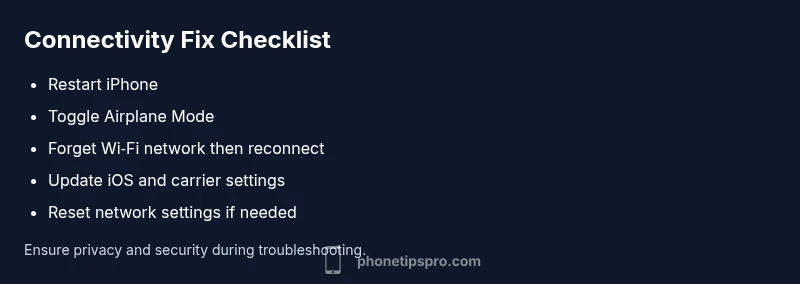
Steps
Estimated time: 25-40 minutes
- 1
Restart iPhone
Perform a complete restart to refresh network services. After the device boots, test both Wi‑Fi and cellular data connections.
Tip: A simple restart fixes many transient issues. - 2
Toggle Airplane Mode
Turn on Airplane Mode for about 15 seconds, then turn it off to re‑register with the network.
Tip: This forces the phone to renegotiate a connection. - 3
Reset Wi‑Fi Settings
Go to Settings > Wi‑Fi, forget the current network, then reconnect with the password. If multiple networks fail, this helps.
Tip: Only forget networks you recognize. - 4
Update Software and Carrier Settings
Check Settings > General > Software Update and Settings > General > About for carrier update prompts.
Tip: Carrier updates can fix network registration issues. - 5
Reset Network Settings
If nothing else works, reset Network Settings (this removes saved networks and passwords). Back up first.
Tip: You’ll need to rejoin networks afterward.
Diagnosis: iPhone won't connect to Wi-Fi or data
Possible Causes
- highWeak signal or router issue
- mediumIncorrect carrier or network settings
- lowVPN/profile conflicts or software bug
- lowHardware fault (antenna/SIM)
Fixes
- easyToggle Airplane Mode on, then off to re‑register on network
- easyToggle Wi‑Fi off/on and forget/rejoin network
- easyReset Network Settings and reconfigure networks
- easyUpdate iOS and carrier settings
- easyContact carrier or Apple Support if unresolved
FAQ
Why won’t my iPhone connect to Wi‑Fi even with the correct password?
Common causes include router issues, MAC address filtering, or a stale network cache on the iPhone. Try forgetting the network and reconnecting after a restart.
Try forgetting the network and reconnecting after a restart.
What’s the quickest fix for no cellular data?
Toggle Airplane Mode on/off, restart the iPhone, and confirm carrier settings are current. If it persists, check for a service outage.
Toggle Airplane Mode, restart, and check for outages.
How do I reset network settings on iPhone?
Go to Settings > General > Transfer or Reset iPhone > Reset > Reset Network Settings. You’ll lose saved networks.
Settings > General > Reset > Reset Network Settings.
Can VPNs cause connectivity problems on iPhone?
Yes, some VPNs or profiles can block normal network access. Temporarily disable VPNs to test connectivity.
Temporarily disable VPNs to test connectivity.
When should I contact support?
If you’ve tried updates, resets, and carrier checks without success, contact Apple Support or your carrier for a hardware check.
If issues persist after updates and resets, contact support.
Watch Video
Quick Summary
- Start with simple toggles and a restart
- Check for iOS/carrier updates
- Reset network settings if needed
- Verify SIM/eSIM and carrier status
- If unresolved, seek official support