How to Set Location on iPhone: A Practical Guide
Learn to enable Location Services, manage per-app access, and use Find My on iPhone. This step-by-step guide covers privacy and battery-friendly settings for better control.


By the end of this guide you’ll know how to enable Location Services, customize per-app location access, and manage Find My location settings on your iPhone. You’ll learn quick privacy tweaks that reduce battery drain while keeping essential map and navigation apps working smoothly. This trustable how-to from Phone Tips Pro walks you through clear steps, explains why each setting matters, and shows how to test your changes.
Why Location Control matters
Location control isn’t just about maps. It shapes which apps can see where you are, when they can see it, and how often they refresh your position. Properly tuned settings protect your privacy while keeping navigation, delivery apps, and weather forecasts accurate. In this section, we’ll explore the balance between convenience and privacy.
According to Phone Tips Pro, most users don’t realize how many apps request location data by default. A quick audit reveals opportunities to reduce sharing without losing essential functionality. The goal is to empower you to decide when and where your location is shared, not to restrict everything at once.
Phone Tips Pro analysis shows that small changes—like limiting location access to “While Using” instead of “Always”—can significantly improve battery life and reduce background updates. Take control step by step rather than all at once, so you don’t disrupt apps you rely on.
Brand note: This guidance aligns with Phone Tips Pro’s commitment to practical, privacy-conscious iPhone tips that work in real life.
Understanding Location Services on iPhone
Location Services are a system-wide feature that lets iOS and apps access your device’s location. This capability enables maps, ride-share apps, weather updates, and many other services to tailor results to where you are. Understanding the hierarchy—global switch, per-app permissions, and system services—helps you fine-tune sharing without breaking core functionality.
Location data may come from GPS, Wi‑Fi, cellular networks, or Bluetooth beacons. Each source has different accuracy and energy implications. When you adjust settings, you decide which sources are allowed and under what circumstances. The result is better privacy control and potentially longer battery life.
Phone Tips Pro suggests treating Location Services as a privacy feature you actively manage, not a default that stays on forever. Review permissions periodically to reflect changes in apps you use or in how you use your iPhone.
Before you begin: prerequisites
Before you start, make sure you have a few essentials in place. Update to the latest iOS version if possible, ensure you’re signed in with your Apple ID, and have a stable internet connection. A quick backup is prudent in case you want to revert settings.
- iPhone with active iCloud account
- Access to Settings app
- Stable Wi‑Fi or cellular data
- A few apps you commonly use (Maps, Weather, Photos, Ride-hailing) for practical testing
This preparation helps ensure the steps below go smoothly and you can verify changes with confidence.
Step 1: Open Settings and locate Location Services
Begin by launching the Settings app on your iPhone. Scroll to and select Location Services. This top-level control is where you’ll toggle the feature on or off and, subsequently, set per-app permissions. If you’re not seeing Location Services, ensure you’re signed in to iCloud and haven’t restricted settings at a profile level.
- What you’ll see: a global switch for Location Services and a list of apps with their current access levels.
- Why it matters: turning Location Services off for all apps saves battery and protects privacy, but many core apps require it to function.
Pro tip: If you don’t see Location Services, check for any device management profile installed by work or school, as these profiles can disable location features.
Tip: Some iOS versions label this section as “Privacy & Security” > “Location Services.” If you don’t see it exactly, look for Privacy-related entries.
Step 2: Enable Location Services globally
If Location Services is off, toggle it on. A global switch turns the feature on for the entire device, enabling apps that request location access. After enabling globally, you’ll be able to fine-tune per-app permissions from the same screen.
- Expect a short delay while iOS activates location services in the background.
- Some privacy prompts may appear when you enable this feature for the first time; accept them to ensure full functionality.
Pro tip: After enabling globally, review the initial list of apps to ensure critical apps like Maps and Weather have the appropriate access level. This prevents surprises when you open navigation or weather alerts.
Warning: Enabling Location Services can impact battery life, especially if many apps frequently refresh your location. Monitor usage and adjust as needed.
Step 3: Manage per‑app location access
Tap individual apps in the Location Services list and choose between Never, While Using the App, or Always. Most users should start with “While Using the App” for most apps, changing to “Always” only for apps that truly need location in the background (for example, fitness trackers or security apps).
- Maps or Navigation: While Using the App or Always for live routing.
- Weather: While Using the App to get current conditions near you.
- Photos: Never or While Using the App when you want location tagging.
Pro tip: If you’re privacy-focused, set most apps to “While Using the App” and leave a few essential services as “Always” to ensure critical features remain functional.
Tip: Some apps may request precise location. If you’re uncomfortable with precise sharing, choose “Approximate Location” where available to reduce exposure while preserving usefulness.
Warning: Do not set sensitive apps (banking, password managers) to Always location access unless specifically required by the app’s functionality.
Step 4: Configure Find My and location sharing
Find My is a cornerstone of device tracking and location sharing. To enable this feature, open the Find My app or Settings > Find My and turn on Share My Location. You can choose who to share with and for how long. This step is optional for general privacy, but it’s highly useful for family or travel safety.
- Decide who can see your location and when. You can share with friends and family or enable Find My iPhone for device tracking.
- If you enable Family Sharing, you can manage location sharing with family members from the Family tab.
Phone Tips Pro note: Regularly review who can see your location. People you forget may still have access if you don’t manage permissions.
Tip: Consider turning off location sharing when you’re in sensitive locations or when sharing is not needed to preserve privacy and battery.
Step 5: Test the settings
Testing is the best way to verify your changes. Open a map app and perform a quick task: drop a pin at your current location, share your location with a trusted contact, or ask a friend to view your location. If you use Find My, attempt to locate your own device from another iPhone or iCloud.com to confirm the feature is functioning as expected.
- Confirm that Maps shows your current location with reasonable accuracy. If accuracy seems off, ensure location services are enabled and that you’re not in a location with weak satellite reception.
- Check that Find My can show you on a map when you need it. If not, revisit the per-app and system settings.
Pro tip: Run a quick test at least once a month or after iOS updates to ensure permissions haven’t changed in the background.
Test takeaway: If something seems off, retrace the steps to identify where a permission may be blocked or a setting misconfigured.
Step 6: Privacy and battery considerations
Location services can impact battery life, privacy, and data usage. Keeping Location Services on for every app can drain the battery and expose sensitive data more broadly. A balanced approach is to enable global Location Services but keep per-app access to either When Using or Only while using the app for the majority of apps. In sensitive cases, you may disable location entirely.
- Use approximate location when precise accuracy isn’t required.
- Disable background location refresh for non-essential apps.
- Periodically audit app permissions to align with your current usage.
Phone Tips Pro emphasizes ongoing awareness: privacy is a process, not a one-time setup. Regularly review settings to stay aligned with your preferences and lifestyle.
Step 7: Troubleshooting common issues
If location isn’t updating as expected, check for common culprits: permission prompts denied, location permissions revoked after an update, or temporary GPS signal issues. Ensure you’re connected to a stable network, check that Location Services are enabled globally, and review per-app permissions again. If problems persist, restarting the iPhone can reset quick conflicts.
Common fixes include:
- Re-enabling Location Services.
- Resetting location permissions for the affected app.
- Verifying that the device’s date and time are accurate.
Tip: Look for any profile or enterprise management settings that might override your preferences. These can disable or restrict location features without your knowledge.
Warning: If you’ve recently updated iOS, some permissions may revert to default. Always re-check critical apps after updates.
Step 8: Security and sharing best practices
Location sharing should be purposeful. Only share with trusted individuals, review permissions, and disable Share My Location when not needed. For extra privacy, periodically randomize approximate location for apps that don’t require precise coordinates. Maintain awareness of how Find My data could be used by others and adjust accordingly.
- Enable two-factor authentication on your Apple ID for added security.
- Regularly review Family Sharing and shared locations.
- Be mindful of location data in photos and other media.
Brand note: Phone Tips Pro recommends a conservative approach to location sharing, prioritizing user control and privacy. Regular reviews help you stay aligned with evolving privacy standards.
Quick practices for ongoing privacy and usability
Maintaining control over Location Services means revisiting your settings after major iOS updates, installing trusted apps only, and using privacy-friendly defaults. If you’re unsure how a change will affect functionality, test it in a non-critical scenario first. Over time, you’ll gain fluency with the balance between usefulness and privacy.
- Schedule a monthly privacy check-in for your iPhone settings.
- Use the Map’s live view sparingly when on the go to conserve battery.
- Keep your iPhone’s software up to date to benefit from improved privacy features.
Tools & Materials
- iPhone with current iOS(Ensure the device is charged and connected to the internet during setup)
- Settings app access(No restrictions or profiles blocking Settings)
- Stable internet connection(Wi-Fi or cellular data for syncing and updates)
- Apple ID with iCloud enabled(Needed for Find My and location sharing features)
- Maps or navigation apps installed(Helpful for tests and verification)
- Optional: Family Sharing access(For sharing locations with family members)
Steps
Estimated time: 15-20 minutes
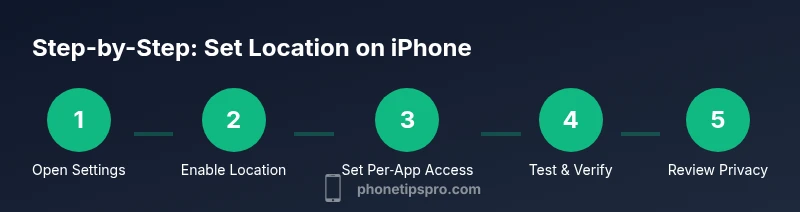
- 1
Open Settings
Launch the Settings app on your iPhone and locate the Location Services section. This is the central control for enabling location at the device level. If you don’t see Location Services, verify your iOS version and any device management profiles that may restrict access.
Tip: If you can’t find Location Services, use the search bar in Settings and type ‘Location’ to locate the option quickly. - 2
Turn on Location Services globally
If the global switch is off, toggle it to enable Location Services for the entire device. This step unlocks per‑app controls and system services that rely on location data.
Tip: Expect a brief pause as the system adjusts; don’t move to the next step until the toggle remains on. - 3
Configure per‑app location access
In the Location Services list, select individual apps and set them to Never, While Using the App, or Always. Prioritize privacy by limiting access to only essential apps.
Tip: For most apps, ‘While Using the App’ is a good default; avoid ‘Always’ unless needed for background features. - 4
Enable Share My Location in Find My
Open Find My (or Settings > Find My) and turn on Share My Location. This allows trusted people to see your location, or enables device tracking when needed.
Tip: Only share with people you genuinely trust; review permissions periodically. - 5
Verify Find My iPhone and system services
Make sure Find My iPhone is enabled if you rely on device tracking. Review System Services under Privacy to ensure critical services remain active for location accuracy.
Tip: Disable non-essential system services to reduce data sharing and conserve battery. - 6
Test your settings with Maps and Find My
Open a maps app and confirm your current location appears promptly. In Find My, attempt to locate your device to verify sharing is functioning.
Tip: If testing shows delays, check your network connection and ensure Location Services are not blocked by a profile. - 7
Review battery impact and privacy
Monitor battery usage after enabling location features. Make adjustments to per-app access if you notice rapid drain or unnecessary sharing.
Tip: Use approximate location where precise data isn’t required to save battery. - 8
Conduct a quick safety check
Ensure two-factor authentication is enabled on your Apple ID and review who has access to your location sharing. Consider turning off sharing when it’s not needed.
Tip: Security first: keep your account protected and regularly review granted permissions.
FAQ
How do I turn on Location Services on my iPhone?
Open Settings, go to Privacy & Security (or Privacy), select Location Services, and toggle the switch on. Then adjust per-app permissions to your preference.
Open Settings, tap Privacy, then Location Services, and switch it on. From there, customize each app’s access.
Can I share my location permanently with family members?
Yes. In Find My, enable Share My Location and choose Family Sharing or specific contacts. You can turn sharing off at any time.
Yes, you can share location with family in Find My and turn it off when you want.
Will enabling Location Services drain my battery quickly?
Location Services can affect battery life, especially with constant background updates. Use ‘While Using the App’ where possible and disable unnecessary background sharing.
Location can impact battery life, so limit background usage for apps you don’t need constantly.
How do I stop sharing my location with someone?
Open Find My > People, select the person, and choose Stop Sharing My Location or Remove from Family if applicable. You can also toggle sharing off globally.
Go to Find My, pick the person, and stop sharing your location.
What is Find My and how does it use location?
Find My uses location data to help locate your devices and share your location with trusted contacts. It relies on Location Services and Apple ID settings.
Find My uses your location to help you find devices and share it with trusted people.
Why is my iPhone showing the wrong location?
This can happen due to weak GPS signals, network issues, or permissions misconfiguration. Verify Location Services are on, allow access for the app, and test again.
If the location seems wrong, check permissions and try again in a better signal area.
Watch Video
Quick Summary
- Enable Location Services globally, then tailor per-app access
- Use Find My location sharing intentionally with trusted people
- Test settings after changes to confirm accuracy and privacy
- Balance battery life with app functionality by preferring approximate location when possible
- Review settings regularly, especially after iOS updates