Why can't iPhone text Android: A practical troubleshooting guide
Learn fast fixes for when an iPhone can't text Android users. This guide covers iMessage activation, Send as SMS settings, network checks, and step-by-step solutions to restore cross-platform texting.


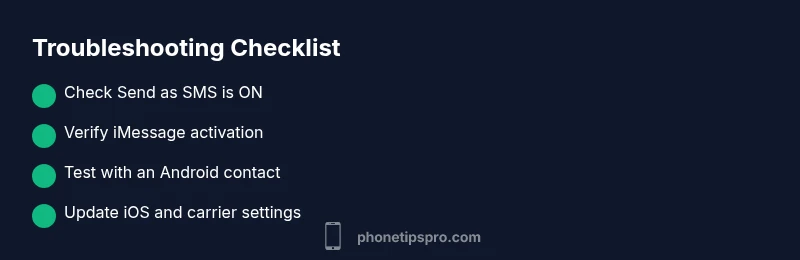
1) Check Send as SMS: Settings > Messages > Send as SMS ON. 2) Verify cellular data is active and you have a plan. 3) Turn iMessage OFF, wait a moment, then ON again. 4) Test by texting an Android contact; if it still fails, move to deeper troubleshooting.
Why can''t iPhone text Android? Understanding the gap between iMessage and SMS
When people ask why can''t iPhone text Android, the root cause is usually the split between iMessage and standard SMS/MMS. iPhone users predominantly rely on iMessage when texting other iPhones, but when the recipient is on Android, messages should fall back to SMS/MMS. If the system incorrectly handles this handoff, or if the Send as SMS option is disabled, messages may stall or stay blue for too long. This is frustrating, especially if you depend on timely conversations with friends and family using Android devices. In this guide, we focus on practical steps you can take right now to restore cross-platform texting, while keeping the process simple, fast, and repeatable. The goal is to fix the problem quickly and prevent it from returning, so you can keep chatting without interruption.
Quick checks you can perform now
Before diving into advanced troubleshooting, run a quick sanity check of your iPhone settings and connection. Ensure you have an active cellular plan and data connection, as MMS requires data. Confirm Send as SMS is enabled so iMessages to Android phones automatically fallback to SMS when needed. Check that the recipient''s number is correct and that you aren''t attempting to message the wrong contact. Finally, verify there are no carrier outages in your area by visiting your carrier''s status page or using a service like Downdetector. These basic checks solve the majority of cases and buy you time to perform deeper steps if needed.
iMessage vs SMS: what''s happening under the hood
iMessage is Apple''s messaging protocol, designed for iPhone-to-iPhone communication. When you text an Android user, iMessage should gracefully switch to SMS/MMS, but only if this handoff is enabled and network conditions permit. If iMessage activation fails, or if the device tries to send iMessages to non-Apple devices without fallback, you''ll see delays, failure notices, or persistent blue bubbles. Understanding this behavior helps you identify whether the problem lies with iMessage settings, network conditions, or contact information. It also clarifies why some fixes revolve around enabling SMS fallback rather than solely focusing on iMessage.
Keep in mind: MMS (picture/video messages) has its own requirements—proper cellular data and a supported plan are essential. If you''re sending rich media to an Android device and MMS is disabled or misconfigured, media messages may fail to deliver even when plain text succeeds.
Common culprits and fixes you should try first
Here are the most frequent reasons why an iPhone can’t text Android and how to address them quickly:
- iMessage activation or misrouting: Ensure iMessage is properly activated (Settings > Messages > iMessage) and that the phone number is correctly associated with your Apple ID. If activation is stuck, sign out of your Apple ID and sign back in.
- Send as SMS is off: If this toggle is off, iPhones will refrain from fallback SMS, causing Android recipients to miss messages. Turn Send as SMS ON in Settings > Messages.
- Data and network issues: SMS/MMS require cellular data for MMS; verify you have data coverage and that Airplane Mode isn''t enabled. Restarting your router or toggling Bluetooth/Wi-Fi badges has little impact on SMS, but carrier data issues can.
- Contact/address problems: Double-check the recipient''s number, country code, or saved contact details. A mismatched or outdated contact can cause delivery failures even if everything else is correct.
- Carrier restrictions or outages: Some carriers have settings that temporarily block cross-network messaging; check with your carrier for service alerts or temporary blocks.
If these common causes don''t resolve the issue, proceed to the diagnostic flow to pinpoint the exact fault and map it to concrete fixes.
Diagnostic flow: symptom-to-diagnosis mapping
The diagnostic flow helps you connect a symptom to a likely cause and a corresponding fix. Start with the simplest checks and progressively move to targeted adjustments.
- Symptom: “iPhone can''t text Android” or “text messages fail to deliver to Android.”
- Potential causes: iMessage misrouting/activation, Send as SMS off, data issues, incorrect contact, carrier problems.
- Actions to take: verify settings, test with known Android contact, review carrier status, and if needed, perform a reset of network settings.
This structured approach reduces guesswork and accelerates resolution. If you''re using dual SIM or eSIM, ensure the correct line is active for texting. Your goal is to validate all conditions that enable SMS fallback and reliable network delivery.
Step-by-step: Detailed fix for the most common cause (enable SMS fallback and reset iMessage)
- Verify and enable Send as SMS: Open Settings > Messages, ensure Send as SMS is ON. This ensures iPhone uses SMS automatically when the recipient isn''t reachable via iMessage.
- Check iMessage activation: Go to Settings > Messages > iMessage. If iMessage isn''t active, sign in with your Apple ID, wait for activation, then retry sending to an Android contact.
- Toggle iMessage off and back on: In Settings > Messages, turn iMessage OFF, wait 10–20 seconds, then turn it back ON. This often clears a misrouting error that blocks SMS fallback.
- Confirm cellular data works: Verify Settings > Cellular > Cellular Data is ON, and test with a small data-intensive task (like loading a photo) to confirm data connectivity.
- Test with a known Android contact: Send a text to a number verified as Android-capable. If delivery succeeds, you''re done. If not, proceed to the next steps.
- Update iOS and carrier settings: Check for iOS updates in Settings > General > Software Update, and install any available carrier updates (in Settings > General > About).
- Reset network settings if necessary: Settings > General > Transfer or Reset iPhone > Reset > Reset Network Settings. Note that this will erase saved Wi-Fi passwords—reconnect afterward.
- When to seek professional help: If SMS still fails after these steps, contact Apple Support or your carrier for deeper diagnostics.
Estimated total time: about 25–40 minutes.
tip1NeededOnlyIfRequired}:null
tip2NeededOnlyIfRequired}:null
tip3NeededOnlyIfRequired}:null
tip4NeededOnlyIfRequired}:null
tip5NeededOnlyIfRequired}:null
tip6NeededOnlyIfRequired}:null
tip7NeededOnlyIfRequired}:null
tip8NeededOnlyIfRequired}:null
Steps
Estimated time: 25-40 minutes
- 1
Verify Send as SMS is enabled
Open Settings > Messages and confirm the Send as SMS toggle is ON. This ensures the iPhone will automatically fall back to SMS when iMessage isn''t deliverable to an Android user.
Tip: If the toggle is OFF, you may still be able to send SMS by restarting the Messages app after toggling it on. - 2
Check iMessage activation
Go to Settings > Messages > iMessage. If it shows an activation error, sign out of your Apple ID and sign back in, or wait for activation to complete. This step prevents misrouting to non-Apple devices.
Tip: Activation can take several minutes; avoid repeated toggling during activation. - 3
Toggle iMessage off and on
Turn iMessage OFF in Settings > Messages, wait 10–20 seconds, then turn it back ON. This refreshes the service and often clears routing glitches that block SMS fallback.
Tip: A short wait helps ensure the service restarts cleanly. - 4
Validate cellular data and MMS settings
Ensure Cellular Data is ON (Settings > Cellular) and that MMS messaging is enabled (Settings > Messages). MMS requires data, so connectivity issues can block picture/video messages to Android.
Tip: Test data by loading a webpage to confirm connectivity. - 5
Test with a known Android contact
Send a plain SMS to a confirmed Android contact (not iMessage). If it delivers, the issue may be with iMessage routing; if it fails, continue with deeper checks.
Tip: If you can’t find an Android contact, temporarily create one with a different number for testing. - 6
Update software & carrier settings
Check for iOS updates (Settings > General > Software Update) and install any available carrier updates (Settings > General > About). These updates can fix known issues with messaging services.
Tip: Keep automatic updates enabled to reduce future problems. - 7
Reset network settings if needed
If messages still fail, consider Reset Network Settings (Settings > General > Transfer or Reset iPhone > Reset > Reset Network Settings). This removes saved networks but often resolves stubborn connectivity issues.
Tip: Back up Wi‑Fi passwords before resetting. - 8
When to seek professional help
If you''ve followed all steps and SMS still doesn''t deliver to Android, contact Apple Support or your carrier for advanced diagnostics. There may be account or network-level blocks.
Tip: Document recent changes (updates, carrier notices) to share with support.
Diagnosis: iPhone can't text Android (SMS not delivering to Android devices)
Possible Causes
- highiMessage activation/misrouting
- highSend as SMS is disabled
- mediumCellular data or MMS settings issue
- lowIncorrect recipient contact/number
Fixes
- easyToggle iMessage off and on to reset routing; re-enable Send as SMS
- easyEnsure Send as SMS is ON in Settings > Messages
- easyCheck cellular data is active and MMS is enabled; verify plan supports MMS
- easyInstall any available iOS or carrier updates; restart device
FAQ
Why do my iMessages not send to Android and stay blue?
Blue bubbles indicate iMessage is trying to send, but the recipient isn''t using iMessage. Ensure Send as SMS is ON and iMessage is active so messages default to SMS for Android users. If it persists, refresh iMessage by toggling it off and on.
Blue bubbles to Android mean iMessage is engaged but not delivering; turn on SMS fallback and reset iMessage to fix.
How do I enable Send as SMS on iPhone?
Go to Settings > Messages and toggle on Send as SMS. This makes the iPhone automatically switch to SMS when iMessage can''t reach an Android contact.
Turn on SMS fallback in Messages settings to ensure messages reach Android devices.
Will resetting network settings erase my data?
Resetting network settings removes saved Wi‑Fi networks and passwords, cellular settings, and VPN configurations. It can fix connectivity issues that block SMS/MMS delivery.
Resetting network settings clears saved networks, so you''ll reconnect Wi‑Fi and networks afterward.
Could carrier outages affect texting to Android?
Yes. If the carrier has a temporary outage or blocks cross-network messaging, Android delivery can fail. Check your carrier status page or contact support for updates.
Carrier outages can disrupt SMS/MMS delivery; verify service status with your provider.
Why is MMS not delivering to Android when I send photos?
MMS requires cellular data and proper settings. Ensure MMS messaging is enabled and you have data; verify recipient supports MMS as some carriers and devices have restrictions.
MMS problems usually come from data or settings rather than iMessage itself.
When should I contact Apple Support?
If you''ve exhausted steps like toggling iMessage, enabling Send as SMS, updating software, and testing with multiple Android contacts, Apple Support can help diagnose account or service issues beyond user controls.
If problems persist after all steps, reach out to Apple Support for deeper diagnostics.
Watch Video
Quick Summary
- Enable SMS fallback to fix cross-platform texting
- Verify recipient contact info before retesting
- Keep iOS and carrier settings up to date
- Contact support if issues persist after steps