why iphone can't send message: Troubleshooting Guide
Learn how to fix iPhone messaging issues quickly. This step‑by‑step guide covers iMessage activation, network checks, iOS updates, and safer fixes to restore SMS/MMS sending on your iPhone in 2026.


According to Phone Tips Pro, the most likely reason why iphone can't send message is a misconfigured messaging setting or a network issue. Start with quick fixes: toggle iMessage off and on, verify cellular data is active, and ensure your SIM is functioning. If the problem persists, follow the diagnostic flow below and apply the step-by-step fixes.
Why this happens on iPhone\n\nWhen an iPhone suddenly can’t send a message, the root cause is almost always one of a few common culprits: a weak network signal, a misconfigured iMessage setting, an activation hiccup with your Apple ID, or a software glitch. In some cases, carrier restrictions or a SIM issue can block SMS or MMS. Understanding these layers helps you triage quickly: begin with network checks, move to account and settings, and escalate to a software update if needed. The exact message you see—Not Delivered, Delivery Failure, or a blue versus green bubble—offers clues about whether the problem lies with iMessage, SMS routing, or a carrier path. For many users, resolving the issue is a matter of toggling features off and on, refreshing permissions, or applying a software update. The goal is to rule out the simplest causes first and then proceed with targeted fixes.
Quick checks you can do now\n\n- Check signal strength: If you’re in a thick building basement or rural area, signal can drop; move to an open area or near a window.\n- Toggle Airplane Mode: Turn on Airplane Mode for 15 seconds, then turn it off to reset the radio.\n- Verify iMessage toggle: Go to Settings > Messages and ensure iMessage is enabled. If it’s on, try turning it off for 30 seconds and back on.\n- Confirm cellular data is active: Settings > Cellular should show data is enabled; MMS requires data to be on.\n- Check your SIM: Remove and reinsert the SIM card, or try another SIM if available.\n- Check the recipient’s number: Ensure you’re sending to a valid contact, and note if the recipient has iMessage turned off.\n- Update your device: If you’re not on the latest iOS, install the update.\n- Restart the iPhone: A simple reboot can clear minor software glitches.\n- Check outages: Apple System Status or your carrier’s outage page can reveal service issues that affect messaging.
Diagnostic flow: symptom to likely cause\n\nIf you see Not Delivered or Delivery Failure on a message:\n- Not Delivered (blue bubble): likely iMessage routing issue, or the recipient’s device is offline.\n- Not Delivered (green bubble): SMS path failed, often due to carrier or SIM issues.\n- Recipient not registered with iMessage: messages try SMS if iMessage is unavailable.\n- Mixed results (some messages go through, some fail): this points to a device setting or network hiccup, not a global outage.\n- Persistent activation prompts for iMessage: activation issues with Apple ID or carrier blocks. In each case, the next steps differ: verify iMessage, check data, and ensure software is up to date.
Common causes and how to verify\n\n- Weak network signal: Move to a location with stronger reception and retry sending.\n- iMessage not activated or Apple ID sign-in issue: Settings > Messages > iMessage status, and Settings > [your name] to verify Apple ID is signed in.\n- Incorrect date/time: Set to automatic date & time to avoid timestamp errors that disrupt routing.\n- Carrier or SIM problems: Reinsert SIM, test with another SIM, or contact your carrier if SMS paths are blocked.\n- Outdated iOS or carrier settings: Update iOS and carrier settings to ensure compatibility with messaging services.\n- Recipient issues: If the other person has iMessage disabled or is on a non-supported device, messages may fail or default to SMS.\n- Blocked contacts: Ensure the sender isn’t blocked by the recipient, and vice versa.\n- Software glitches: Minor bugs can disrupt messaging; a reset or update often resolves them.
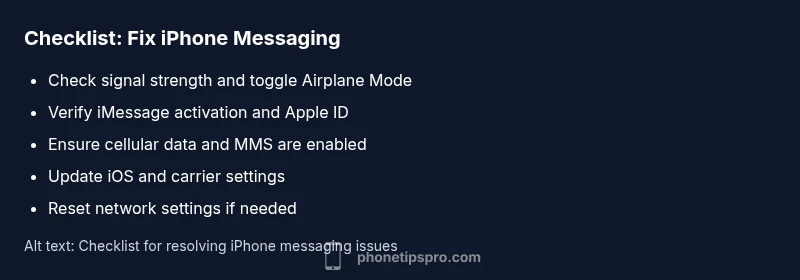
Step-by-step fixes for the most common causes\n\n1) Fix network and toggle iMessage\n- Go to Settings > Airplane Mode, turn it on for 10 seconds, then off. Then toggle iMessage off and on in Settings > Messages.\n- Tip: A quick phone restart after toggling can help solidify changes.\n2) Activate iMessage and verify Apple ID\n- Settings > Messages > iMessage: ensure it’s ON. If activation is stalled, sign out of iCloud and sign back in, or verify your Apple ID in Settings.\n- Tip: Activation may take up to 24 hours; if still pending, try a soft reset.\n3) Check SMS/MMS and data settings\n- Settings > Cellular: ensure cellular data is ON. For MMS, Settings > Messages: enable MMS Messaging.\n- Tip: If you have low data, try sending via SMS to confirm the link is working.\n4) Date/time and region correctness\n- Settings > General > Date & Time: enable Set Automatically.\n- Tip: Incorrect time zones can disrupt message routing, especially in iMessage.\n5) Update iOS and carrier settings\n- Settings > General > Software Update: install any available updates. Also check for Carrier Settings updates in Settings > General > About.\n- Tip: Back up before major updates.\n6) Reset network settings (last resort)\n- Settings > General > Transfer or Reset iPhone > Reset > Reset Network Settings. This will erase saved networks and passwords.\n- Tip: Note your Wi‑Fi passwords before performing this reset.\n7) When all else fails: contact support\n- If messages still fail after these steps, contact Apple Support or your carrier for deeper diagnostics.\n- Tip: Have your device model, iOS version, and recent changes ready for faster help.
Safety notes and common mistakes to avoid\n\n- Do not perform frequent resets in quick succession; this can wipe saved network credentials and cause more issues.\n- Avoid disabling essential services unless you understand the impact (e.g., MMS or carrier data).\n- Don’t assume the problem is hardware—software settings and outages are far more common.\n- If you share a family device, ensure screen time restrictions aren’t blocking messages.
Prevention: keep messaging healthy long-term\n\n- Keep iOS up to date: Apple regularly patches messaging bugs with updates.\n- Regularly review iMessage settings and Apple ID status to ensure seamless activation.\n- Monitor carrier notifications about outages or maintenance that may impact SMS/MMS.\n- Back up messages to iCloud or your computer to avoid data loss during repairs.
When to seek professional help\n\nIf you’ve exhausted all steps and still can’t send messages, a professional check may be needed. This could indicate a deeper software issue, a failing SIM tray, or carrier-level problems that require engineering support or a warranty replacement.
Steps
Estimated time: 20-40 minutes
- 1
Check signal and toggle Airplane mode
Check your signal bars and move to an area with better reception. Turn on Airplane Mode for 10 seconds, then turn it off to reset the radio. Try sending a message again.
Tip: A quick restart of the radio often resolves carrier routing glitches. - 2
Verify iMessage activation
Go to Settings > Messages and ensure iMessage is ON. If activation shows Waiting, sign out of your Apple ID and sign back in, then retry activation.
Tip: Activation can take some time—avoid multiple quick toggles that can confuse the status. - 3
Check SMS/MMS and data settings
In Settings > Cellular, make sure Cellular Data is enabled. In Settings > Messages, ensure MMS Messaging is ON for group messages and media. Send a test SMS to verify routing.
Tip: Some carriers require MMS to be enabled for picture/video messages. - 4
Verify date/time and region
Set Date & Time to Automatic and confirm your region matches your carrier’s settings. Incorrect time can disrupt message delivery timing.
Tip: If you travel across time zones, recheck automatic settings after arrival. - 5
Update iOS and carrier settings
Check for an iOS update in Settings > General > Software Update. Also check for Carrier Settings updates under About. Install any available updates.
Tip: Back up your data before updating to avoid loss. - 6
Reset network settings
If problems persist, reset Network Settings (Settings > General > Transfer or Reset iPhone > Reset > Reset Network Settings). This clears saved networks and passwords and reconfigures connections.
Tip: Note down Wi‑Fi passwords before resetting.
Diagnosis: Messages fail to send on iPhone (Not Delivered, Delivery Failure, or blue/green bubble inconsistencies)
Possible Causes
- highWeak or no cellular data signal or network issue
- mediumiMessage activation or Apple ID sign-in problem
- lowDevice is in Airplane mode or cellular data is disabled
- lowIncorrect date/time or region settings
- lowSIM card issue or carrier restrictions
Fixes
- easyCheck signal and toggle Airplane Mode, then retry sending
- easyVerify iMessage activation; sign in with Apple ID if needed
- easyEnsure cellular data/MMS are enabled and try sending again
- easySet Date & Time to Automatic and verify region settings
- easyUpdate iOS to the latest version and apply carrier updates
- mediumReset Network Settings or reseat the SIM if issues persist
- easyContact your carrier if SMS paths are blocked or outages exist
FAQ
What does 'Not Delivered' mean when sending a message on iPhone?
Not Delivered indicates the message couldn’t reach the recipient. With blue bubbles, the issue is usually iMessage routing or recipient offline; with green bubbles, the SMS path failed. Check network, iMessage activation, and carrier status. If the problem persists across all contacts, diagnostic steps are needed.
Not Delivered means the message didn’t reach the recipient. It’s often due to network or iMessage issues; check your settings and try again.
Why can’t I send iMessages to Android users?
iMessages are Apple’s messaging system and work best between Apple devices. When sending to Android, the message should route as an SMS (green bubble). Ensure SMS is enabled and that you have cellular service. If messages to Android contacts fail, test with another contact to isolate the issue.
iMessages don’t work on Android; you’ll send as SMS (green bubbles). Check SMS settings and try another contact to see if the issue is device-wide.
How do I activate iMessage on my iPhone?
To activate, go to Settings > Messages and turn on iMessage. If activation stalls, sign out of your Apple ID in Settings, sign back in, and retry activation. A stable internet connection helps. If activation still fails after 24 hours, contact Apple Support.
Go to Settings, turn on iMessage, and ensure your Apple ID is active. If activation stalls, sign out/in and retry.
What should I do if I see 'Waiting for Activation' for iMessage?
Waiting for Activation means iMessage can’t complete setup yet. Check your Apple ID status, ensure you have data connectivity, and update iOS if needed. If the wait continues, sign out/in of iCloud and restart the device.
If iMessage says Waiting for Activation, verify Apple ID and data connection, and consider restarting or signing out/in.
Can a software update cause messaging issues?
Yes. Sometimes updates introduce bugs or require new carrier settings. If you notice messaging problems after updating, check for another update, reapply carrier settings, or reset network settings if necessary. Always back up before major updates.
Sometimes updates cause bugs in messaging; check for a follow-up update or carrier setting, and back up first.
When should I reset my network settings?
Resetting network settings is a last-resort step, used when signals or routing are stubbornly stuck. It clears saved networks and passwords, so note them down first. If issues continue, contact support.
Only reset network settings after trying other fixes, since you’ll need to rejoin Wi‑Fi networks.
Watch Video
Quick Summary
- Start with simple checks; most issues are quick fixes.
- iMessage activation and carrier settings are common culprits.
- Keep iOS and carrier settings up to date to prevent problems.
- Reset network settings as a last resort, after backing up credentials.
- If unresolved, contact Apple Support or your carrier for deeper diagnostics.