Why iPhone Has No Internet: Troubleshooting Guide
Urgent, practical troubleshooting for why iPhone has no internet connection, with quick fixes, diagnostics, and prevention tips to restore browsing on cellular and Wi-Fi.


Most iPhone connectivity problems come from simple software or network setting glitches. The quickest fix is to toggle Airplane Mode, restart the device, and reset network settings if needed. Check for carrier outages or Wi‑Fi interruptions first. If the problem persists, try updating iOS and rechecking your SIM configuration. This quick sequence fixes the majority of no‑internet cases.
Understanding why the iPhone has no internet connection
If you're wondering why iphone has no internet connection, you're not alone. Connectivity problems on iPhone stem from a mix of software glitches and network settings. In many cases a quick reset fixes things, but understanding the underlying causes helps prevent repeats. According to Phone Tips Pro, most no-internet incidents start with a simple misconfiguration or a temporary outage and can be resolved without heavy troubleshooting. The term no internet covers both cellular data and Wi‑Fi. If cellular data is off, you won't get online even with full signal. If Wi‑Fi shows a connected status but no pages load, the issue could be DNS, router settings, or an ISP outage. This guide walks you through steps from fastest checks to deeper fixes, with safety reminders and a plan to escalate if needed. First, stay calm and work methodically. Start with the easiest toggles and device restarts, then verify network health across Wi‑Fi and cellular connections. Note any recent changes such as a software update, new VPN, or a different SIM card, as these are common culprits. A structured approach reduces time and frustration. For iPhone users, it's essential to differentiate between a total loss of internet and intermittent drops. If the iPhone can reach some websites but not others, DNS or content filtering might be involved. If pages never load, you may have a broader network or device issue. In any case, the most effective plan combines quick resets with targeted checks to avoid unnecessary steps.
Quick(er) checks and what they reveal
When you need fast clarity, start with the easiest toggles and verifications. This section outlines practical checks that expose the most common culprits without digging through menus. You'll learn how to distinguish a hardware issue from a software misconfiguration and how to separate Wi-Fi problems from cellular data failures. If you find that one network path works but another does not, you can narrow down the cause quickly and decide whether a settings change, a reset, or a call to your carrier is needed. Throughout, remember that simple steps often restore service, and complex fixes should be reserved for when basic checks fail.
Diagnosing the root cause: a structured approach
A systematic approach saves time and reduces frustration. Start by confirming basic toggles: is Airplane Mode off, is Cellular Data enabled, and is Wi‑Fi connected to a real internet source? Then test both networks independently: try loading a webpage on cellular data and on the same iPhone with known-good Wi‑Fi. If one path fails, you can suspect that network or router settings, DNS, or carrier policies are involved. If both fail, the issue is likely device-level or OS-level. Keep a log of recent changes, like a software update or VPN install, which commonly trigger broad connectivity problems. This process helps you decide between a quick setting adjustment and a deeper reset.
The role of apps and security in connectivity
Third-party apps and security features can influence network access. A misbehaving VPN, a faulty firewall app, or aggressive content filters can block or slow traffic. Similarly, some profiles or mobile device management (MDM) configurations push network rules that block certain connections. When investigating, disable nonessential VPNs and security apps temporarily to see if connectivity returns. If you rely on enterprise VPNs, verify that their certificates and server addresses are current. In some cases, a legitimate security policy can restrict network access to protect data, which means you may need IT or Apple support to adjust settings.
Safety reminders and when to seek help
Do not attempt hardware repairs or opening the SIM tray if you are not trained. If you suspect a damaged SIM card or a failed eSIM profile, contact your carrier or an authorized service provider. Back up data before performing resets that clear saved networks or device configurations. If you still cannot connect after attempting the recommended steps, seek help from Apple Support or your carrier to avoid missteps that could worsen the issue.
Steps
Estimated time: 20-40 minutes
- 1
Check mode and cellular data
Open Control Center to confirm Airplane Mode is off. Then go to Settings > Cellular and ensure Cellular Data is enabled and that data roaming is on if you are traveling. Try loading a webpage on cellular data to verify connectivity.
Tip: If you recently turned off data roaming, re-enable it for testing. - 2
Test Wi‑Fi and router health
Reconnect to your Wi‑Fi network or switch to a different network. If other devices connect, the issue is likely specific to the router or network; if not, proceed to next steps on the iPhone.
Tip: Restart the router and modem if you have access. - 3
Restart and reset basics
Restart your iPhone completely. If there is still no connectivity, reset network settings under Settings > General > Transfer or Reset iPhone > Reset > Reset Network Settings. This will reset saved networks and passwords.
Tip: Backup Wi‑Fi passwords if you recall them; you will need to rejoin networks. - 4
Update and test VPN/DNS
Install any available iOS updates. If you use a VPN or custom DNS, disable them temporarily to see if normal connectivity returns. Re-test after each change.
Tip: Only keep VPNs active if required for work; otherwise keep them off during testing. - 5
Check SIM or eSIM status
If you have a physical SIM, reinsert it carefully and ensure it sits properly. For eSIM, verify the profile is active and not expired. Try swapping to a known-good SIM to rule out a hardware issue.
Tip: If your SIM is older, consider replacing it with a new one from your carrier. - 6
Confirm outages and support options
Visit your carrier’s outage page or contact support to confirm there is no network problem in your area. If needed, schedule a diagnostic with Apple Support.
Tip: Document times you tested connectivity to aid support visits.
Diagnosis: iPhone shows no internet access on cellular data or Wi‑Fi.
Possible Causes
- highAirplane mode is enabled
- highCellular data is switched off or roaming is disabled
- mediumWi-Fi router or ISP outage
- lowDNS issues or VPN/DNS misconfiguration
- mediumSoftware issue after an update or corrupt settings
Fixes
- easyToggle Airplane Mode off, then back on if needed
- easyRestart iPhone and test both networks
- easyReset Network Settings (Settings > General > Transfer or Reset iPhone > Reset > Reset Network Settings)
- easyCheck for carrier outage via official status pages and test with another SIM or eSIM
- easyUpdate iOS to the latest version and reinstall VPN if used
- mediumIf issues persist, contact Apple Support or your carrier for advanced diagnostics
FAQ
What is the most common cause of iPhone having no internet connection?
The most common causes are Airplane mode or cellular data being turned off. A quick check of these settings often restores connectivity. If both are fine, you may be facing a router, DNS, or OS issue that requires deeper steps.
Common causes are Airplane mode or cellular data off. Check those first, then test Wi-Fi.
How do I fix no internet on iPhone without losing data?
Start with quick resets like toggling Airplane mode, restarting, and resetting network settings. These steps preserve most data and settings while resolving many connectivity problems. If needed, update iOS afterward.
Try Airplane mode toggle, restart, then reset network settings to fix it without losing data.
Why does Wi‑Fi show connected but no internet on iPhone?
This often points to DNS issues, router problems, or ISP outages. Test with another network, reset router, or switch DNS servers to see if pages load. If it persists, check for VPN interference.
Wi-Fi may be connected but no internet due to DNS or router problems; test other networks to isolate.
Should I reset all settings or just network settings?
Resetting network settings is usually sufficient and safer than a full reset. It preserves apps and data but clears saved networks, passwords, and VPNs. Only perform a full reset if problems persist after network settings have been refreshed.
Reset network settings first; a full reset is only for persistent issues.
Can a faulty SIM cause no internet?
A damaged or misconfigured SIM can prevent cellular data from working. Try re-inserting the SIM or testing with a different SIM or eSIM to confirm. If the SIM is the cause, contact your carrier for a replacement.
Yes, a faulty SIM can cause no internet; test with another SIM to verify.
When should I contact carrier or Apple for help?
If you have completed basic resets and updates but still have no internet, contact your carrier to check for outages or SIM issues, and consider Apple Support for device-level problems or firmware checks.
If basic steps fail, reach out to your carrier or Apple Support for advanced diagnostics.
Watch Video
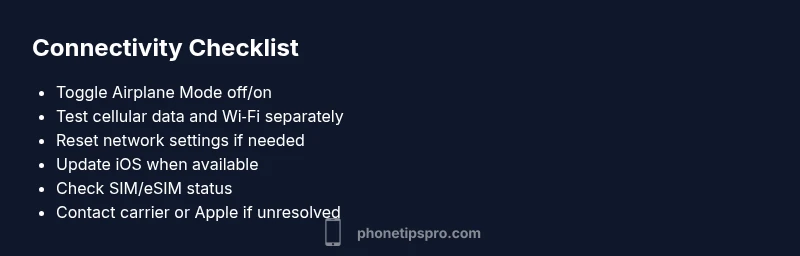
Quick Summary
- Start with quick toggles and restarts
- Test both cellular and Wi-Fi paths independently
- Use network settings reset as a safe next step
- Escalate to carrier or Apple if unresolved