Why Is iPhone Not Connecting to Wi-Fi? A Troubleshooting Guide
Practical, step-by-step fixes for iPhone Wi-Fi issues, with a clear diagnostic flow, actionable steps, and expert tips from Phone Tips Pro. Get back online fast.


Most iPhone Wi‑Fi problems stem from a weak signal, incorrect network settings, or outdated software. Start with quick fixes: toggle Wi‑Fi off and on, forget the network and reconnect, then restart your iPhone and router. If the issue persists, reset network settings and check for iOS updates before seeking help.
Why this happens and why the problem matters
If you’re wondering why is iPhone not connecting to wifi, you’re not alone. In many cases, the root cause is a simple mix of hardware proximity, network misconfigurations, or software glitches. The iPhone relies on a stable, strong signal to negotiate connections, obtain an IP address, and maintain a secure session with your router. According to Phone Tips Pro, the most persistent Wi‑Fi problems are often a mix of signal quality and software settings rather than a total hardware failure. Start by acknowledging that most fixes are quick and reversible, and you can often restore a reliable connection without replacing hardware. This guide walks you through a diagnostic flow, common culprits, and a safe sequence of steps you can perform at home. Keeping calm, methodical checks, and a little patience will usually get you back online within minutes.
Quick checks you can do today
Before diving into deeper troubleshooting, perform these fast checks. First, confirm that the iPhone’s Wi‑Fi is turned on and you can see the network in the list. If you’re connecting to a 2.4 GHz or 5 GHz network, try the other band if available. Move closer to the router to ensure a strong signal, and remove physical obstructions like walls or large furniture that can weaken the signal. Reboot the iPhone and the router, then try reconnecting. If multiple devices fail to connect to the same network, the issue is likely on the router or ISP side rather than the iPhone. Keep in mind that public networks may require login prompts or captive portals that block full access until you accept terms.
Common culprits behind Wi‑Fi failure
Wi‑Fi problems on iPhone often boil down to a few recurring culprits. A weak signal is the most common factor; proximity to the router and interference from other devices (microwaves, cordless phones) can degrade performance. Incorrect network credentials or saved network settings can prevent initial connection or cause random drops. Software issues—such as an outdated iOS version or a known bug—also contribute. Finally, the router itself could be misconfigured or experiencing hardware faults, or there may be an ISP outage. Recognizing these patterns helps you choose the right fix first and avoid unnecessary resets or replacements.
Advanced troubleshooting steps
If quick checks don’t solve the problem, proceed to advanced steps in a logical order. Start by updating iOS to the latest version, then reboot both the iPhone and the router. Forget the troublesome network on your iPhone, re-enter the password, and reconnect. If you still can’t connect, reset network settings on the iPhone (this clears saved networks and VPNs) and then rejoin. For stubborn cases, test on a different network (a mobile hotspot or friend’s router) to determine if the issue is device-wide or network-specific. Finally, ensure router firmware is current and that your network isn’t using MAC address filtering that could block the iPhone.
When to reset network settings vs a full reset
Resetting network settings is often the safest first reset because it preserves data while clearing Wi‑Fi, Bluetooth, and VPN configurations. It’s ideal after incorrect credentials or misconfigured proxies. If the problem remains after a network reset, consider a full device reset as a last resort. A full reset erases all content and settings, so back up first. In most cases, a combination of software updates, a network reset, and router checks resolves the issue without data loss. If you rely on iCloud backups, ensure you have a recent restore point ready before major resets.
Is the router the problem? How to test
Router issues are a frequent but often overlooked cause. Start by testing other devices on the same network; if they experience similar problems, the router or ISP side is likely at fault. Check if the router’s firmware is up to date and reboot the device. Disable guest networks temporarily, ensure MAC filtering isn’t blocking the iPhone, and adjust channel settings to minimize interference. If you have a modern router, enable the 802.11ac/n mixed mode and set a stable channel. If possible, temporarily connect the iPhone to a different router or a hotspot to confirm device health.
Preventive habits for reliable Wi‑Fi on iPhone
Prevention beats frustration. Keep iOS updated and enable automatic updates when possible. Use a strong, unique Wi‑Fi password and avoid simple defaults. Regularly reboot your router to prevent sticky sessions and memory leaks. If you frequently encounter issues in certain locations, consider upgrading to a newer router with better range and dual‑band support. Finally, document your network settings (SSID, password, and any custom DNS) so you can quickly reconfigure after a reset.
How Phone Tips Pro can help you fix this fast
Phone Tips Pro guides you through a proven troubleshooting workflow tailored for iPhone users. From quick fixes to in-depth diagnostics, our team outlines safe, practical steps you can take right away. We emphasize clarity and avoid unnecessary jargon, ensuring you understand each action and its potential impact. If you encounter persistent issues, our guidance helps you decide when to seek in‑person support or AppleCare. With consistent practice, you’ll reduce downtime and keep your iPhone reliably connected.
Steps
Estimated time: 25-40 minutes
- 1
Verify basic connectivity and signal strength
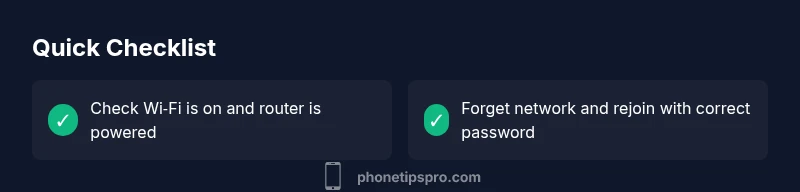
Ensure Wi‑Fi is enabled on the iPhone and near the router. Check signal bars and look for interference from appliances. If the signal is weak, move closer to the router or reduce obstacles.
Tip: Pro tip: note therouter location in your home to optimize coverage. - 2
Toggle Wi‑Fi and reboot devices
Turn Wi‑Fi off, wait 15 seconds, then turn it back on. Reboot both the iPhone and the router. After reboot, try connecting again to the same network.
Tip: Pro tip: a simple reboot often clears temporary glitches. - 3
Forget network and rejoin with correct password
In Settings > Wi‑Fi, tap the network and choose Forget This Network. Reconnect by entering the password carefully and joining the network anew.
Tip: Pro tip: copy the password from a secure note to avoid typos. - 4
Check for iOS updates and install
Go to Settings > General > Software Update. If an update is available, install it and then retry Wi‑Fi. Updates often fix known bugs affecting connectivity.
Tip: Pro tip: ensure your device is charged or connected to power during the update. - 5
Reset network settings on iPhone
If problems persist, reset network settings: Settings > General > Transfer or Reset iPhone > Reset > Reset Network Settings. This clears saved networks, VPNs, and cellular settings.
Tip: Pro tip: re‑enter any saved networks after the reset. - 6
Test on another network or hotspot
Try connecting to a different Wi‑Fi network or use your phone as a hotspot to isolate whether the issue is device or network-specific.
Tip: Pro tip: if the iPhone connects to a hotspot but not your home network, the router is likely the culprit.
Diagnosis: iPhone won't connect to Wi-Fi or drops connection frequently
Possible Causes
- highWeak Wi-Fi signal or router distance
- highIncorrect network password or saved network settings
- mediumOutdated iOS or software bug
- lowRouter/modem hardware issues or ISP service interruption
Fixes
- easyMove closer to the router and remove obstructions
- easyForget the network on iPhone and re-enter password; rejoin
- easyReset network settings on iPhone; reboot router
- mediumUpdate iOS and reboot devices; check for ISP issues
- mediumTest with another network to confirm device issue; contact Apple support if persists
FAQ
Why won't my iPhone connect to Wi‑Fi after updating iOS?
Post‑update Wi‑Fi issues are common due to new network settings or bugs. Start by rebooting both devices, then rejoin the network. If the problem remains, reset network settings and install the latest iOS patch.
After an iOS update, Wi‑Fi can misbehave due to new settings. Try rebooting, rejoining the network, and if needed, reset network settings before seeking further help.
What does 'Obtaining IP Address' mean and how can I fix it?
This message indicates the iPhone can't obtain an IP from the router. Check the router's DHCP settings, ensure the iPhone is on the correct network, and try renewing the lease or restarting the router.
Obtaining IP Address means the iPhone can't get an IP from the router. Check DHCP, rejoin the network, or restart the router.
Is resetting network settings safe for my data?
Resetting network settings only affects network configurations and saved Wi‑Fi passwords; your data remains intact. It’s a safe first step if you’ve made misconfigurations.
Resetting network settings only affects Wi‑Fi and VPN settings, not your personal data. It’s usually safe and effective.
Can a router be the cause of iPhone Wi‑Fi problems?
Yes. Router hardware, firmware, or channel interference can disrupt connections. Update firmware, test on another network, and consider replacing the router if issues persist across devices.
Definitely. A faulty router or misconfigured firmware can cause iPhone Wi‑Fi problems. Update, reboot, or test with another router.
Will Airplane Mode help with Wi‑Fi issues?
Turning Airplane Mode on and off can reset wireless radios. It’s a quick, non‑destructive step that sometimes resolves stubborn connection problems.
Turning Airplane Mode off and on can reset wireless radios and may fix minor issues.
When should I contact Apple Support for Wi‑Fi problems?
If your iPhone fails to connect even after all standard troubleshooting, or if other devices connect fine but the iPhone consistently fails, contact Apple Support or visit an Apple Store for hardware diagnostics.
If nothing works after trying the steps, contact Apple Support for a hardware check.
Watch Video
Quick Summary
- Identify whether the issue is device‑ or network‑related.
- Start with quick wins (toggle, forget/join, reboot) before deeper resets.
- Keep iOS and router firmware updated for best compatibility.
- If problems persist, systematically test with alternate networks to confirm the root cause.