Why is iPhone Sending SMS Instead of RCS? Troubleshooting Guide
Learn why iPhone messages fall back to SMS instead of RCS and how to fix it. Quick checks, diagnostics, and step-by-step guidance for reliable iPhone messaging.


Most iPhones send messages as SMS rather than RCS because iPhone doesn’t support RCS natively; iMessage uses data when available. Quick fixes: ensure iMessage is on and connected, verify the recipient supports iMessage, check your network, and confirm Send as SMS is enabled as a fallback. If the issue persists, update iOS and contact your carrier.
Why RCS isn’t native on iPhone and how SMS comes into play
On iPhones, the messaging workflow centers on iMessage, SMS, and MMS. RCS, the newer messaging standard, aims to replace SMS with richer features like read receipts, typing indicators, and higher-quality media. However, RCS is not natively deployed on Apple devices as the default messaging backbone. When iMessage can’t be delivered—due to a lack of data, a poor connection, or the recipient being offline—the system falls back to SMS or MMS. That is why you often see a green bubble instead of a blue one. The Phone Tips Pro team notes that understanding this fallback behavior is essential before chasing fixes. If a contact uses an Android device with RCS enabled, the message may still be delivered as SMS if there is no iMessage path. In short: the absence of RCS on iPhone isn’t a fault with your device—it’s the current interoperability reality.
How iMessage, SMS, and RCS differ on iPhone and Android interoperability
iMessage is Apple’s native messaging service, encrypted and data-based, delivering blue bubbles between Apple devices. SMS is the universal fallback that relies on cellular networks and shows green bubbles. RCS is a carrier-implemented protocol designed to provide enhanced messaging features, but Apple does not enable RCS by default on iPhones. On cross-platform threads (iPhone ↔ Android), messages may be sent as iMessage, SMS, or fall back to SMS if data isn’t available. Carriers may offer RCS capabilities in some markets, but interop with iPhone remains limited. For most iPhone users, the practical takeaway is that you’ll rely on iMessage when possible and SMS as a fallback when data is unavailable.
Confirm device settings: 3 quick checks you should do now
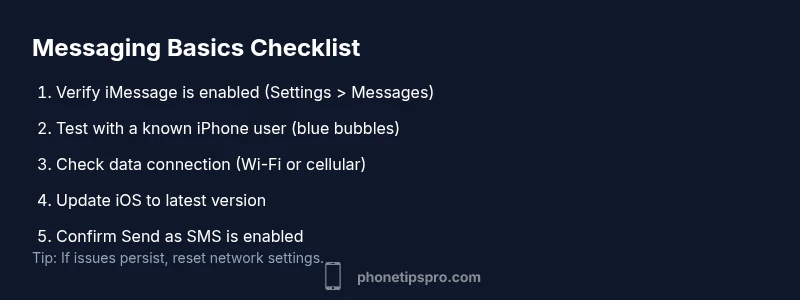
- Verify iMessage is toggled on: Go to Settings > Messages and ensure iMessage is turned on.
- Ensure ‘Send as SMS’ is enabled: Settings > Messages > Send as SMS. This guarantees messages are delivered if iMessage is unavailable, preventing prolonged green bubbles.
- Check contact status: If you’re messaging a non-iMessage user, your messages will be SMS by default. Send a message to a known iPhone user to confirm blue bubbles.
If these checks pass and you still see green bubbles with known iPhone contacts, move to the network and iOS checks below.
Carrier, region, and plan considerations
RCS availability depends on carrier support and regional rollout. Even when both devices support RCS, if one side lacks data connectivity or if the carrier’s RCS servers are not in sync, messages may default to SMS. Regions with limited RCS deployment can cause unexpected fallbacks. Ensure your mobile plan includes data and that you’re connected to Wi-Fi or cellular data when sending messages. If you frequently rely on RCS features (read receipts, high-res media), verify with your carrier whether RCS is fully supported for your plan and location. Phone Tips Pro notes that carriers’ RCS implementations vary widely, so expectations should be aligned with actual regional support.
Diagnostic principles: when is it a contact issue vs device issue
Sometimes the problem isn’t your iPhone but the recipient’s device or network. If most people you text receive blue iMessages, but a few contacts show green bubbles, focus on the contact side: do they have iMessage enabled, are they online, and is their device reachable? If the issue is isolated to your device, you’ll want to check settings, software version, network state, and account status. The diagnostic mindset is to rule out simple causes first (offline contacts, no data) before moving to deeper fixes like resets or carrier involvement.
Most common cause: iMessage not active or available; fixes
The most frequent reason for green bubbles is that iMessage isn’t active or accessible. Start by turning iMessage off and on again, then verify your Apple ID is signed in and usable across all devices (iPhone, iPad, Mac). Next, ensure your phone has an active data connection—iMessage relies on internet access. If iMessage remains unavailable, updating to the latest iOS version can fix underlying service issues. In rare cases, a temporary outage or regional server maintenance may impact iMessage availability. Keep an eye on Apple System Status if problems persist.
How to test if a contact uses iMessage (blue bubbles) and what to do if not
A quick test is to send a message to a known iPhone user and observe the bubble color. If it stays blue, iMessage is functioning; if it becomes green even when you know the recipient is online, the recipient may be using a non-iPhone device or have iMessage disabled. For non-iPhone contacts, consider asking them to enable iMessage if they have an iPhone or use the standard SMS pathway. For iPhone-to-iPhone threads that aren’t turning blue, confirm both devices are signed in with the same Apple ID family or account and that no restrictions (Screen Time, Content & Privacy) are interfering. If problems persist, sign out of iMessage and sign back in, then reintroduce the contact.
Why RCS on iPhone is not currently supported and what you can do
RCS is not a native iPhone protocol. iPhone messaging remains anchored to iMessage for Apple-to-Apple conversations. On cross-platform threads (iPhone ↔ Android), RCS may appear if both sides are on compatible carrier networks and apps, but Apple’s default is iMessage plus SMS fallback. There is no official toggle to enable RCS on iPhone. The practical workaround is to rely on iMessage when texting other Apple users and use SMS for cross-platform conversations. If you require richer features on Android contacts, encourage them to use RCS-enabled apps or note that iPhone cannot mirror RCS behavior.
Privacy, security, and staying in control
iMessage offers end-to-end encryption on supported devices, but SMS is not encrypted to the same degree. When you see green bubbles, you’re likely on SMS, which travels via cellular networks with fewer privacy guarantees. To stay in control, keep iMessage enabled, monitor which contacts you text via iMessage, and review any data restrictions. Consider disabling data-intensive features when on limited networks, and keep your iOS updated to benefit from privacy improvements and bug fixes.
Steps to minimize SMS fallback in the future
- Keep iMessage enabled and updated to the latest version.
- Ensure reliable data connectivity or Wi-Fi is available when messaging.
- Verify that key contacts are iMessage-enabled and actively using the service.
- Stay informed about regional carrier support for RCS and iMessage compatibility.
- If SMS fallback is frequent with specific contacts, reach out to them to verify their settings and network status.
The practical path forward
If you consistently see SMS instead of iMessage with iPhone-to-iPhone texts, start with these steps: toggle iMessage off/on, sign in with your Apple ID across devices, test with a known iMessage user, and check for iOS updates. If problems persist after these steps, contact Apple Support or your carrier to verify there are no account-level restrictions or outages affecting iMessage delivery.
Steps
Estimated time: 20-30 minutes
- 1
Check iMessage toggle
Open Settings, tap Messages, and verify iMessage is enabled. If it is, toggle it off for 5 seconds and then back on to refresh the service. This can resolve stuck states where iMessage appears unavailable.
Tip: A quick restart of the Messages app after toggling can clear transient issues. - 2
Test messaging with a known iMessage user
Send a message to a contact you know uses an iPhone and has iMessage enabled. Look for the blue bubble. If it remains green, move to network checks and updates.
Tip: If you don’t see a blue bubble, confirm the recipient’s iMessage status and data connectivity. - 3
Verify data connectivity
Make sure you have a stable data connection or are connected to Wi-Fi. iMessage requires data to function; switching to airplane mode briefly can reset networks and sometimes improve connectivity.
Tip: Try turning on/off Airplane Mode to reset network state quickly. - 4
Update iOS and apps
Check Settings > General > Software Update and install any available iOS updates. Outdated software can cause messaging inconsistencies.
Tip: Enable automatic updates to stay current with fixes and improvements. - 5
Reset network settings if problems persist
If iMessage still won’t behave, reset network settings. This removes saved Wi‑Fi networks and VPNs but often resolves persistent connectivity issues.
Tip: Note exact Wi‑Fi credentials after reset so you can reconnect quickly. - 6
Consult carrier support for RCS
If you expect RCS features on Android or in carrier tests, verify with your carrier that RCS is active for your plan and region, since iPhone doesn’t control RCS delivery.
Tip: Carrier-enabled RCS varies by market; some regions have limited support.
Diagnosis: Messages you send show as SMS (green bubble) rather than iMessage (blue) or RCS indicators
Possible Causes
- highiMessage is disabled on your iPhone
- highYour contact's iMessage is not available (off/no data)
- mediumNo data connectivity (cellular/data/Wi‑Fi) or airplane mode
- lowRegional carrier limitations or incomplete RCS rollout
- lowOutdated iOS or misconfigured messaging settings
Fixes
- easyToggle iMessage off then on (Settings > Messages > iMessage)
- easyVerify contact supports iMessage by testing with another iPhone user
- easyCheck data/Wi‑Fi connectivity and try sending again
- easyUpdate iOS to the latest version
- mediumReset network settings (Settings > General > Reset > Reset Network Settings)
- hardContact your carrier to confirm RCS availability and any region-specific limitations
FAQ
Why does my iPhone keep sending SMS instead of iMessage?
Common causes are iMessage being disabled, no data connectivity, or the recipient not using iMessage. Verify iMessage is on, confirm you have a data connection, and check the recipient’s iMessage status.
Usually it’s either iMessage off or you’re texting a non-iMessage user. Start by turning iMessage back on and testing with another iPhone user.
Can iPhone users enable RCS on their devices?
RCS is not a native iPhone feature. Apple devices don’t enable RCS by default, so cross-platform chats will rely on iMessage or SMS. There’s no toggle to enable RCS on iPhone.
There isn’t a setting to switch iPhone to RCS; use iMessage with other Apple users or SMS for cross-platform chats.
Does updating iOS fix SMS-sending problems?
Yes. Updates often fix messaging bugs and improve compatibility with network services. Make sure both devices are updated if issues persist.
Keeping iOS up to date helps fix messaging issues and align with carrier features.
What should I do if my iPhone still sends SMS to iPhone users?
Troubleshoot by confirming iMessage is enabled, testing with another iPhone user, verifying network connectivity, and updating iOS. If unresolved, contact Apple Support.
If it keeps happening after basic checks, get official support.
Is there any workaround to use RCS on iPhone?
The practical workaround is to use standard SMS for cross-platform chats or a third‑party messaging app on the Android side. iPhone itself won’t enable RCS.
No native RCS on iPhone; SMS or iMessage is the path forward.
Should I contact my carrier for messaging issues?
If you suspect carrier-level RCS support or network issues, contact your carrier for guidance. They can confirm RCS availability and any outages impacting messaging.
Carrier support can confirm RCS availability and outages affecting messaging.
Watch Video
Quick Summary
- Verify iMessage is active and data is available.
- Remember: iPhone does not natively support RCS.
- Cross-check contact status and regional carrier support.
- Update iOS and test with known iMessage users.
- If issues persist, contact Apple or your carrier for deeper diagnostics.