How to Check if Your iPhone Is Original or Refurbished
Learn step-by-step methods to verify whether an iPhone is original or refurbished. Verify serial/IMEI, warranty, packaging, and more using official Apple resources.


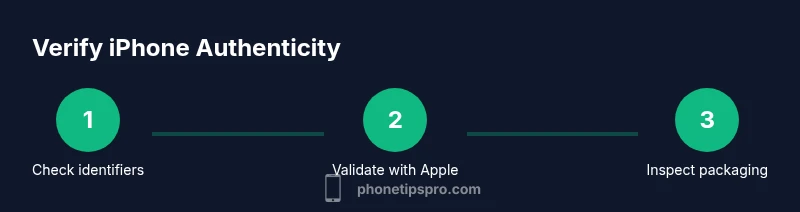
To check if an iPhone is original or refurbished, start by collecting identifiers (serial, IMEI, model) and validate them against Apple’s official records. Then inspect build quality, test core hardware (screen, camera, speakers), and review packaging and included accessories. Cross-check activation, warranty status, and box details. Use Apple Support and Check Coverage for final confirmation.
What makes an iPhone original vs refurbished
Understanding authenticity begins with recognizing the core differences between an original iPhone and a refurbished unit. An original iPhone is a device manufactured and sold by Apple or an authorized reseller with Apple-certified hardware and warranty. A refurbished iPhone has been repaired or reconditioned, sometimes by third-party refurbishers, and then resold. According to Phone Tips Pro, a practical first step is to compile all identifiers from the device and its packaging and then cross-reference them with official sources. Look for the model number, color, storage capacity, and serial number printed on the device, the SIM tray, and the original box. Any mismatch among these identifiers is a major red flag and should trigger deeper checks. In addition to identifiers, consider the context of purchase, the seller’s reputation, and the item’s price. While a lower price alone isn’t proof of refurbishment, it often accompanies other telltale signs like worn seals or missing accessories. A disciplined verification process reduces risk and helps you avoid counterfeit or misrepresented devices.
Serial numbers, model numbers, and their role in authenticity
Your iPhone’s serial number and model number are your fastest routes to verification. The serial number uniquely identifies your device, while the model number confirms its exact variant. Start by locating the serial and model via Settings > General > About. You can also find these numbers on the back of older devices or on the original packaging. For iPhones with iOS 9 and later, the serial number is the simplest cross-check point. If any of these numbers don’t align with the box, accessories, or the listing, treat it as suspicious and proceed with deeper checks. An accurate match across all identifiers is a strong indicator of originality.
Cross-checking with Apple and carrier databases
Apple maintains records of warranty status tied to a device’s serial number. Use Apple’s Check Coverage page to enter the serial number and verify warranty validity and eligibility for service. If the device shows active coverage that matches the purchase date and country, that’s a positive sign. You can also contact the original carrier to confirm device activation status and service eligibility. Keep in mind that refurbished devices can also carry valid warranties if they were reissued through official programs, so always confirm the source of the unit as well.
Visual and hardware checks you can perform quickly
Examine the physical build for signs of wear, such as uneven seams, misaligned screws, or inconsistent color shading. Test essential features like Touch ID/Face ID, camera performance, speakers, and microphone quality. Navigate Settings > General > About to verify that the software version, model, and serial info match the physical device. If anything feels off—especially if the device’s model doesn’t align with what’s printed on the box—pause and seek a formal verification. If you can, compare the device against a known original unit of the same model to spot subtle differences.
Packaging, accessories, and seals: what to look for
Packaging should reflect Apple’s standard presentation: high-quality printing, correct fonts, and authentic serial labels on the box. Check that the included accessories (charger, cable, EarPods) are Apple-branded and consistent with the model’s requirements. The box seal should be intact and unbroken; any tampering can indicate prior use or refurbishment. For refurbished devices, some sellers may include a “Certified Refurbished” label or a clear warranty card from Apple or an authorized partner. When in doubt, request photos of the exact box and accessories before purchase.
Using official Apple channels to confirm authenticity
Apple provides several official avenues to verify a device’s authenticity. Start with Check Coverage to confirm warranty status by serial number. If available, use Apple Support to request service history or to confirm if the device has been reissued through an official program. You can also sign into your Apple ID and verify activation status and device registration. Relying on official sources minimizes risk and provides an authoritative reference.
Red flags to watch for and what to do next
Be wary of mismatched serial numbers, unusual pricing, missing or non-Apple accessories, and signs of tampering around the SIM tray or screws. If you detect any mismatch, request the seller’s documentation and seek a formal verification from Apple or an authorized service provider. When in doubt, opt for a return or refund through the seller’s policy or platform buyer protections. Preserving proof of purchase and serial numbers will help you resolve disputes quickly.
Tools & Materials
- iPhone device to verify(Any suspected model; ensure you can access Settings)
- Original box and accessories(Serial number on the box should align with the device)
- Stable internet access(Needed for live checks on Apple sites)
- Notes with identifiers(Record model, color, capacity, serial, IMEI)
- Apple Support contact (optional)(Use if you need official verification assistance)
Steps
Estimated time: 15-25 minutes
- 1
Locate device identifiers
Power on the iPhone and go to Settings > General > About. Record the serial number, IMEI/MEID, model name, and storage capacity. If available, also note the FCC ID or other hardware identifiers. Take photos of the device and box to keep a reference.
Tip: Double-check that the serial on the device matches the box and the barcode on the packaging. - 2
Compare against official specs
Verify that the model name and color match what Apple lists for that exact model. If the device shows a different color variant or storage tier than the box, flag it for deeper checks.
Tip: Use Apple’s official site or Check Coverage to confirm the model and warranty alignment. - 3
Check warranty status
Visit Apple’s Check Coverage page and enter the serial number. Confirm whether the warranty status and service eligibility correspond to the purchase date and location.
Tip: A valid warranty doesn’t guarantee originality, but it's a strong corroborating sign. - 4
Inspect hardware and software signals
Test Face ID, camera functionality, speakers, microphone, and the touch/display responsiveness. Open Settings > General > About to verify software version and build matching the hardware. A mismatch can indicate a non-original part or a refurbished unit.
Tip: If a sensor or camera behaves oddly, document it with a short video for the seller or service provider. - 5
Assess packaging and accessories
Check that the box artwork, fonts, and serial labels look authentic. Ensure all included accessories are Apple-certified and match the model’s requirements (charging brick, USB-C/Lightning cable). Look for an intact seal and any warranty or activation documentation inside.
Tip: Ask the seller to provide close-up photos of the box seal and serial label spacing. - 6
Test activation and Apple ID status
If you have access to Settings, sign in and test activation, or ensure the device is free of Activation Lock by signing out of any previous Apple ID where possible. This is important to prevent a device intended for someone else from becoming unusable.
Tip: Never try to bypass Activation Lock; legitimate sellers will resist sharing credentials and will provide clear proof of ownership. - 7
Cross-check with Apple and carriers
Use the serial/IMEI with Apple Support to verify service history, and, if applicable, check with the original carrier about activation status and SIM lock. This cross-check adds a strong layer of verification beyond visuals.
Tip: Keep your own notes and screenshots of any cross-check results. - 8
Decide on next steps if anything’s off
If identifiers don’t match, or warranty/activation data seems inconsistent, request a refund or a replacement, or contact the seller for resolution. Document all communication and preserve proof of purchase.
Tip: When in doubt, opt for a known-good seller or official Apple-authorized reseller.
FAQ
How can I tell if an iPhone is refurbished or original?
Compare serial numbers, IMEI, and model numbers with the box and Apple’s records. Check warranty status and activation behavior. Look for packaging and accessory consistency. If anything mismatches, treat it as a red flag and pursue official verification.
You compare serials and model numbers with the box and Apple records, then check warranty and activation. If anything mismatches, seek official verification.
Does Apple’s Check Coverage confirm authenticity?
Check Coverage confirms warranty status tied to the serial number. It helps verify service eligibility and can indicate genuine devices when the data aligns with your purchase details.
Check Coverage shows warranty status tied to the serial number and can help confirm the device is genuine if the data matches.
What if the serial on the device doesn't match the box?
A serial mismatch is a strong red flag. Do not rely on the device alone; request documentation, ask for a replacement or return, and consider consulting Apple or the seller’s support for resolution.
Serial mismatch is a red flag; request documentation and consider returning the device.
Can a refurbished iPhone pass all authenticity checks?
Some refurbished units can pass basic checks, especially if refurbished through official programs. However, cross-checks with Apple and the retailer, including warranty and activation status, are essential to confirm authenticity.
Refurbished units can pass some checks, but always verify with Apple and the retailer.
What should I do if I suspect a counterfeit device?
Stop using the device for sensitive data, contact the seller for a return, and report suspected counterfeit to the platform or retailer. Seek a full refund and document all communications.
If you suspect counterfeit, stop using it, request a return, and report it. Seek a refund.
Is Activation Lock a reliable authenticity signal?
Activation Lock status helps verify ownership and history. A device not locked to the prior owner and properly activating suggests legitimacy. If Activation Lock cannot be cleared, request proof of ownership before finalizing a purchase.
Activation Lock status helps; a device that activates cleanly and isn’t locked to someone else is a good sign.
Watch Video
Quick Summary
- Verify identifiers first to flag obvious mismatches
- Cross-check warranty and activation status on official Apple sites
- Inspect packaging and accessories for authenticity cues
- Do not bypass Activation Lock; seek official verification if needed
- Request documentation or a return if anomalies persist