How to Check an iPhone Serial Number
Learn where to find your iPhone serial number and how to verify it across settings, Apple ID, and packaging. This step-by-step guide from Phone Tips Pro helps you confirm authenticity, check warranty, and avoid counterfeit devices.


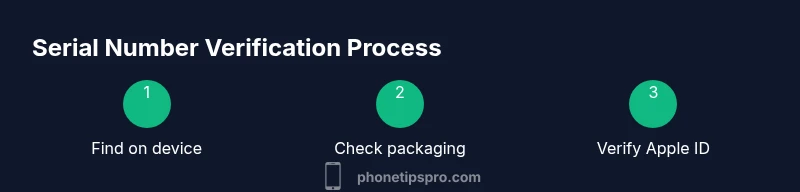
Goal: check for iphone serial number accurately and quickly. You’ll locate it on-device in Settings, verify it online via your Apple ID devices page, and cross-check with the original packaging or proof of purchase. This multi-step approach helps confirm authenticity, ensures you’re referencing the correct device, and streamlines warranty and service requests.
What is the serial number and why it matters
The serial number is a unique alphanumeric code assigned to every iPhone that identifies its production run, model, and ownership history. For customers, the serial number matters because it links to warranty eligibility, service options, and eligibility for official repairs. For technicians and scam checks, the serial helps confirm that a device is genuine and traceable. According to Phone Tips Pro, understanding where to find this number and how to verify it reduces friction when requesting support. Keep in mind that serial numbers are consistent across Apple’s records, so reporting the same code across channels (online, in-store, or via support) helps avoid confusion. In this article we cover on-device methods, online lookups, and how to compare with packaging to ensure you’re referencing the exact device. We also explain what to do if you can’t locate the serial or suspect a counterfeit device. By the end, you’ll be able to locate, read, and verify your iPhone serial number confidently.
Where to find the serial number on iPhone models (physical labels and settings)
There are several reliable places to locate a serial number. The most straightforward is on-device in Settings. Go to Settings > General > About, then look for Serial Number. If the device is accessible, this is the fastest method. You can also check the original packaging, where the label lists serial and IMEI. For older models, the serial may be stamped on the device body or on the SIM tray area, depending on the model. Always cross-check the serial you see in Settings with the label on the box. This helps ensure you’re referencing the correct device, especially when you’ve got multiple iPhones or when buying a used unit.
How to check the serial number in Settings
Opening Settings is usually the quickest path. Tap General, then About, and locate Serial Number. If you want to keep a record, copy the number into a note or take a screenshot. Some devices may display the serial in a grid of device details. If you don’t see it, ensure the device is unlocked and running a recent iOS version. Writing down the serial number or saving a screenshot reduces the risk of misreading characters, which can easily happen with similar-looking digits or letters.
How to verify with Apple ID and online devices list
Your Apple ID keeps track of devices associated with your account. Sign in to appleid.apple.com, then navigate to the Devices section. Select your iPhone to view its serial number along with model, iOS version, and purchase date if Apple has that data on file. This online cross-check helps verify that the serial you found on the device matches Apple’s records. If you own multiple devices, repeating this check for each one prevents confusion when seeking support or warranty coverage.
Verifying serial number accuracy and avoiding counterfeit devices
Always verify the serial number across multiple sources before acting on it. Compare the serial from Settings with the one on the original box and any receipts or warranty documents. Look for typographical inconsistencies, unusual characters, or labels that appear tampered with. Counterfeit devices may have serials that don’t align with Apple’s online database. If any mismatch occurs, stop using the device for critical services and contact Apple Support for clarification.
Cross-checking with the packaging, receipts, and service history
If you purchased the iPhone new, the serial on the box label should match the serial in Settings and Apple ID. If you bought used, gather the original box, any receipts, and service records. Use these documents to confirm that the serial corresponds to the device in question and that your service history aligns with real activity on the device. Maintaining a small, organized record of serials can prevent future headaches during warranty claims or trade-in.
Quick troubleshooting if the serial number isn’t recognized by Apple
If you’ve confirmed the serial from multiple sources but Apple doesn’t recognize it, there may be a data mismatch or a counterfeit issue. Start by double-checking the serial against the box label and Apple ID listing. If needed, contact Apple Support to verify the serial against your device’s IMEI, model, and purchase details. Do not rely on third-party sites for official verification; use Apple’s official tools and channels.
Tools & Materials
- iPhone device(Any model; needed to access Settings and to read the serial directly)
- Web browser or access to Apple ID(Needed to view your Apple ID devices page and verify the serial online)
- Original packaging or proof of purchase(Contains a printed serial number label for cross-checking)
- Notepad or digital notes tool(For recording serial numbers you confirm and track authenticity)
Steps
Estimated time: Estimated total time: 15-25 minutes
- 1
Open Settings and view About
Unlock your iPhone and open the Settings app. Tap General, then About, and locate Serial Number. If the device is locked, you’ll need to unlock it first. This is the fastest way to read the serial without external tools.
Tip: If you can’t see Serial Number, try restarting the Settings app or switching to a different language setting and back. - 2
Copy or write down the serial
Carefully copy the exact serial characters, avoiding spaces or confusing characters like O vs 0. If possible, take a screenshot and store it in a secure notes location.
Tip: Use a monospaced font photo when recording to reduce misreadings. - 3
Check your Apple ID devices list
Go to appleid.apple.com and sign in with your Apple ID. Open the Devices section and select your iPhone to view its serial number along with model and purchase data. Compare this with what you found on the device.
Tip: Take a screenshot of the device details page for your records. - 4
Inspect the original packaging
If you have the box, check the label on the side or bottom for the serial. Ensure it matches the on-device Serial Number and the Apple ID listing. This is a strong cross-reference, especially for used devices.
Tip: Check the box label for other identifiers like IMEI and model number to corroborate the serial. - 5
Cross-check against warranty/service history
Using the serial, verify whether it is eligible for warranty or service coverage on Apple’s site or via an authorized service provider. This confirms the device’s legitimacy and current service status.
Tip: If you see conflicting purchase dates, contact Apple Support before proceeding with a service claim. - 6
If you suspect issues with the serial
If the serial number is unreadable, missing, or appears suspicious, stop using the device for critical tasks and contact Apple Support for confirmation. They can verify against their internal records and advise next steps.
Tip: Avoid sharing sensitive account details when contacting third-party retailers or forums about the serial.
FAQ
Can I find the serial number without turning on the iPhone?
Yes. If the device won't power on, you can still locate the serial on the original box or receipt, and some devices display the serial on the SIM tray. You should also verify via Apple ID online if possible.
Yes. If it won’t turn on, check the box or receipt for the serial, and verify online if you can.
Is the serial number the same as the IMEI?
No. The serial number and IMEI are separate identifiers. The serial tracks the device unit, while the IMEI tracks network identity. Both may appear on packaging and in your Apple ID devices page.
They’re different: serial identifies the device, IMEI handles network identity.
Where besides Settings can I locate the serial number?
Besides Settings, you can often find the serial on the original box, the receipt, and sometimes on the SIM tray or the device’s back for older models. Cross-check all sources to be sure.
You can also check the box, receipt, and, on older models, the SIM tray or back of the device.
What if the serial number is unreadable or missing?
If unreadable or missing, stop relying on that device for critical services and contact Apple Support to verify. They can help determine if the device is legitimate and guide warranty options.
If it’s unreadable or missing, contact Apple Support for verification and next steps.
Can I check warranty status using the serial number?
Yes. Apple’s systems use the serial number to determine warranty status. You can check this online via Apple ID or Apple Support tools once you have a valid serial.
Yes, you can check warranty status with the serial on Apple’s site.
Does the serial number help identify the iPhone model?
In many cases, yes. The serial encodes model information used by Apple for diagnostics and warranty, though you should verify model specifics on the device box or Settings if needed.
Often, the serial can reveal the model, but verify with the device box or Settings if you’re unsure.
Watch Video
Quick Summary
- Locate the serial on the device and packaging.
- Verify serial against Apple ID devices list.
- Keep serials for warranty and service.
- Watch for counterfeit indicators and report them.
- Contact Apple Support if in doubt.