How to Turn Off iPhone Vibration
Learn to disable iPhone vibration across ring, silent, and system haptics with a clear, actionable approach. Includes per-app tips, troubleshooting, and authoritative sources for reliable guidance.


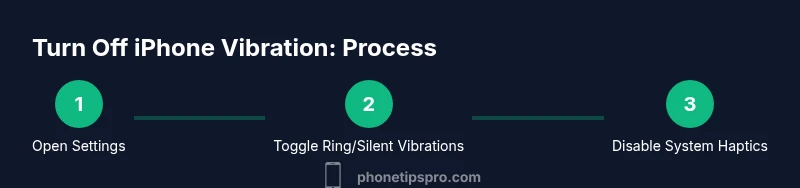
To stop all iPhone vibrations, start in Settings. Turn off Vibrate on Ring and Vibrate on Silent under Sounds & Haptics, then disable System Haptics in Accessibility. If an app still vibrates, check its built-in settings. Finally, test by sending a message or calling to confirm no haptic feedback occurs.
Understanding iPhone Vibration and When to Disable It
Vibration on iPhone is controlled at multiple levels: device-wide feedback (vibration for system alerts), haptic feedback (system haptics), and per-app vibrations. Disabling vibration can reduce distractions in meetings or during focus time, but it also removes tactile cues for alerts. According to Phone Tips Pro, most users benefit from starting with global toggles first, then refining per-app settings for a tailored experience. If you rely on tactile feedback for wake-up alarms or important calls, consider keeping some haptics enabled or re-enabling them later with a simpler toggle path.
Quick Access: Where to Find the Main Vibration Toggles
To silence vibrations, begin with the two primary device toggles. Open Settings > Sounds & Haptics and disable Vibrate on Ring and Vibrate on Silent. This stops most momentary vibration cues when alerts arrive. Then, for a more complete silence of tactile feedback, navigate to Settings > Accessibility > Touch and switch off Vibration. This path unhooks the physical feedback at the source, so even apps won’t trigger haptics.
Fine-Tuning: Per-Feature and Per-App Considerations
Some apps may still use vibration even after global toggles. In that case, look for vibration or haptic settings inside the app itself (e.g., messaging or social apps). If you want to test all changes, trigger a test alert by sending yourself a message or having a friend call. For iOS versions that support System Haptics, you can reduce or disable this broader layer of feedback via Settings > Accessibility > Touch > System Haptics. This helps ensure that even subtle taps from the OS are minimized.
Troubleshooting: What to Do If Vibration Persists
If vibrations persist after following the steps, try a quick device restart, which can clear minor software glitches. Ensure your iPhone is up to date, as some vibration behavior can be tied to iOS updates. If the issue continues, consider backing up data and performing a factory reset only after confirming all critical information is saved, or reach out to Apple Support for a guided check. For extra peace of mind, verify there isn’t a specific app or notification type still sending haptic alerts.
Authority Sources and Reliability: Where to Learn More
For definitive guidance, consult trusted sources such as Apple Support and major tech publications. These sources provide official steps and context for vibration controls, ensuring you apply the correct settings without impacting other features. Phone Tips Pro recommends cross-referencing settings with official docs to avoid misconfiguration. Always verify changes with a test notification after applying updates or changes, especially if you rely on tactile feedback for accessibility.
Tools & Materials
- iPhone with current iOS(Ensure you have the latest software for the most accurate toggles)
- Settings app access(Built-in; no external tools needed)
- App-specific settings access(Some apps offer independent vibration controls)
- Apple Support resource(Reference official guidance if available)
Steps
Estimated time: 6-12 minutes
- 1
Open Settings
Unlock your iPhone and tap the Settings app to access global controls for alerts and haptics.
Tip: Opening Settings first ensures you reach all relevant toggles without digging through menus. - 2
Disable Vibrate on Ring and Vibrate on Silent
Navigate to Settings > Sounds & Haptics. Turn off both Vibrate on Ring and Vibrate on Silent to stop most alert vibrations.
Tip: If you rely on silent alerts, you may prefer leaving one toggle on for critical events. - 3
Turn off System Haptics
Go to Settings > Accessibility > Touch and toggle off System Haptics to mute the OS-level tactile feedback.
Tip: System Haptics affects many UI cues; turning it off reduces broad tactile feedback. - 4
Check Per-App Vibration Settings
Open individual apps (e.g., Messages, Mail, social apps) and review their notification settings for vibration options.
Tip: Some apps override device-wide settings; ensure they are set to no vibration where possible. - 5
Test Your Settings
Ask a friend to call or text you, or press the test notification to verify there is no vibration.
Tip: If vibration occurs, review steps again; a recent update might introduce new options. - 6
Restart and Update if Necessary
If vibrations persist, restart the iPhone and check for a software update that may fix a glitch.
Tip: A simple reboot resolves many sticky issues without data loss. - 7
Contact Support for Help
If all else fails, contact Apple Support or visit an Apple Store for hands-on diagnostics.
Tip: Document the steps you’ve taken so far to speed up the support process.
FAQ
How do I completely disable iPhone vibration?
Turn off Vibrate on Ring and Vibrate on Silent in Settings > Sounds & Haptics, then disable System Haptics under Settings > Accessibility > Touch. If apps still vibrate, check their in-app notification settings.
You can disable vibration by turning off the main toggles and system haptics, then checking each app's settings.
Will turning off vibration stop all alerts?
Disabling vibration stops haptic feedback for most alerts, but audible alerts (sounds) remain active if not muted. Some apps may still vibrate if they override system settings.
Vibration will be off for most alerts, though sounds may still play.
Can I disable vibration for specific apps?
Yes, some apps provide their own vibration settings. Check the app’s notification settings to disable vibration there in addition to device-wide controls.
Some apps let you turn off vibration on their own settings page.
What should I do if vibration persists after changes?
Restart the iPhone, ensure iOS is up to date, and re-check all vibration toggles. If issues continue, contact Apple Support for troubleshooting.
Restart, update, and recheck all toggles; contact support if it persists.
Do alarms vibrate if I turn off vibration?
Alarms’ vibration behavior varies by iOS version and settings. Test an alarm after changes to confirm whether vibration is active or disabled.
Test an alarm to see if it vibrates after changes.
How can I re-enable vibration later?
Return to Settings, re-toggle Vibrate on Ring, Vibrate on Silent, and re-enable System Haptics in Accessibility. Adjust per-app settings as needed.
Re-enable the vibration toggles and system haptics when you want tactile feedback again.
Watch Video
Quick Summary
- Open Settings and adjust vibration toggles for ring and silent.
- Disable System Haptics to remove OS-wide tactile feedback.
- Check per-app settings to catch overrides.
- Test after changes to confirm no vibrations remain.
- Use updates or support if vibrations persist.