How to Turn On Vibration on iPhone
Learn how to enable iPhone vibration for calls, texts, and system haptics. Step-by-step guidance covers Settings, accessibility options, and troubleshooting to ensure you feel every notification.


According to Phone Tips Pro, you can enable iPhone vibration by turning on Vibrate on Ring and Vibrate on Silent in Settings, then ensuring Haptic feedback is active in Sounds & Haptics. If needed, check Focus/Do Not Disturb, and Accessibility vibration. This covers iPhone X through iPhone 16 and all modern models.
Why vibration matters on iPhone
Vibration is more than a pleasant buzz; it is a critical cue for calls, texts, alarms, and app notifications when you can’t rely on sound. For many users, tactile feedback helps you react quickly in noisy environments, when your phone is in a bag, or when you’re wearing headphones. Vibration also supports accessibility by providing non-audio alerts for people with hearing loss or in quiet settings. A consistent vibration pattern helps you distinguish urgent calls from routine messages at a glance. Phone Tips Pro notes that proper vibration settings are part of the broader iPhone accessibility suite. By ensuring Vibrate on Ring, Vibrate on Silent, and suitable haptic feedback are enabled, you can avoid missed alerts and reduce the cognitive load when you’re juggling multiple devices.
Where vibration options live in iOS
Apple bundles vibration controls into Settings under multiple sections, so you have precise control over when and how you feel feedback. The primary switch is Vibrate on Ring and Vibrate on Silent found in Settings > Sounds & Haptics. These toggles govern basic alerts for calls and notifications. If you want finer control, go to Settings > Accessibility > Touch > Vibration to turn on the feature globally and, in the Vibration editor, create custom patterns. Newer iOS releases introduce System Haptics as a baseline for feedback across gestures and menus. Keeping System Haptics enabled improves the consistency of tactile responses across apps and system interactions. Always test after changing a setting to confirm you feel the intended feedback.
Quick check before you dive deeper
Before making changes, confirm that your device isn’t in Silent and that Vibration is enabled for both Ring and Silent modes. Check the Mute switch on the side of the iPhone; if it is set to silent, your calls and alerts could be muted except for vibrations. Also verify Focus modes aren’t silencing alerts. If you’re using a connected Apple Watch, ensure it isn’t delivering conflicting haptic patterns. Phone Tips Pro analysis shows a parity between built-in vibrations and user expectations when both Vibrate on Ring and System Haptics are enabled. This quick check helps you avoid chasing a setting that’s not the root cause.
How to turn on vibration on iPhone for calls and alerts (step-by-step)
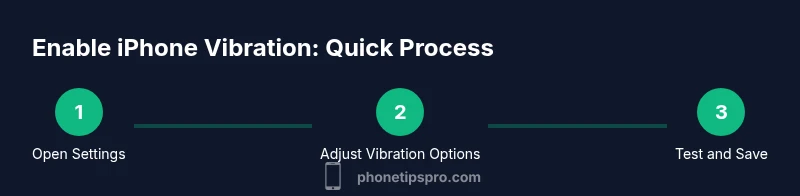
The phrase how to turn on vibration on iPhone is straightforward when you follow the right path. Start by opening Settings. Then tap Sounds & Haptics. Ensure Vibrate on Ring and Vibrate on Silent are both toggled on. If you want stronger feedback, enable System Haptics under the same menu. This combination ensures you feel a vibration for most alerts and interactions, including incoming calls and message notifications. If you want more nuance, proceed to create a custom vibration pattern later in Settings > Accessibility > Touch > Vibration and customize a pattern that’s easy to notice in your daily routine.
Create custom vibration patterns for distinctive alerts
iOS provides a powerful tool for personalizing vibrations. Under Settings > Accessibility > Touch > Vibration, choose Create New Vibration and perform a short rhythm using a tip taps. Tap Stop, then Save to name your pattern. Use different patterns for calls, texts, and app alerts so you can identify the source without looking. This step is especially valuable if you frequently handle multiple devices or if you want the phone to stand out in noisy environments. Creating patterns is quick, but fine-tuning them takes a few minutes of listening tests.
Focus on Silent mode and Focus: keeping vibrations consistent
Some users assume vibration stops entirely under Focus or Do Not Disturb. In reality, you can customize Focus rules to continue vibrating for certain notifications. Open Focus settings, select a Focus profile, and review the allowed notifications. Ensure that the Focus pattern doesn’t silence vibrations globally; you can permit alarms or essential calls to vibrate. In tricky cases, recheck the per-app notification settings to ensure the vibration option is not turned off there. These steps help preserve tactile alerts even when you are in a temporarily muted state.
Troubleshooting: vibration still not working?
If vibrations don’t work after following these steps, a few issues could be at play. Start with a simple restart; this can resolve transient software glitches. If the ringers still vibrate weakly, try turning off and on Vibrate on Ring again, and verify that the hardware switch is not stuck. Ensure there’s no hardware damage in the Taptic Engine by visiting an Apple-authorized service provider if the device remains unresponsive. In rare cases, a software update may be required to restore full haptic functionality.
Test methods and cross-app checks
The best way to confirm success is to test vibration in multiple contexts. Send a test alert, place a call from another device, and trigger a random notification from an app. If your iPhone vibrates for some events but not others, locate the problematic app’s notification settings. Remember that third-party apps may override generic vibration patterns; adjusting per-app settings ensures comprehensive feedback. Keep in mind that some apps rely on subtle haptic feedback that may be less noticeable—consider increasing alert volume or adjusting vibration strength if necessary.
Final tips and version notes
Vibration controls have evolved with iOS updates, so if you’re on an older version, the path to enable vibration may differ slightly. Always keep iOS up to date to access improved haptics and new patterns. If you rely on vibrations for safety or accessibility, consider sharing your preferred patterns with family or caregivers. Regularly test vibration after any software update to ensure it remains functional and effective for your daily use. By following these steps, you’ll have a reliable, tactile alert system on your iPhone.
Tools & Materials
- iPhone with the latest iOS version(Ensures all vibration settings exist and work as expected)
- Settings app access(Needed to navigate Vibrate and Haptics options)
- Test opportunities(Time to test vibration with calls, messages, and app alerts)
Steps
Estimated time: 12-15 minutes
- 1
Open Settings
From the Home screen, open the Settings app to access device controls. This is your gateway to Vibrate, Haptics, and accessibility options. Make sure you’re on the main Settings page to follow the next steps smoothly.
Tip: If Settings isn’t visible on your home screen, swipe down and use Spotlight to search for 'Settings'. - 2
Tap Sounds & Haptics
In Settings, locate and select Sounds & Haptics to access ring and silent vibration toggles. This is where you’ll enable Vibrate on Ring and Vibrate on Silent for core alerts.
Tip: If you don’t see Sounds & Haptics, your iOS version may differ; proceed to Accessibility settings instead. - 3
Enable Vibrate on Ring and Vibrate on Silent
Toggle both Vibrate on Ring and Vibrate on Silent to the ON position. This ensures vibrations occur for calls and text alerts, regardless of sound settings.
Tip: Keep both on so you won’t miss important calls when sound is off. - 4
Enable System Haptics
Turn on System Haptics to improve whole-device feedback across menus and apps. This creates a consistent tactile experience alongside basic vibrations.
Tip: System Haptics enhances everyday interactions beyond simple alerts. - 5
Create a Custom Vibration Pattern
Go to Settings > Accessibility > Touch > Vibration > Create New Vibration and record a short rhythm. Save the pattern with a clear name.
Tip: Use distinct rhythms for calls vs. messages to identify alerts quickly. - 6
Test the Vibration
Use the Play button in the Vibration editor to test your pattern. Repeat adjustments until the sensation is noticeable and distinct.
Tip: A quick test saves time compared with trial-and-error in real alerts. - 7
Check Do Not Disturb/Focus
Open Focus settings and ensure alerts aren’t muted for essential notifications. Customize Focus rules to allow vibrations where possible.
Tip: Some Focus modes suppress vibrations; adjust per-notification settings as needed. - 8
Verify Across Contexts
Trigger a test alert, place a call from another device, and check app notifications to confirm consistent vibration feedback across contexts.
Tip: If a specific app doesn’t vibrate, adjust its per-app notification settings.
FAQ
Why isn’t my iPhone vibrating after a software update?
Check that Vibrate on Ring and Vibrate on Silent are enabled, verify Silent mode isn’t active, and review Focus settings. If unresolved, a reboot or minor update may help.
If vibration stopped after updating iOS, first check the vibration toggles and then reboot if needed.
Can I customize vibration patterns on iPhone?
Yes. Go to Settings > Accessibility > Touch > Vibration > Create New Vibration, record a rhythm, and save. You can assign patterns to different alert types.
Yes, you can create custom vibrations in Settings.
How do I test my iPhone vibration?
Open the Vibration editor and press the Play button to preview your pattern. Use a quick real-world test by triggering a quick alert.
Use the Play button in the Vibration editor to test your pattern.
Does Do Not Disturb affect vibrations?
Do Not Disturb and Focus modes can suppress alerts. Review Focus settings to allow vibrations for essential notifications.
DND can silence alerts; check your Focus settings to ensure vibrations are allowed.
Is vibration the same as haptic feedback?
Vibration is the motor-based alert. Haptics cover a broader range of tactile feedback used by iOS for UI interactions.
Vibration is part of haptic feedback but they’re not identical. Haptics cover more interactions.
What if my iPhone vibrates weakly?
Check the Vibrate on Ring/Silent toggles, test a custom pattern, and verify there’s no hardware issue with the Taptic Engine.
If the vibration is weak, reset settings and contact Apple Support if it persists.
Watch Video
Quick Summary
- Enable Vibrate on Ring and Vibrate on Silent
- Turn on System Haptics for consistent feedback
- Create and test a custom vibration pattern
- Test vibration across calls, texts, and apps