How to Set Up iPhone as New Phone Again: A Complete Guide
Learn how to set up iPhone as new phone again with a clean reset, no backup restoration, plus privacy, app reinstall, and security tips to start fresh.


Want to start fresh? This quick guide shows how to set up iPhone as new phone again by erasing all content and skipping iCloud restore. You’ll remove previous data, disable automatic transfers, and complete setup as a brand-new device without pulling from a backup. Follow each step for a clean, like-new iPhone experience.
Why Start Fresh? When to consider setting up iPhone as new
Starting fresh on an iPhone means wiping old data and starting from a clean slate. This is helpful if your device feels slow, you want to improve privacy, or you simply want to reorganize apps and settings as if the phone were brand new. Before you decide, remember that setting up as new means you won’t automatically restore apps, messages, or media from a prior backup. The Phone Tips Pro team notes that a clean setup can result in noticeable performance gains and fewer stale configurations. However, you should back up anything you want to keep if you don’t want to lose it—then decide if you’ll re-add it manually after setup. If you’re preparing to hand the device to someone else or repurpose it, a fresh install reduces the risk of transferring sensitive data. In this guide, you’ll learn both the mindset and the exact steps to achieve a true “how to set up iphone as new phone again” result.
Brand note: According to Phone Tips Pro, a fresh start often yields better long-term privacy and performance, especially on older models.
Pre-Reset Checklist
Before you wipe your device, gather essentials and confirm you’re ready for a clean slate: a charged iPhone (at least 50%), a stable internet connection, and your Apple ID credentials if you plan to sign in later. Decide whether you want a complete no-backup setup or a selective transfer later. If you plan to hand the device off or sell it, turn off Find My iPhone and sign out of your Apple ID to prevent Activation Lock. Ensure you know your passcode, as you’ll need it to authorize the reset. This preparation minimizes surprises and ensures the process goes smoothly.
Tip: Keep the charger handy; a powered device reduces the risk of interruption during the reset.
Erase vs Reset: Key Differences
There are two paths to a fresh start: erase all content and settings (a true reset) and simply choosing Set Up as New without restoring from a backup. Erasing removes apps, data, and settings, returning the device to factory-like state. Choosing Set Up as New during setup means you won’t automatically re-download items from a prior iCloud backup, though you can sign in later or create a new Apple ID. Understanding the distinction helps you avoid accidental data loss or mistaken assumptions about what remains on the device. This clarity is especially helpful if you’re repurposing the iPhone or selling it. It also informs what you’ll need to reconfigure after setup. The practical takeaway is to plan your data strategy before you start.
How to Erase All Content and Settings (Factory Reset)
To wipe the device, open Settings, then General, and select Transfer or Reset iPhone. Tap Erase All Content and Settings, enter your passcode if prompted, and confirm your choice. If you use Find My iPhone, you may need to sign out of your Apple ID and disable Activation Lock. The device will restart and display the initial setup screen. This resets the phone to a clean state, ready for a new configuration as if it were new.
Tip: Do not interrupt the reset once it starts; a disrupted reset can leave the device in an unpredictable state.
How to Set Up as New iPhone During Setup
On the welcome screen, choose Set Up as New iPhone instead of restoring from a backup. Create or sign in with a new Apple ID, set up Face ID or Touch ID, and establish a fresh passcode. Configure Location Services, Siri, and privacy preferences from scratch to ensure a clean baseline. Take your time with settings so the device reflects your current preferences rather than past defaults. After setup, you can selectively download apps from the App Store and reconfigure your settings gradually.
Tip: If you plan to use Apple services later, consider enabling iCloud Drive and iCloud Photos with a new account to avoid pulling old data.
Post-Setup: Install Apps and Customize
A true fresh start means you’ll manually install apps instead of restoring a backup. Open the App Store, search for essential apps, and sign in with your preferred accounts. Recreate custom shortcuts, configure notification preferences, and reselect privacy options. This approach helps you avoid clutter from older app data or outdated settings. Consider organizing apps into folders and enabling Focus modes to tailor your notifications. If you do back up anything later, do so with a clean slate in mind.
Privacy, Security, and Data Management After Fresh Setup
After you’ve set up as new, review privacy controls: limit ad tracking, manage location permissions, and review app permissions. Enable two-factor authentication for your Apple ID, and ensure your passcode is strong. Regularly update iOS to protect against vulnerabilities, and consider turning on Find My iPhone for security, but only after you’ve configured access controls. Finally, plan a regular data hygiene routine to prevent future clutter and ensure your device runs smoothly.
Troubleshooting Common Scenarios
If you encounter Activation Lock after resetting, make sure you sign out of iCloud on the old account before erasing or try signing in with the original Apple ID if you have it. If the setup screen freezes, restart the device and retry. For general connectivity hiccups, verify Wi‑Fi reliability and reattempt the setup process. Most issues resolve with a clean restart and steady power.
Authority sources
For additional guidance, consult trusted sources like Apple Support and major technology outlets. See these pages for official steps and troubleshooting:
- https://support.apple.com/guide/iphone/erase-all-content-and-settings-iphone-guide
- https://www.apple.com/support/iphone/
- https://www.cnet.com/how-to/how-to-reset-your-iphone/
Tools & Materials
- iPhone with at least 50% battery(Preferably plugged into power during reset to avoid interruption.)
- Stable Wi‑Fi connection(Needed for settings download and activation checks.)
- Apple ID credentials(Needed if you plan to sign in during setup or disable Find My iPhone before erasing.)
- Charger and cable(Keep nearby in case the device runs low during reset.)
- Optional: computer with iTunes/Finder(Not required but helpful for manual data management later.)
Steps
Estimated time: 60-90 minutes
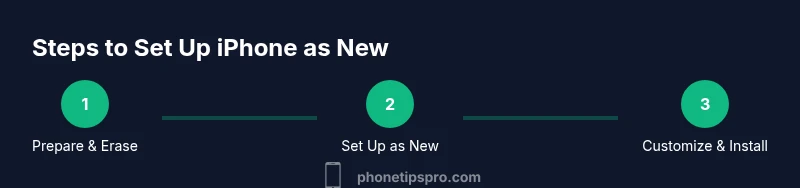
- 1
Prepare the device for a fresh start
Charge the iPhone to at least 50% and connect to a reliable power source. Ensure you know your Apple ID credentials or have a way to recover them, and decide whether you want to back up selectively later. This prep minimizes interruptions and prevents Activation Lock complications during reset.
Tip: Plug in the device before starting the reset to avoid power loss. - 2
Sign out and disable Find My iPhone (optional but recommended)
If you plan to fully wipe the device for a brand-new setup, sign out of iCloud and disable Find My iPhone to prevent Activation Lock post-reset. You’ll still be able to sign in later with a new or existing Apple ID.
Tip: You can re-enable Find My iPhone after setup if you want added security. - 3
Erase all content and settings
Go to Settings > General > Transfer or Reset iPhone > Erase All Content and Settings. Enter your passcode, confirm, and let the device erase. The iPhone will restart and display the setup screen.
Tip: This step permanently removes data; ensure you have anything important backed up elsewhere before proceeding. - 4
Set up as a new iPhone
On the setup screen, choose Set Up as New iPhone. Create or sign in with a new Apple ID as desired, and configure Face ID/Touch ID, passcode, and initial privacy settings from scratch.
Tip: Treat this as a first-time setup—avoid restoring from backups to maintain a clean slate. - 5
Configure essential settings
Enable critical features like Location Services, Siri, and iCloud preferences according to your current needs. Review privacy options and disable any permissions you don’t plan to keep. This ensures you start with a minimal, current configuration.
Tip: Limit app permissions initially and grant access to essential services only. - 6
Install apps and customize
Manually download and sign in to essential apps from the App Store. Reconfigure app-specific settings and notifications, organizing your home screen for a fresh workflow.
Tip: Install apps you actually use; avoid restoring everything to keep the device lean.
FAQ
What does setting up an iPhone as new mean in practice?
Setting up as new means erasing all data and not restoring from any previous backup. You’ll configure settings, apps, and preferences from scratch as if the iPhone were brand new.
Setting up as new means you start fresh, with no old data or settings carried over.
Will I lose photos and messages if I set up as new?
Yes, a full reset removes personal data from the device. If you want to keep photos or messages, back them up or export them before erasing, then re-import only what you need after the setup.
A full reset wipes data, so back up what you want to keep first.
Can I sign into the same Apple ID after starting new?
You can sign in with the same Apple ID after the reset if you want to re-download previous purchases, but you’ll have a clean slate for content linked to that account.
Yes, you can use the same Apple ID later if you wish to restore access to purchased apps.
Is it better to reset or just not restore from backup?
If you want a truly clean start, erase and set up as new. If you only want to remove certain data, you can skip restoring from a full backup but still sign in and selectively re-download apps.
Reset gives you a clean slate, while skipping a full restore lets you control what comes back.
What about activation lock during setup?
Activation Lock can prevent reuse if Find My iPhone is not turned off before erasing. Sign out of iCloud and disable Find My iPhone prior to the reset to prevent this.
If Activation Lock pops up, sign out of iCloud and disable Find My iPhone before erasing.
How long does a fresh setup take?
A fresh setup typically takes 45–90 minutes, depending on app installation and personalization steps. Faster if you skip optional features.
Most fresh setups finish in under an hour, depending on how many apps you install.
Watch Video
Quick Summary
- Start with a true reset for a clean slate
- Sign out of iCloud/Find My iPhone to avoid activation issues
- Set up as New iPhone and configure from scratch
- Install apps selectively to prevent clutter