How to Check If iPhone Is Already Activated: A Step-by-Step Guide
Learn practical steps to verify whether an iPhone is already activated, including settings checks, Activation Lock status, SIM/ESIM verification, and common troubleshooting tips.


According to Phone Tips Pro, you can quickly verify if an iPhone is already activated by checking Settings, the Activation Lock status, and the carrier or SIM information. This quick check helps prevent buying or trading for an inactive device and guides next steps if activation requires carrier assistance.
What activation means for an iPhone
Activation is the process that ties a device to Apple servers, your carrier, and your Apple ID so the phone can function with service, updates, and iCloud. For a device that’s already activated, you should be able to access the Home screen, Settings, and basic apps without being prompted to activate. Activation is especially important when buying a used iPhone or trading in an old device, because an unactivated phone may not connect to cellular networks or receive important updates. According to Phone Tips Pro Analysis, 2026, many activation-related problems stem from missing SIM data, improper eSIM configurations, or issues with Activation Lock settings. Understanding activation basics helps you diagnose problems quickly and avoid costly mistakes.
This section sets the foundation for the checks you’ll perform on the device itself and any related accounts. The goal is to determine whether activation has already occurred and what may still block a full, usable setup. A clear understanding of activation helps you plan the remaining steps with confidence, whether you’re verifying a device for personal use or preparing to buy from a seller.
How activation status affects buying used iPhones
When you’re evaluating a pre-owned iPhone, knowing its activation status saves time and reduces risk. If the device is already activated, you can skip additional setup steps and focus on data transfer, restoration, or content setup. If it isn’t activated, you’ll need to confirm the device can be activated under your carrier, iCloud credentials, and network conditions. A quick activation check also helps prevent post-purchase disputes by ensuring the phone isn’t tied to a previous owner’s account or an Activation Lock that blocks setup. In practice, most activation issues are resolved by simply confirming the device’s current activation state and syncing with an active SIM or eSIM.
Quick, on-device indicators of activation
A readily visible clue is whether you can reach the Home Screen and access Settings without seeing an activation prompt. If you’re greeted with setup screens, carrier configuration notices, or an “Activation Required” message, the device isn’t fully activated yet. Navigate to Settings to verify basic connectivity and status indicators. Look for a visible carrier name, an available Wi‑Fi connection, and functional apps. These cues help you decide whether to proceed with activation or troubleshoot deeper issues. Phone Tips Pro’s approach emphasizes validating these indicators early to avoid surprises later.
Activation Lock and Apple ID considerations
Activation Lock is a security feature tied to the previous owner’s Apple ID. If Activation Lock is enabled and you don’t have access to the owner’s Apple ID credentials, you won’t be able to activate the device. On a device you own, you can verify or manage this via the Find My iPhone/Apple ID account page. If you’re purchasing second-hand, insist on a clean handoff where Activation Lock is disabled and the device is removed from the prior owner’s account. This step prevents you from facing an iPhone that won’t activate due to account restrictions.
Checking SIM or eSIM status for activation
If the iPhone uses a physical SIM, ensure the SIM card is inserted properly and recognized by the device. For eSIM, verify that the eSIM profile is installed and active. In Settings, you can often see a Carrier label or No SIM indicator that helps confirm the SIM status. A missing or invalid SIM can prevent activation, even if the rest of the device is functional. Always confirm that the device has a working network connection and that the SIM/eSIM is configured correctly before concluding activation status.
How to test activation with real network access
Connect to a stable Wi‑Fi network and complete a fresh setup flow if prompted. If the iPhone asks you to activate, follow the prompts and select a carrier if available. Successful activation will move you past the initial setup screens and grant access to Settings and apps. If you encounter errors, note the exact message; this will guide you toward carrier support or Apple Support. Keeping the device charged and connected during activation minimizes interruptions and data loss.
Activation issues in refurbished or carrier-locked devices
Refurbished devices may have lingering activation states from the previous owner or the seller’s account. If a phone is carrier-locked, you’ll need to confirm it’s unlocked or compatible with your carrier. In some cases, you’ll need proof of ownership to complete the unlock or activation. This section outlines practical steps to verify activation readiness, avoid traps, and prepare for a smooth setup after purchase.
Tools & Materials
- iPhone (any model)(Charge to at least 50%; ensure it runs a recent iOS version if possible)
- AC adapter and Lightning/USB-C cable(For charging and initial connection if needed)
- Active SIM card or eSIM access(Required to test carrier activation; optional if purely firmware checks)
- Stable internet connection(Wi‑Fi is preferred to avoid cellular data costs during activation checks)
- Apple ID credentials (owner’s or seller’s if applicable)(Needed to verify Activation Lock status when possible)
Steps
Estimated time: 15-25 minutes
- 1
Power on and start setup
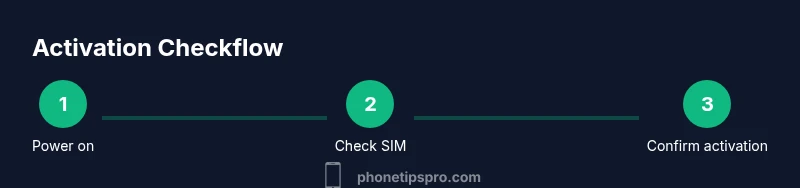
Press and hold the side button to turn on the device. If you reach the Home screen normally, activation has likely occurred. If you’re prompted to activate, record the message and proceed with the on-screen instructions.
Tip: Have the SIM inserted so carrier-related activation can proceed if required. - 2
Check Activation Lock status
Sign in to iCloud Find My iPhone or the Apple ID account page to see whether Activation Lock is enabled for this device. If you can locate the device in your account or remove it from another account, Activation Lock is mitigated for your use.
Tip: If you don’t have access to the prior owner’s Apple ID, contact them or avoid purchasing the device. - 3
Verify SIM/eSIM configuration
Insert a known-good SIM or configure an active eSIM. Navigate to Settings > General > About to confirm carrier information or SIM presence. A visible carrier name indicates activation progress or completion.
Tip: If No SIM is shown, try another SIM or reconfigure the eSIM. - 4
Attempt activation over Wi‑Fi
Connect to Wi‑Fi and resume activation prompts if shown. A successful activation allows you to complete the initial setup and access Settings.
Tip: Keep the device plugged in during the process to avoid power interruptions. - 5
Test network features after activation
Open a few apps that rely on network access, confirm calls or messages, and verify iCloud sign‑in works. This confirms dependable activation across services.
Tip: If cellular data doesn’t work, verify carrier settings and APN configurations with your carrier. - 6
If activation fails, gather details
Note the exact error messages and screen prompts. Use those details to contact Apple Support or your carrier for further steps. Ensure you have proof of ownership when seeking unlocks or carrier assistance.
Tip: Document the device’s IMEI/MEID and model for faster support.
FAQ
How can I tell if my iPhone is activated?
If you can reach the Home screen and Settings without prompts to activate, the device is likely activated. If you see activation prompts, follow the on-screen steps or verify your SIM and Apple ID status.
You’ll know it’s activated if you reach the home screen without activation prompts; otherwise follow the setup steps and check your SIM and Apple ID.
What does Activation Lock mean for activation?
Activation Lock ties the device to the previous owner's Apple ID. If it’s ON and you don’t have credentials, you cannot activate the iPhone until the lock is removed by the owner or the rightful account holder.
Activation Lock means the phone is linked to an Apple ID. Without access to that account, activation may be blocked.
Can I activate an iPhone without a SIM?
Activation can sometimes proceed over Wi‑Fi without a SIM, but many carriers require a SIM or eSIM to complete service activation. If you’re only testing software, you may still confirm activation state via Settings.
Sometimes you can activate over Wi‑Fi, but a SIM or eSIM is often needed for full carrier activation.
Why does activation fail after a restore?
Failure after restore typically points to Activation Lock, carrier blocks, or network issues during the activation flow. Check your Apple ID, verify the device isn’t locked to a previous account, and confirm SIM/eSIM status with the carrier.
If it fails after restore, check Activation Lock and the SIM status with your carrier.
Does activation differ for iPhone with eSIM?
Activation for eSIM uses a digital SIM profile instead of a physical card. Ensure the eSIM is active and provisioned by your carrier, then complete the activation prompts over Wi‑Fi or cellular data.
eSIM activation uses a digital profile; make sure the eSIM is active before continuing.
Who should I contact if activation status remains unknown?
If activation remains unclear, contact Apple Support or your mobile carrier with the device serial/IMEI and proof of ownership to get guided help.
If in doubt, reach out to Apple Support or your carrier with your device details.
Watch Video
Quick Summary
- Verify activation before finalizing a purchase
- Check Activation Lock status to avoid ownership issues
- Test SIM/eSIM and network connectivity during setup
- Capture error messages for faster support