How to Transfer Data from iPhone to Samsung: A Step-by-Step Guide
Learn how to move contacts, photos, messages, and more from iPhone to Samsung with wired or wireless transfers using Samsung Smart Switch and cloud options. Practical, brand-agnostic guidance by Phone Tips Pro.


This guide shows how to move essential data from iPhone to Samsung using wired or wireless methods. You’ll learn which data can transfer, what you’ll need, and how to verify everything after the switch. By following these steps, you can migrate contacts, photos, and messages with minimal downtime. According to Phone Tips Pro, planning ahead yields the smoothest transition.
What data can you transfer from iPhone to Samsung
Moving from iPhone to Samsung typically covers personal data such as contacts, calendars, photos, videos, notes, and voice memos. With Samsung Smart Switch and compatible cloud methods, you can also migrate call history, device settings, Wi‑Fi passwords, and some app data. However, not every item transfers automatically. Some apps store data in their own cloud accounts, and certain iOS-specific features (like iMessages) don’t have a direct Android counterpart. The Phone Tips Pro team emphasizes that a clean start often means you’ll reinstall apps rather than transfer every piece of data. Prepare a list of essential items first, then decide the best transfer route for each category. For example, photos and videos typically copy well via a wired or wireless transfer, while messages may require additional steps to preserve formatting or attachments. By planning ahead, you reduce surprises and ensure you have the most important files ready on your new Samsung device.
Data that cannot be transferred
Some data doesn’t survive the switch or requires a different workflow. iMessages and FaceTime calls won’t appear on Android as native messaging; you’ll likely see SMS messages if you enable it on the Samsung device, but with potential formatting differences. App data tied to iOS-only services (for example, iCloud-specific settings or game progress stored exclusively in Apple’s ecosystem) usually isn’t directly transferable. Photos, videos, contacts, calendars, and notes are the most reliable, while passwords and Wi‑Fi credentials often require re-entry or re-sync via your Google or Samsung account. Phone Tips Pro recommends setting expectations early: separate what must come across from what you’ll re-create on Android. This helps you decide whether to use a wired transfer, cloud backups, or targeted exports for specific apps or files.
Preparing your devices for the transfer
Start by backing up the iPhone to cloud or computer to avoid data loss. Charge both phones to full or near-full, and make sure you have a stable internet connection for any cloud-based steps. On the Samsung side, sign in to your Google and Samsung accounts and update the device to the latest available software. Disable iMessage and FaceTime temporarily so incoming iPhone messages don’t post on the old device after you’ve started the switch. If you’re using a wired transfer, gather the right cables or adapters (USB‑C to Lightning or compatible dongles) and keep a backup cloud of essential files just in case. Finally, inventory your most important items—contacts, photos, notes, and calendars—so you can verify them on the Galaxy after the transfer completes.
Option A: Transfer with Samsung Smart Switch via Cable
Samsung Smart Switch provides a streamlined way to move data between iPhone and Galaxy when you have a compatible cable. On the Galaxy, install and open Smart Switch, then connect the two devices with a USB cable (USB‑C to Lightning or a compatible adapter). You may need to confirm a trust prompt on the iPhone. Choose the data you want to copy—contacts, messages, photos, videos, calendars, and notes are common choices—and start the transfer. Let the devices stay connected and powered during the process; avoid unplugging or moving too far apart. After completion, review what arrived on the Galaxy and log back into cloud accounts to sync additional content. Pro tip: If your iPhone is older, use a Lightning‑to‑USB‑C adapter to ensure a stable physical connection and keep both devices within a few feet of each other.
Option A continued: What to do if you don’t have a cable
If a direct cable connection isn’t feasible, you can still migrate via wireless methods. Starting on the Galaxy, use Smart Switch over Wi‑Fi if the feature is available, or complete a cloud-based data export from the iPhone (contacts, calendars, photos) to Google Drive or iCloud and then import to Samsung. Wireless transfers tend to be slower and can require more follow‑up steps to verify everything arrived. Be prepared to re-log into apps and re-download media. In some cases, you may prefer to export specific data (such as contacts via vCard, or photos via albums) and then upload them into the Samsung device manually. Always confirm your essential files are accessible on the new device before wiping the old one.
Option B: Wireless transfer using Smart Switch or Google Drive
Another viable path is using wireless transfer with Google Drive or Samsung Cloud integration. On the iPhone, back up photos and videos to Google Drive or iCloud, then sign into the same Google account on the Samsung and trigger the download. For contacts, calendars, and notes, ensure they’re linked to a cloud account that both platforms can access. On the Samsung, navigate to Smart Switch or the appropriate apps to pull data; you may be prompted to sign into your Google or Samsung account to complete the pull. Wireless transfers reduce cable clutter, but you may encounter format differences or missing metadata. If you rely on apps with local data, plan to re-authenticate or re-enter credentials on the Samsung after completion.
Transferring apps vs. data
Android and iOS handle apps differently, so you can’t directly move iOS apps to Samsung. You will need to reinstall Android versions from the Google Play Store or Galaxy Store. Some apps offer cross‑platform cloud sync, which preserves progress if you sign in with the same account (for example, a game that uses a cloud save or a note app that syncs across devices). Expect a mix: most media and contacts cross over, but app data and settings may require manual setup or re-login. Before you start, make a plan for critical apps—messaging, banking, or work apps—so you aren’t surprised by missing data after the switch.
Troubleshooting common transfer issues
Hiccups happen. If you encounter a connection drop during a wired transfer, pause and restart the process with fresh cables and a powered device. If the iPhone prompts for trust, accept the prompt; otherwise the transfer will stall. For wireless transfers, ensure both devices are on the same Wi‑Fi network and that neither is actively performing a separate large backup. Storage shortages on either device can abort transfers; free up space or deselect large items. If data seems missing, try the transfer again or use a cloud-based fallback to bring over the most important elements first, then verify on the Galaxy. When in doubt, resetting the transfer and starting over with a shorter data set can save frustration.
Data verification and post-transfer tips
After the transfer completes, take time to verify key data categories: contacts, photos, calendars, notes, and messages. Sign in to your Google and Samsung accounts to ensure ongoing syncing, and re-download essential apps from the Galaxy Store. Check that your Wi‑Fi passwords, wallpapers, and device settings are in place. If you had group chats or media in apps like messaging, re-check those conversations in the corresponding Android apps. Finally, back up the Samsung device to a cloud service so you can restore quickly in the future. With a little planning and care, the switch from iPhone to Samsung will be smoother, and you’ll be up and running in a fraction of the time you feared.
Tools & Materials
- iPhone backup (iCloud or Finder/Forte)(Create a backup before transfer; keep a local and cloud copy if possible)
- Samsung device with Smart Switch installed(Ensure the phone is updated to the latest software)
- USB-C to Lightning cable(For wired transfer between iPhone and Galaxy)
- USB-C to USB-C cable or adapter(Alternative wired option if your devices support USB-C ports)
- Charger for both devices(Keep devices powered during the entire transfer)
- Google/Samsung cloud accounts(Needed for cloud-based data sync and recovery)
- Stable Wi‑Fi network(Useful for wireless transfers and backups)
- List of essential apps and credentials(Helps re-authenticate and locate data after the move)
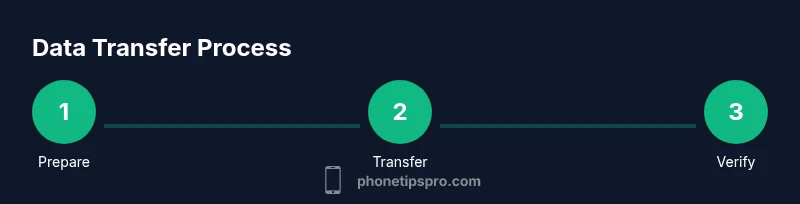
Steps
Estimated time: 60-90 minutes
- 1
Charge and prep devices
Ensure both devices are charged. Inspect cables and adapters for wear, and clear a workspace where you can keep devices within arm’s reach during the transfer.
Tip: Pro tip: A fully charged start reduces the risk of interruption. - 2
Back up iPhone data
Create a recent backup of the iPhone using iCloud or Finder/Forte so you have a restore point if anything goes wrong.
Tip: Pro tip: Include photos and messages in the backup for better coverage. - 3
Update software on both devices
Update iPhone and Samsung to the latest available software to maximize compatibility during transfer.
Tip: Pro tip: Post-update resets can improve transfer reliability. - 4
Install and prepare Smart Switch
Install Smart Switch on the Galaxy and ensure you’re signed into your Google and Samsung accounts.
Tip: Pro tip: Close other apps to free system resources for the transfer. - 5
Connect devices for wired transfer
Connect the two devices with the appropriate cable or adapter and trust the connection prompts on the iPhone.
Tip: Pro tip: Place devices close together to prevent accidental disconnects. - 6
Select data to transfer
In Smart Switch, pick the data categories you want to move (contacts, photos, messages, calendars, notes, etc.).
Tip: Pro tip: Start with essential items to verify transfer before adding apps. - 7
Start transfer and monitor progress
Begin the transfer and keep an eye on progress indicators. Do not unplug until the process completes.
Tip: Pro tip: If the transfer halts, pause, recheck connections, and restart. - 8
Finish transfer and sign back in
Once the transfer finishes, sign into cloud accounts on the Galaxy to pull in any cloud-stored data.
Tip: Pro tip: Reinstall critical apps from the Galaxy Store or Google Play. - 9
Verify data and do post-transfer cleanup
Check contacts, photos, calendars, and notes on the Galaxy. Re-download any apps and set up preferences.
Tip: Pro tip: Create a fresh backup after verification.
FAQ
Can I transfer iMessages to Samsung?
iMessages don’t transfer natively to Android. You’ll likely use SMS after setup or rely on app-specific cloud backups for message content. Some messages may appear as SMS if you enable it on the Samsung, but formatting and media may differ.
iMessages aren’t directly transferable. You’ll likely see SMS after setup, with potential formatting changes.
Will my photos and videos transfer to Samsung?
Yes—photos and videos typically transfer well through cable or wireless methods. It’s wise to double-check that all albums and memory cards have copied and that media plays correctly on the Galaxy.
Photos and videos usually transfer; verify all media after the move.
Can I transfer apps from iPhone to Samsung?
Android can’t run iOS apps, so you’ll reinstall them from Google Play or Galaxy Store. Some apps may import data or settings if you log in with the same account; otherwise you’ll start fresh.
You can’t move iOS apps to Android; reinstall and re-login where possible.
Do I need a Samsung or Google account to transfer data?
Accounts help sync and recover data during and after the transfer. You should be signed into the appropriate Google and Samsung accounts on the Galaxy to access cloud-stored items.
Signing into Google and Samsung accounts helps data sync after transfer.
What if the transfer fails or stalls?
Check cables and connections, ensure both devices are charged, and retry. If wireless, verify the network is stable and try again with smaller data sets first.
If it stalls, check connections and retry; keep devices charged.
How long does a typical transfer take?
Transfer duration varies with data volume and method. Plan for setup and verification time, especially for large photo libraries.
Duration varies; plan extra time for large media libraries.
Can I transfer WhatsApp chats to Samsung?
WhatsApp offers platform migrations for chat history in some scenarios, but it depends on device and app versions. Follow WhatsApp’s official migration steps for cross-platform transfers.
WhatsApp transitions depend on app support; check official guidance.
Should I wipe my iPhone after transferring?
Only wipe after you’ve confirmed all critical data is present on the Galaxy. Keeping a backup of the iPhone is a good precaution until you’re confident everything needed is migrated.
Wait to wipe until you confirm data is safely migrated.
Watch Video
Quick Summary
- Back up before switching to prevent data loss.
- Wired transfers are typically faster and more reliable.
- Apps and some data may require reinstallation or re-login.
- Verify essential data on the Galaxy before wiping the iPhone.