iPhone to Android Transfer: A Practical How-To
Learn how to do an iphone to android transfer: move contacts, calendars, photos, and messages with practical steps, tips, and troubleshooting for a smooth switch.


An iphone to android transfer is possible by moving essential data—contacts, calendars, photos, and messages—from your iPhone to your Android device. The safest approach is to back up key items, then restore them on Android using Google services or the device manufacturer’s transfer tool. Plan for a multi-step process to minimize data loss.
Why iPhone to Android transfer matters
If you’re planning an iphone to android transfer, you’ll want a reliable plan to move essential data—contacts, calendars, photos, messages, and notes data—without complications. The two ecosystems handle data differently, so preparation matters. This Phone Tips Pro guide walks you through practical options, the data that can travel with you, and how to avoid common pitfalls. A well-executed transfer minimizes downtime and keeps you productive on day one.
Data you can move and what might not transfer
Moving data between iPhone and Android is not a one-to-one swap. Contacts, calendars, photos, and videos often migrate cleanly when you use the right tools. Messages, iMessages, and some app data may not transfer automatically, and certain settings or in-app data may require re-login or separate export. Before you start, decide what you truly need on the new device, and manage expectations about items that require manual recreation or alternative storage.
Transfer options: fast paths and trade-offs
Several pathways exist to move data from iPhone to Android. A cloud-backed approach using Google services (Contacts, Calendars, and Photos) works well for most users. Device-to-device transfer tools offered by manufacturers (for example, a popular Android brand's transfer app) can copy contacts and media directly over Wi‑Fi or USB. Another option is manual transfer for media via a computer. Each method has trade-offs in speed, data completeness, and privacy.
Preparation steps before you start
To set up for a smooth iPhone to Android transfer, start by charging both devices and connecting them to stable Wi‑Fi. Sign into your Google account on the Android device and enable data sync for Contacts, Calendars, and Photos. On the iPhone, disable iMessage to prevent messages from routing to the wrong device after the switch. Make sure you have current backups (iCloud or computer) as a fallback if something goes awry.
Step-by-step overview
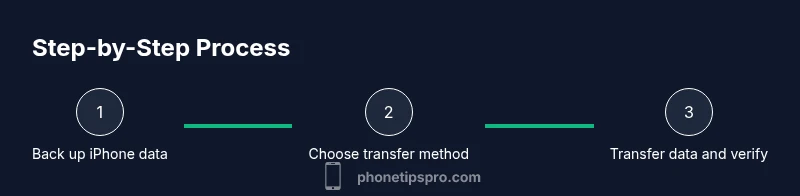
A typical transfer involves three phases: backing up the iPhone data, selecting a transfer method compatible with your Android device, and restoring data on Android. Depending on your data and chosen method, the process may require some re-login to apps and reinstallation. Keep your devices within reach of power and Wi‑Fi throughout, and consider using two devices as a workspace to compare data during the transition.
Dealing with messages and media
Messages can be tricky between iOS and Android. iMessages may not migrate automatically to Android, and some SMS/MMS conversations can be preserved only with the right cloud-based backup or transfer tool. For photos and videos, Google Photos or Drive backups provide reliable cross-platform access. For WhatsApp and other chat apps, use the built-in export/import options or official transfer features where available, keeping in mind privacy and data limitations.
Privacy, security, and troubleshooting
Always review privacy settings after the transfer. Sign into apps anew and revoke any unused device permissions. If data fails to appear on Android, retry the backup and restore steps, verify account login, and ensure you’re using the correct Google or device-specific transfer tool. In rare cases, a full reset may be needed, but proceed only after backing up. Phone Tips Pro recommends performing transfers in a quiet window to avoid interruptions.
Quick-start plan tailored to your devices
If you’re moving from an iPhone to a mid-range Android phone, start with Google account sync for contacts and calendars, then back up photos to Google Photos. If you’re transferring to a flagship Android device with robust data-transfer tooling, use the manufacturer’s app for a faster, more complete transfer. Regardless of method, verify critical data inside the Android device after the switch.
Tools & Materials
- Two smartphones (iPhone and Android)(Ensure both devices are charged and ready for data transfer)
- USB-C to Lightning cable or adapters(Check connector compatibility for your devices)
- Stable Wi-Fi network(Prefer 5 GHz for faster cloud-based transfers)
- Active Google account on Android(Needed to sync contacts, calendars, and photos)
- Backup storage (iCloud, computer, or cloud storage)(Useful as a fallback if something goes wrong)
- Phone Tips Pro guide or notes(Reference material for troubleshooting steps)
Steps
Estimated time: 75-120 minutes
- 1
Back up iPhone data
Initiate a full backup of your iPhone to iCloud or a computer. Ensure contacts, calendars, photos, and messages are included. Confirm the backup completes before proceeding to avoid data gaps.
Tip: Plug both devices into power and consider a local iPhone backup as an extra safeguard. - 2
Prepare your Android device
Power on the Android device, sign in with your Google account, and enable backup options for Contacts, Calendars, and Photos. If you plan to use a transfer app, ensure it’s installed and up to date.
Tip: Connect to Wi-Fi and keep the phone charged during setup to prevent interruptions. - 3
Choose a transfer path
Decide between cloud-based transfer (Google services), a device-to-device transfer app, or a manual file transfer. Your choice depends on data volume and device compatibility.
Tip: For most users, start with Google account sync and supplement with a manufacturer transfer tool for media. - 4
Move contacts and calendars
On iPhone, ensure your contacts are in iCloud/your Apple ID. On Android, enable Google Contacts and Google Calendar sync. The data should flow once you sign into the same Google account.
Tip: Double-check contact groups and calendar events after sync to catch gaps early. - 5
Migrate photos and videos
Install Google Photos on iPhone and back up the entire media library. Open Google Photos on Android and let it sync so you can access media immediately after setup.
Tip: Use Wi-Fi for large libraries and consider restricting video quality to improve transfer speed if needed. - 6
Transfer messages and chats
iMessages won't transfer to Android by default. Use cloud backups or a transfer tool when available, and for apps like WhatsApp, use the built-in transfer feature if your devices support it.
Tip: Deactivate iMessage on the iPhone before switching to avoid messages routing to the old device. - 7
Reinstall apps and sign back in
Install essential apps from Google Play on Android and sign in. Many apps will require re-authentication; keep a password manager handy to speed up login.
Tip: If an app supports it, export settings or data from the iPhone version to re-import on Android. - 8
Verify data integrity
Carefully review contacts, calendars, media, and key app data on Android. Confirm that critical conversations and media are present and accurate.
Tip: Keep the old iPhone nearby for reference until you’re confident the transfer completed correctly. - 9
Create an updated backup on Android
Once you’ve confirmed data integrity, run a fresh backup of the Android device to establish a new restore point.
Tip: Label the backup clearly (e.g., 'Android switch 2026-02') for future reference.
FAQ
Can I transfer iMessages to Android?
iMessages cannot be transferred directly to Android. Rely on SMS/MMS or cloud-based backups, and deactivate iMessage on the iPhone before switching. Some apps offer chat migration options, but results vary by platform.
No, iMessages can’t move to Android; use SMS or app-specific transfer options where available.
Will all apps transfer to Android after the switch?
Most apps must be reinstalled from Google Play and re-authenticated. Some data may transfer if the app supports cross-platform accounts, but you should expect to set up each app again.
Most apps need reinstallation and re-login on Android.
Which data transfer method is best for most users?
Using Google account sync for contacts, calendars, and photos is reliable, and then using a manufacturer transfer tool for media can complete the migration efficiently. This combo balances speed and data completeness.
Google sync plus a manufacturer tool is a solid approach.
How long does a typical transfer take?
Duration varies with data size and method. If you have lots of photos or videos, cloud-based transfers can take longer, but pre-planning and running transfers over a stable network helps.
It depends on how much data you move; larger libraries take longer.
Is there any data I should keep on the iPhone as a fallback?
Yes. Maintain a current iPhone backup during the process as a safety net. This ensures you can restore data if something doesn’t migrate correctly.
Keep an iPhone backup as a fallback.
What about chats from other apps (like WhatsApp)?
Some chat apps offer cross-platform transfer options, but availability varies by app and device. Check each app’s official guidance and perform transfers in a controlled window.
Check each app’s transfer options; availability varies.
Watch Video
Quick Summary
- Plan the transfer before you start.
- Back up essential data from iPhone.
- Choose the right transfer path for your devices.
- Verify data integrity after transfer.