Master Night Mode on iPhone: A Practical Guide
Learn to use Night Mode, Dark Mode, and Night Shift on iPhone with practical steps, scheduling tips, and accessibility considerations to optimize eye comfort and battery life.


You will enable Night Mode on iPhone by turning on Dark Mode in Settings Display & Brightness, enabling Auto-Brightness, and using Night Shift schedules to warm the screen after sunset. You’ll also learn how to customize timing and app behavior for a comfortable, battery-friendly viewing experience.
What Night Mode Really Is on iPhone
Night Mode, on the iPhone, is primarily delivered through two features that work together to reduce eye strain in low-light environments: Dark Mode and Night Shift. Dark Mode switches system UI to darker colors across apps that support it, while Night Shift adjusts the color temperature of your display to warmer tones after sunset. It’s important to distinguish these from other display adjustments like True Tone and Color Filters. According to Phone Tips Pro, understanding these modes helps you tailor your device for comfortable evening use, reducing blue light exposure without sacrificing readability. If you use a bright screen at night, you may notice less glare and easier reading in dim rooms; this can be especially helpful for late-night browsing, reading, or video streaming.
Phone Tips Pro’s team emphasizes testing different combinations of modes to find what feels best for your eyes and your schedule, especially if you have to work late or read before bed. By recognizing when each mode activates, you can craft a routine that supports better sleep hygiene while preserving device usability across apps and tasks.
Dark Mode vs Night Shift vs Color Adjustments
Dark Mode toggles the interface to a dark color scheme across supported apps, which can help reduce eye strain in dark environments. Night Shift is a separate feature that shifts the display colors toward warmer tones during evening hours. Color Filters and True Tone further customize color presentation, with True Tone adapting the display based on ambient lighting. The critical takeaway is that these settings can be used independently or together to suit your environment and personal preferences. For example, you might run Dark Mode all day and enable Night Shift only after sunset for warmth without changing contrast, or you could opt for Color Filters if you need accessibility-oriented color changes for readability.
How to Turn On Dark Mode (Night Mode) on iPhone
Enabling Dark Mode is straightforward, but you can tailor it to your needs. Open Settings, tap Display & Brightness, then choose Dark under Appearance. If you prefer, enable Automatic to have Dark Mode switch between light and dark automatically based on sunset times or a custom schedule. Remember to check that your apps support Dark Mode for consistent appearance; some third-party apps may lag in full dark compatibility. The Night Shift feature is managed under Settings Display & Brightness > Night Shift, where you can set a schedule, color temperature, and whether to activate on a custom timetable. Phone Tips Pro recommends testing different color temperatures to see what feels most natural at night.
Automating Night Mode and Scheduling
Automation is key to a seamless night-time experience. In Settings > Display & Brightness > Automatic, you can enable options like Sunset to Sunrise or create a custom schedule. Pair Night Shift with Dark Mode to ensure warmth appears consistently as light changes throughout the evening. You can also adjust the color temperature slider in Night Shift to find your preferred warmth; warmer temperatures are easier on eyes but may slightly reduce contrast for some tasks. Consistent scheduling helps your brain associate the evening visuals with winding-down routines, which can support sleep quality.
Night Shift: Warm Display For Evening Comfort
Night Shift changes the display’s color temperature to warmer hues after dark, mimicking natural evening lighting. This reduces blue light exposure, potentially aiding sleep latency and comfort. You can customize the start and end times or let it align with your Sunset schedule. The warmth level is adjustable; lower warmth contributes to a calmer screen, while very warm temperatures may affect white balance. For readers and late-night surfers, Night Shift can be a natural, subtle shift rather than a dramatic color change.
Accessibility Considerations: Display Tweaks for Comfort
Beyond Night Shift and Dark Mode, iPhone offers accessibility options that complement night viewing. Reduce White Point lowers overall brightness perception, and Bold Text enhances legibility without changing color. In Settings > Accessibility, experiment with Invert Colors (different from Smart Invert) and Color Filters for specific needs like colorblindness. These options can be used in conjunction with Night Mode for a more comfortable user experience, particularly in dim environments or on OLED screens where darker UI saves energy and reduces eye fatigue.
App Behavior and Content: What Changes and What Remains the Same
Dark Mode influences system UI and many native apps, but third-party apps vary in support. Some apps automatically adapt to the dark theme, others require manual color mode within their own settings. Content like images, videos, and web pages may render differently under Dark Mode, but user-generated content remains under your control. You’ll still have access to the same features—messaging, browsing, calling—just with a lighter or darker interface depending on settings. If your favorite app doesn’t support dark themes yet, you can still enable Night Shift or Color Filters for comfort while you use it.
Battery Life, Display Technology, and Health Considerations
OLED displays typically benefit most from Dark Mode because darker pixels consume less power. However, the effect varies by app and brightness levels. If you rely on LCD panels, the energy savings may be smaller, but the overall reduction in eye strain and improved readability can still be valuable. True Tone adjusts white balance for natural colors in various lighting, which can minimize eye strain during night viewing. Remember to monitor comfort and battery consumption as you adjust your settings to find a balance that suits your daily routine.
Common Issues and Quick Fixes (Troubleshooting)
If Night Mode or Dark Mode isn’t applying consistently, verify that your iPhone is on iOS 13 or later and that you’ve enabled the correct settings in Display & Brightness. Some third-party apps may not fully honor the system-wide Dark Mode; check for app updates or toggle the app’s own appearance setting. If Night Shift isn’t turning on automatically, confirm your schedule and ensure that Location Services or automatic settings aren’t conflicting with your time zone. Restarting the device can resolve minor software glitches that impede display changes. If you find color differences distracting, experiment with True Tone or Color Filters to restore a familiar appearance.
Tools & Materials
- iPhone with iOS 13 or later(Necessary to access Dark Mode and Night Shift features.)
- Settings app access(Used to adjust Display & Brightness options.)
- Comfortable viewing environment(Optional: a dim room or adjustable lighting for testing modes.)
- Apple Watch (optional)(Not required, but can help automate certain routines with watchOS.)
Steps
Estimated time: 10-15 minutes
- 1
Open Settings
Unlock your iPhone and locate the Settings app. This is the control center for Dark Mode and Night Shift preferences. Accessing Settings is the first step to tailor Night Mode to your needs.
Tip: If you can’t find Settings, use Spotlight search and type 'Settings'. - 2
Enable Dark Mode
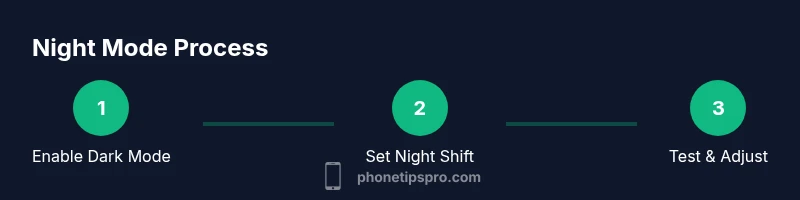
Navigate to Display & Brightness and select Dark under Appearance. This switches the UI to a dark color scheme across compatible apps.
Tip: Choose Dark Mode for consistent grayscale across most apps. - 3
Turn on Automatic Dark Mode
In the same Display & Brightness menu, toggle Automatic and pick Sunset to Sunrise or a custom schedule to auto-switch themes.
Tip: Automatic switching reduces manual adjustments and supports your evening routine. - 4
Set Night Shift Schedule
Go to Display & Brightness > Night Shift and schedule warmth to begin at sunset or a custom time. Adjust the color temperature slider to your comfort level.
Tip: A warmer temperature can reduce eye strain and improve sleep onset. - 5
Enable True Tone (Optional)
If you prefer natural colors, ensure True Tone is on so the display adapts to ambient lighting while Dark Mode remains active.
Tip: True Tone can improve readability in mixed lighting conditions. - 6
Test with Sleep-friendly Settings
Use a low-brightness room and compare reading comfort with Dark Mode, Night Shift, and True Tone enabled. You can disable one feature to see its individual effect.
Tip: Testing helps you pick the right combo for your eyes. - 7
Fine-tune for Apps
Review apps that look off in Dark Mode and check for updates or built-in dark themes. If an app doesn’t support dark mode, rely on Night Shift or Color Filters for comfort.
Tip: App compatibility varies; updates can improve appearance over time.
FAQ
What is the difference between Night Mode, Dark Mode, and Night Shift?
Dark Mode changes the interface to a darker color palette. Night Shift warms the display colors in the evening to reduce blue light exposure. Night Mode is a general term often used to describe the combination of these features for night-time use. Balance these features to maximize comfort.
Dark Mode changes the UI to dark, Night Shift warms colors at night, and together they create a comfortable night-use setup.
Can I schedule Night Shift and Dark Mode together?
Yes. You can set Dark Mode to Auto and Night Shift to a schedule. This creates a seamless transition from day to night with warmer tones after sunset.
You can automate both features for smooth night-time usage.
Will Dark Mode save battery life?
On OLED iPhones, darker UI can save battery life, especially with bright wallpapers and high brightness. On LCD displays, the effect is smaller, but comfort can still be improved.
Dark Mode can help battery life on OLED screens, but the impact varies by usage.
How do I revert to light mode quickly?
Open Settings > Display & Brightness and choose Light under Appearance. You can also disable Automatic to prevent further changes.
Just switch Appearance back to Light to revert quickly.
Does Night Shift affect color accuracy for photos?
Night Shift shifts colors warmer and can slightly alter color perception. For photo editing, you may want to disable it temporarily to see colors accurately.
Night Shift changes warmth; disable it if you need true colors for editing.
Which iPhone models support Dark Mode and Night Shift?
Dark Mode and Night Shift are available on iPhone models that run iOS 13 or later. Ensure your device is updated to access these features.
This feature is available on iPhones with iOS 13 or newer, so update if needed.
Watch Video
Quick Summary
- Enable Dark Mode for a consistent dark UI
- Schedule Night Shift to reduce eye strain
- Fine-tune color warmth for comfort
- Test app appearance and adjust as needed
- Use True Tone for natural colors in varying lighting