What to Scan with iPhone: A Practical How-To Guide
Learn what to scan with iPhone using the camera, Live Text, and built-in apps. This educational guide covers documents, QR codes, receipts, and tips for accurate results.


You can scan documents, QR codes, barcodes, receipts, and text with iPhone. For best results, use the Camera app, Live Text when text is visible, and third‑party apps for advanced features. Start with the Camera app to scan codes, then switch to Live Text for extracting text from images.
Understanding what you can scan with iPhone
According to Phone Tips Pro, the iPhone is capable of scanning far more than just barcodes. The built-in Camera app, along with Live Text (iOS on-device OCR), can recognize and extract data from a wide range of content: QR codes, standard barcodes, printed documents, receipts, and even text within photos. This versatility comes from a combination of Vision framework capabilities and app-level integrations that let you save, share, or convert scanned content into searchable text. When done well, scanning with iPhone reduces manual data entry and speeds up everyday tasks. Phone Tips Pro Analysis, 2026, notes that accuracy improves with good lighting, steady hands, and a clean lens, underscoring the value of simple, repeatable techniques.
Before you start, identify your primary goals: do you need a text excerpt, a digital copy of a document, or a captured code for quick action? Align your approach to the content type and the app you’ll use, as this will influence lighting, distance, and whether you should capture a photo or perform a live OCR pass.
Scanning with iPhone Camera vs Live Text
The iPhone supports several scanning modalities that work best in different scenarios. The Camera app is ideal for quick QR codes, barcodes, and document framing. When you need to extract textual information from an image, Live Text is your go-to feature, converting typed or printed text directly into editable content. Live Text supports many languages and can be used across apps like Notes, Messages, Mail, and Photos. In practice, you’ll often start with the Camera to capture a clear image, then switch to Live Text to pull out words or numbers. According to Phone Tips Pro’s guidance, the best results come from a well-lit scene, a steady shot, and minimal glare on reflective surfaces. If you’re working with curved text (like a receipt photo), take multiple shots from slight angles to improve OCR accuracy.
For quick codes or links, the Camera app still reigns supreme due to speed and universal compatibility. If you’re dealing with long passages of text, consider using Live Text on a photo rather than attempting to read from a live camera feed for accuracy.
Scanning common items: documents, receipts, business cards, QR codes
iPhone scanning is particularly convenient for everyday tasks. Documents can be captured and saved as images or PDFs, receipts can be cropped and stored for expense tracking, and business cards can be converted into contact entries with minimal tapping. QR codes compress links or actions into a tiny square; your Camera app will usually recognize and prompt you to open the associated URL or app. For text-heavy content, Live Text shines: you can copy, translate, or search the extracted text right from a Photo, Notes, or Messages screen. Tests and usage patterns show that consistency—framing content squarely, avoiding glare, and ensuring clear edges—dramatically improves capture quality. Phone Tips Pro’s practical approach emphasizes starting with the Camera for quick captures and switching to Live Text when you need editable text from an image.
Tips for accurate scans: lighting, steadiness, angle, background
Accuracy hinges on practical conditions you control. Work in bright, indirect light to minimize shadows and reflections. Keep your iPhone steady—use a tripod or brace your elbows against a solid surface if needed. Frame the subject so edges are crisp and you’re not cropping important details. For documents, place them on a flat, matte background to reduce glare and ensure the text is parallel to the edge of the frame. If text is small, zoom in carefully and tap to focus before capturing. For QR codes and barcodes, ensure the code is fully visible with enough contrast. Small adjustments to distance and angle can markedly improve recognition rates. Healthy scanning habits also mean reviewing results quickly and recapturing if the quality is insufficient.
With practice, you’ll develop a reliable rhythm: capture a clean image, verify the detected data, and choose the best export option (copy, share, or save).
Safety, privacy, and data handling when scanning
Privacy considerations matter, especially when scanning sensitive documents or personal information. Limit what you share with third‑party scanning apps, and prefer on-device processing where possible. Review app permissions and access controls; disable clipboard sharing for apps you don’t trust. If you’re scanning work documents, store files in secured locations like iCloud Drive with password protection or local storage on your device. Phone Tips Pro Analysis, 2026, emphasizes keeping sensitive scans secure by using built-in tools first and vetting any extra apps for reputable privacy policies. Regularly review which apps have access to your camera and photos, and remove permissions from apps you no longer use.
Troubleshooting and limitations
While iPhone scanning is powerful, it isn’t perfect. Glare, curved surfaces, and very small fonts can challenge OCR accuracy. If you encounter issues, try a few adjustments: gently tilt the page, increase lighting, or capture multiple shots from different angles. If a document is challenging, use a dedicated scanning app that offers edge detection and perspective correction. For long texts, segment the page into smaller sections and process them individually. If all else fails, ensure your iPhone is updated to the latest iOS so you have the newest scanning improvements and language support.
Authority Sources
To deepen your understanding of scanning technologies and OCR, several credible sources offer foundational insights. For standards and measurement, see NIST’s resources at https://www.nist.gov. For broader scientific context on imaging and data capture, refer to major publications such as https://www.sciencemag.org and https://www.nature.com. While these sources cover general imaging and data processing, they contextualize the importance of reliable digital capture that users apply when scanning with iPhone devices. Phone Tips Pro consistently integrates guidance from these sources with practical, hands-on tips tailored to iPhone users.
Tools & Materials
- iPhone with latest iOS (recommended: iOS 16 or later)(Ensures access to Live Text and current scanning features)
- Clean microfiber cloth(Wipe the camera lens for clear captures)
- Sample documents, receipts, and QR/barcode codes(For testing various scan types during practice)
- Tripod or stable surface(Helpful for steady long sessions or difficult angles)
- Notes app or Files app for saving scans(Keep scans organized and easily searchable)
- Optional third‑party scanning apps(Use only trusted apps with strong privacy policies)
Steps
Estimated time: 20-30 minutes
- 1
Prepare your device
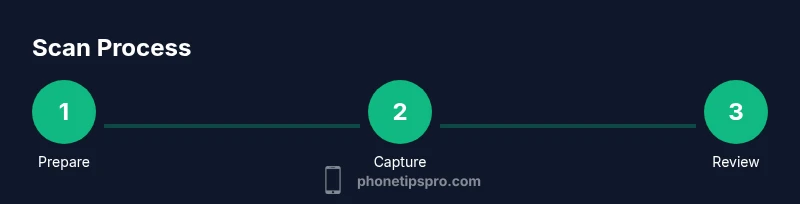
Unlock your iPhone, verify you’re on a recent iOS version, and enable Live Text if needed. Clean the lens with a microfiber cloth to prevent blurry captures. Gather test content (documents, receipts, and codes) so you can practice with different scan types.
Tip: Use a tripod or stable surface to reduce shakiness during scanning. - 2
Choose your scan mode
Decide whether you’ll use the Camera app for codes or text from an image or Live Text for extracting on-screen text. If you’re photographing a document, choose Camera for best framing; for extracting text, switch to Live Text after capture.
Tip: For text extraction, prioritize a clear, high-contrast page to improve OCR accuracy. - 3
Frame content properly
Position the content so edges are visible and evenly lit. Hold your device steady, align the content to the center, and avoid shadows. For documents, keep the page flat and parallel to the camera plane.
Tip: Take multiple angles if the text is curved or the lighting is uneven. - 4
Capture or extract text
Tap the shutter or use Live Text’s on-screen button to capture. If using Live Text, select the text blocks you need and copy or translate as required. Review the captured data for accuracy before saving.
Tip: If OCR misses characters, recapture with a slightly different angle or lighting. - 5
Review and save
Crop unnecessary margins, adjust any perspective or brightness, and save to Notes or Files. Name files clearly and create folders to keep related scans together. Consider exporting to PDF for documents.
Tip: Organize scans by category (receipts, contracts, codes) to speed retrieval. - 6
Share or export
Share scans via email, Messages, or cloud storage. For sensitive data, use password-protected sharing or secure links. Keep a local copy if you need offline access.
Tip: Always verify the recipient has the right permissions before sending sensitive information.
FAQ
What types of content can I scan with iPhone?
You can scan documents, QR codes, barcodes, receipts, and text using Camera and Live Text. The right tool depends on whether you need an image, a PDF, or editable text.
You can scan documents, codes, receipts, and text. Use Camera for codes and Live Text for editable text.
Is Live Text available on all iPhone models?
Live Text is available on iPhone XS and newer models with iOS 15 or later. If your device is older, you’ll still be able to scan using the Camera app for codes and photos.
Live Text works on iPhone XS and newer with iOS 15+. If you have an older model, you can still scan codes with Camera.
Can I scan documents to PDF on iPhone?
Yes. Use the Camera or Notes app to capture a document, then export or save as a PDF. You can later share or archive the file from Files or Notes.
Yes, you can save documents as PDFs from Notes or Files.
How accurate is Live Text with handwriting?
Live Text is most accurate with printed text. Handwritten notes may be partially recognized, and you may need to retype or edit the extracted text.
Live Text works best with printed text; handwriting may require manual edits.
What should I do if scanning is blurry or misaligned?
Ensure good lighting, steady the device, and reframe the content. For documents, introduce slight perspective corrections or recapture from a flatter angle.
Bright light and a steady hand help; recapture if blurry.
Can third-party scanning apps help beyond built-in features?
Third-party apps can offer advanced edge detection, batch processing, and OCR in multiple languages. Choose trusted apps with strong privacy policies and minimize permissions.
Yes, trusted apps can add features, but check privacy settings first.
Watch Video
Quick Summary
- Know what you can scan with iPhone
- Use the right mode for the goal
- Lighting and steadiness drive accuracy
- Save and organize scans for quick access
- Protect privacy when sharing scanned data