What to Do Before Getting Rid of Your iPhone: A Practical Guide
Learn the essential steps to securely wipe, back up, sign out, and recycle your iPhone. This guide covers data privacy, Activation Lock, and disposal options to protect your information.


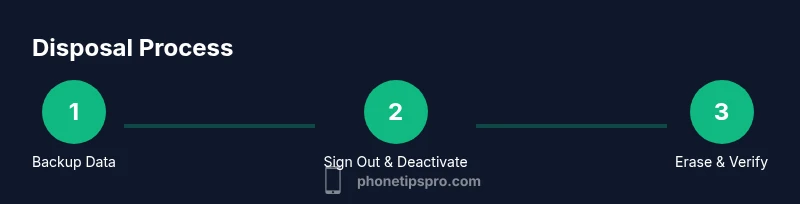
Before getting rid of your iPhone, prepare by backing up your data, signing out of iCloud and Apple ID, disabling Find My iPhone and Activation Lock, and erasing all content. Plan your disposal path—recycle, sell, or donate—and verify you have all accessories and the SIM removed if needed.
Why Prep Before Getting Rid of Your iPhone
Before you part with your device, thorough preparation protects your privacy and maximizes the value you may get from trade-ins or resale. An iPhone can hold a lifetime of personal data—from messages and photos to app data and work files. Skipping cleanup risks data exposure, unauthorized access, and identity theft. The Phone Tips Pro team emphasizes a deliberate, step-by-step approach that starts long before you press erase. In practice, this means backing up what you need, signing out of services, and choosing a disposal path that matches your privacy goals. Treat disposal as a data lifecycle task, not a one-off hardware swap. If the battery health is questionable, consider professional assessment before disposal, since battery conditions influence recycling options and safety.
Back Up Your Data: iCloud vs Finder
Your first priority is to protect what you value. You can back up to iCloud wirelessly, or use Finder on macOS or iTunes on Windows/macOS to create an encrypted local backup. Encrypted backups preserve passwords, health data, and Wi‑Fi settings, making a full restore painless. If you choose iCloud, ensure you have enough storage or purchase a plan temporarily. For Finder backups, connect your iPhone with a cable, select the device, and click "Back Up Now". After backing up, verify the timestamp and ensure the backup completed successfully. Phone Tips Pro recommends doing both a cloud and a local backup if possible for redundancy.
Sign Out of Apple ID and Unpair Devices
Signing out of iCloud and Apple ID prevents post-disposal sign-in from re-synchronizing data to the device. Go to Settings > [Your name] > Sign Out, then enter your password to disable iCloud services. If you use an Apple Watch, unpair it to remove the link to your iPhone and create a clean break. Keep in mind that unpairing may erase the watch data, so back it up if you plan to reuse the watch. Removing these associations minimizes the chance of Activation Lock reoccurring after the erase.
Disable Find My iPhone and Activation Lock
Activation Lock protects your device by tying it to your Apple ID. To avoid future headaches for new owners, disable Find My iPhone and sign out of iCloud. Go to Settings > [Your name] > Find My > Find My iPhone, then switch off Find My iPhone. Confirm your Apple ID password when prompted. This step is critical to ensure the device can be reactivated by a new owner or the recycling partner without barriers.
Erase All Content and Settings Securely
The actual data wipe should be done only after backups and sign-out steps are complete. In iOS, go to Settings > General > Transfer or Reset iPhone > Erase All Content and Settings. Enter your passcode if prompted and confirm. The process usually takes several minutes, during which the device restarts and returns to its factory state. Keep the device connected to power if possible to prevent an incomplete erase, and ensure you have a remove SIM card if you intend to give the phone to someone else.
After Erasure: Choose a Disposal Path and Verify
Once the device is erased, decide whether to recycle, sell, or donate. For resale or donation, consider restoring to the latest iOS version to show it's fully functional. If recycling, find a certified e-waste recycler or carrier program. Keep a record of the disposal for personal privacy audits and receipts for trade-in programs. Finally, store any packaging and accessories separately or dispose of them responsibly.
Common Mistakes to Avoid
Avoid skipping backups, forgetting to sign out, or neglecting to remove the SIM before disposal. Do not erase without confirming that Activation Lock is disabled, and never interrupt the erase process. Finally, don’t ignore local regulations for electronics recycling. Following these checks helps ensure a smooth handoff and protects your privacy.
Tools & Materials
- iPhone (charged)(Battery should be at least 20-50% if possible)
- Lightning to USB-C/USB-C cable(Needed for backups or charging during long processes)
- Wi‑Fi network(Stable connection for iCloud backup)
- Apple ID and password(Necessary to sign out and disable Activation Lock)
- Computer or Mac (optional)(Use Finder/iTunes for encrypted local backup)
- SIM ejector tool (optional)(Remove SIM if passing to another user)
Steps
Estimated time: 30-60 minutes
- 1
Back up your data
Choose a backup method (iCloud or Finder) and ensure the backup completes successfully. Verify that photos, messages, app data, and settings are included. Consider doing both a cloud and local backup for redundancy.
Tip: After backing up, test restoring a sample item to confirm data integrity. - 2
Sign out of Apple ID and iCloud
Go to Settings > [Your name] and scroll to Sign Out. This prevents re-syncing after you erase and helps detach the device from your account. If two-factor authentication is enabled, you may need to verify your identity.
Tip: Keep your Apple ID credentials secure and avoid storing them on the device. - 3
Unpair devices and disable activation features
If you use an Apple Watch, unpair it from your iPhone to remove the pairing. Disable any other connected devices to reduce data links. This helps ensure a clean break when the iPhone is reactivated by a new owner.
Tip: Unpairing may erase the watch data; back it up if you plan to reuse the watch. - 4
Turn off Find My iPhone / Activation Lock
In Settings, turn off Find My iPhone and confirm you want to disable Activation Lock. This is essential to allow a new owner to activate the device without restrictions.
Tip: If you cannot access the device due to a password, sign out via the Apple ID account page on the web. - 5
Erase all content and settings
Navigate to Settings > General > Transfer or Reset iPhone > Erase All Content and Settings. Enter your passcode and confirm to start the wipe. Ensure the device has power until the process completes.
Tip: Remain patient and do not disconnect the device during the erase. - 6
Select a disposal path and verify completion
Choose whether to recycle, sell, or donate. If selling/donating, verify the device boots to the setup screen and is in working order. Obtain receipts or certifications if using a trade-in program.
Tip: Keep a record of the disposal path for personal privacy and future reference.
FAQ
Do I need to sign out of iCloud before erasing my iPhone?
Yes. Signing out helps ensure Activation Lock is not reactivated and protects your data when handing off the device.
Yes. Sign out of iCloud before erasing to protect your data and prevent activation issues for the next owner.
Will erasing delete photos from iCloud as well?
Erasing deletes local data and iPhone settings, but photos stored in iCloud remain in the cloud unless you delete them there as well.
Erasing removes data from the iPhone, but iCloud photos stay in iCloud unless you remove them there too.
How long does the erase process take?
The erase usually completes within a few minutes to about 15 minutes, depending on the device and battery level.
Usually a few minutes up to about a quarter of an hour, depending on conditions.
Should I remove the SIM card before disposal?
It’s recommended to remove the SIM card if you’re transferring the phone or planning to recycle it with care instructions.
Yes, remove the SIM if you’re passing the phone to someone else or recycling with care.
What if the iPhone won’t turn on during the process?
If the device won’t power on, you can still initiate erase via recovery modes under supervision, or use iCloud to erase remotely if Find My iPhone was enabled.
If it won’t turn on, you may need professional help or try remote wipe if you had Find My enabled.
Does a device erase remove Activation Lock automatically?
Signing out of iCloud and performing the erase typically removes Activation Lock, enabling the device to be set up by a new user.
Yes, signing out and erasing usually clears Activation Lock.
Watch Video
Quick Summary
- Back up data before any wipe
- Sign out and disable Activation Lock
- Erase all content and settings securely
- Decide disposal path (recycle, sell, donate)
- Verify completion with documentation