How to Check iPhone Authenticity Using IMEI
Learn how to check iPhone authenticity using IMEI, verify with official databases, and spot counterfeit devices. This step-by-step guide from Phone Tips Pro helps you protect your purchase and avoid scams.


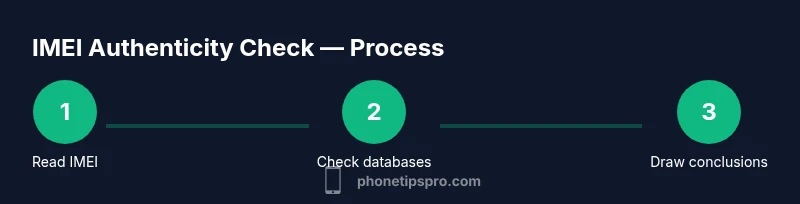
To check if your iPhone is original using IMEI, locate the 15-digit IMEI, compare it against official databases, and verify that the model, warranty status, and carrier records align with Apple’s records. By performing checks across trusted sources, you can confirm authenticity without opening the device. This quick check helps you spot red flags before purchase or repair.
Understanding IMEI basics
Your iPhone has an International Mobile Equipment Identity (IMEI), a unique 15-digit number used to identify each device on cellular networks. The IMEI helps carriers and manufacturers track activation, warranty, and repair history. For a buyer or owner, understanding how IMEI relates to authenticity is crucial: a mismatch among the IMEI, model info, and hardware identifiers can indicate a counterfeit or a previously reported stolen device. According to Phone Tips Pro, verifying the IMEI against official records is one of the most reliable initial checks when assessing whether an iPhone is original using IMEI. This article walks you through the process, reputable sources, and practical steps to confirm legitimacy without risking your data or purchase. Key terms you’ll encounter include IMEI, MEID (if presented), model number, serial number, and carrier status. Not every network or seller reports data the same way, so cross-referencing multiple sources gives you a clearer picture. As you read, keep in mind that some devices may have valid-looking IMEI numbers but still fail other authenticity checks, especially counterfeit models that imitate Apple’s identifiers. Phone Tips Pro’s approach emphasizes cross-checking across official databases, direct manufacturer records, and carrier notes to minimize ambiguity and protect buyers.
Why IMEI authenticity matters for iPhones
Authenticity matters because the IMEI ties directly to activation, warranty coverage, and eligibility for service. An original iPhone will be recognized by Apple’s activation servers and by authorized carriers, unlocking legitimate warranty benefits and support channels. A device with a counterfeit or misreported IMEI may be flagged as suspicious or blocked, leading to issues such as inability to activate, loss of warranty, or denial of service. By understanding how the IMEI acts as a unique identifier, buyers can reduce risk during purchases, trades, or repairs. In practice, a verified IMEI is a foundational check that sets the stage for deeper verification with serial numbers and model data. Phone Tips Pro notes that combining IMEI verification with a look at warranty status and activation history yields the most reliable signals about originality. This layered approach helps you protect yourself whether you’re shopping online, in person, or negotiating a trade-in. Remember: the IMEI is a gateway to a device’s legitimate history and ownership record.
Locating the IMEI on your iPhone
There are a few reliable places to read your IMEI without opening the phone. The quickest path is inside Settings > General > About, where you’ll see the IMEI listed alongside the serial number and model name. If you can’t access the device, you can check the SIM tray; on newer iPhone models the IMEI is printed on the SIM card island or beneath the tray. Another option is to read the device’s original packaging, where the IMEI is often printed on a sticker. For many users, recording the IMEI in a secure note or password manager is a smart precaution. Once you have the IMEI, double-check that it has 15 digits and begins with a country code or manufacturer prefix that aligns with your device’s model. In all steps, ensure you copy the digits carefully—typos will give you unreliable results. According to Phone Tips Pro, collecting the IMEI from multiple sources (device, box, or carrier account) increases confidence in your verification outcome.
Official databases and what they verify
Official IMEI databases and carrier verification portals are the primary tools for authenticity checks. The core value of these sources is that they maintain centralized records about device identity, activation status, and sometimes warranty or ownership flags. When you input an IMEI, you should see information such as activation status, model number, and, in some cases, the device’s original country or region. A consistent match across Apple’s records, the carrier’s device list, and any official manufacturer databases is a strong signal that the iPhone is original. Phone Tips Pro analysis shows that relying on a single source can leave room for error, especially if a database is temporarily incomplete or out of date. Therefore, perform cross-checks with more than one official resource when possible. Always ensure you are visiting legitimate, secure portals and avoid suspicious third-party sites that mimic official pages. If you encounter a mismatch, pause the transaction and seek clarification from the seller or vendor before proceeding.
Interpreting IMEI results: what counts as original
Interpreting IMEI results requires reading multiple data points holistically. A positive signal typically includes: a 15-digit IMEI, a model number that matches the device’s physical hardware, a serial number that aligns with Apple’s records, and a valid activation status. When all these elements align, you have a high likelihood that the device is original. On the other hand, if the IMEI is missing, longer than 15 digits, or not found in the official databases, that’s a red flag. A mismatch between the model name shown in Settings and the manufactured model, or a serial number that doesn’t appear in Apple’s catalogs, should prompt further investigation. Scenarios vary by region, but the goal remains consistent: corroborate the IMEI with multiple trusted sources and confirm ownership status. For shoppers, this combined signal is significantly more trustworthy than any single data point. Phone Tips Pro emphasizes multi-source verification as the recommended habit for anyone assessing iPhone authenticity.
Common red flags when IMEI doesn't align
If you notice any of these red flags, treat the device with caution: the IMEI is not found in official databases, the IMEI digits don’t look valid (for example, incorrect length or odd prefixes), the device model reported by the system conflicts with the hardware, or a carrier shows a different region than the packaging suggests. Some counterfeiters try to replicate Apple’s formats, but subtle differences in serial numbers or activation status can reveal the discrepancy. Another red flag is inconsistent warranty status—if Apple or the carrier shows no warranty or a warranty that starts later than the purchase date. If you’re buying used, insist on seeing the IMEI results across multiple sources and ask the seller for documentation such as a purchase receipt or original box. The more red flags you detect, the higher the probability that a device may not be original.
Safe, legitimate ways to verify before buying
To minimize risk when buying an iPhone, use a trusted path. Prefer official Apple support pages or carrier portals for IMEI checks rather than aggregator sites. If you’re shopping through a marketplace, request the IMEI from the seller and perform the checks in your own browser, not through in-app links. Keep in mind that a legitimate iPhone should activate successfully and maintain consistent warranty eligibility in Apple’s system. If you suspect deceit, pause the transaction, ask for a refund, and report suspicious listings to the platform. Phone Tips Pro recommends documenting the IMEI, the results from each database, and any correspondence with the seller to preserve a clear audit trail.
Quick verification checklist you can complete today
- Locate and copy the 15-digit IMEI from Settings or the device box.
- Visit official databases to verify activation status and model data.
- Cross-check with the carrier’s device list and, if available, Apple’s warranty page.
- Compare model numbers and serial numbers across all sources.
- Document your results with screenshots or notes.
- If any source disagrees, stop and seek confirmation before purchasing.
- Consider a professional check if you’re unsure or buying a high-value device.
Legal and privacy considerations
IMEI checks involve handling unique device identifiers, so protect this information as part of your personal data. Do not share your IMEI with untrusted third parties, and only use official portals or carrier services. If you encounter a listing that asks you to provide sensitive information beyond the IMEI, avoid submission and report the listing. For buyers, privacy and data protection practices matter as much as the technical verification steps. The Phone Tips Pro team recommends maintaining hygiene around device data and using reputable sources for all identity checks. When in doubt, rely on established verification workflows rather than hurried judgments, and consult Apple Support or your mobile carrier for definitive guidance.
Tools & Materials
- Working internet connection(Needed to access official IMEI databases and carrier portals.)
- iPhone with readable IMEI(Read from Settings > General > About or the SIM tray.)
- Official IMEI lookup sources or carrier portals(Access to GSMA IMEI database or your carrier's device verification page.)
- Notepad or screenshot tool(Optional for recording results.)
Steps
Estimated time: 15-30 minutes
- 1
Find the IMEI on your iPhone
Open Settings > General > About and copy the 15-digit IMEI. If you can't access Settings, check the SIM tray for a printed IMEI. Make sure you copy it exactly, avoiding spaces or dashes.
Tip: Take screenshots or copy directly to a notes app to prevent transcription errors. - 2
Check the device model and serial
Note the model name and serial number shown in Settings > General > About. Compare these with the physical device and packaging. A mismatch between the serial and the packaging can indicate a counterfeit or swapped shell.
Tip: Use Apple’s model identifier list to ensure the model matches the physical hardware. - 3
Use official IMEI databases or carrier portals
Enter the 15-digit IMEI into official databases or your carrier’s verification page. Look for activation status, model, and region data. Rely on secure, official sites rather than third-party aggregators.
Tip: Always verify the site’s URL and ensure the connection is secure (https). - 4
Compare results across sources
Cross-check results from Apple records, the carrier, and any official manufacturer databases. Look for consistency in activation status, model, and region. Document discrepancies with screenshots.
Tip: If one source differs, take screenshots and reach out for confirmation before buying. - 5
Decide based on results
If the IMEI is not found, or if there is a mismatch in key identifiers, avoid the device and request a refund or more information from the seller.
Tip: When in doubt, pause the transaction and seek official guidance from Apple or the carrier. - 6
Document everything and seek help if needed
Save all verification results, screenshots, and seller communications. Use this documentation to support a return or dispute if the device turns out not to be original.
Tip: Keep dates and sources organized to streamline any claims.
FAQ
Can IMEI alone determine if an iPhone is original?
IMEI alone isn't conclusive. It should be corroborated with serial numbers, model data, and warranty/activation records from official sources.
IMEI helps, but it's best with multiple checks.
What if the IMEI isn't found in official databases?
If the IMEI isn't found, stop the purchase and seek verification from the seller or Apple support and your carrier.
If it's not found, don't buy.
Do carriers report IMEI theft lists?
Carriers maintain device records tied to accounts; they can flag blacklisted devices and restrict service.
Carriers can flag devices.
Is it safe to rely on IMEI checks from third-party apps?
Most third-party apps are not reliable for IMEI verification. Use official databases and manufacturer portals.
No—stick to official sources.
What should I do if I suspect fraud after buying?
Request a refund, contact Apple or the carrier, and provide evidence such as verification screenshots.
Act quickly.
What other identifiers should I check?
Check the serial number, model name, and warranty status in addition to the IMEI.
Check serial and warranty.
Watch Video
Quick Summary
- Find the IMEI from Settings or the SIM tray.
- Use multiple official sources to verify authenticity.
- Look for alignment among model, warranty, and carrier data.
- Avoid third-party sites; rely on official portals.
- Document results for disputes or future reference.