Where to Find the iPhone IMEI Number: A Practical Guide
Learn where to locate your iPhone's IMEI, how to verify it, and how to use it with carriers and Apple support. Practical steps, safety tips, and model-specific locations for all iPhone users.


Learn exactly how to locate your iPhone's IMEI number, verify its accuracy, and understand how to use it with carriers, Apple support, and security services. This quick guide shows where to find the IMEI on various iPhone models, what to do if your device is missing, and how to protect this unique identifier. You'll also see tips for avoiding scams and steps to share it securely when needed.
What is an IMEI and why it matters for iPhone users
An IMEI (International Mobile Equipment Identity) is a unique, globally recognized identifier assigned to every iPhone. It helps carriers, Apple Support, and authorities confirm the device’s identity, track its history, and prevent theft or fraud. According to Phone Tips Pro, understanding your IMEI is essential for activation, warranty validation, and when you contact support or your carrier. The IMEI is not a password or PIN, but sharing it publicly can expose you to risks, so keep it private and only share with trusted entities. This article walks you through where to locate the IMEI on different iPhone models, how to verify it, and best practices for safeguarding this sensitive number.
Key takeaways from this section
- The IMEI is a unique device identifier used by carriers and manufacturers.
- Keep your IMEI private and share only with trusted sources.
- You may need the IMEI for activation, service, or a trade-in.
Quick note on terminology
- Some devices show two numbers for Dual SIM models: one for the physical SIM and one for eSIM. Always verify both if applicable.
- Don’t confuse IMEI with the device serial number; they serve different purposes and are located differently.
Tools & Materials
- iPhone with working Settings app access(Any iPhone model from 5s onward; ensure iOS is up to date to view About details)
- Original packaging or carrier account(Useful for cross-checking IMEI if not visible in Settings)
- SIM tray ejector tool or paperclip(Only if you need to inspect the SIM tray for a printed IMEI on older models)
Steps
Estimated time: 5-10 minutes
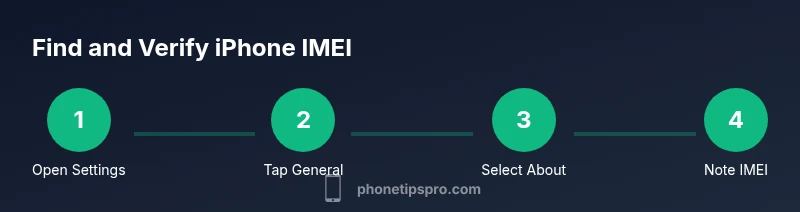
- 1
Open the Settings app
From the Home screen, tap the Settings icon to access system information. This is the first step to locate the IMEI and other identifiers without needing physical access to packaging.
Tip: If you’re using a Magic Keyboard with iPadOS, you can navigate with a keyboard shortcut to speed this up. - 2
Tap General
In Settings, scroll and select General to access device details. This keeps you in one secure place away from third-party apps.
Tip: Avoid third-party apps that request device identifiers; IMEI should come only from official menus. - 3
Tap About
Open About to reveal the IMEI, ICCID, and other identifiers. For dual-SIM models, your screen may show multiple IMEI entries.
Tip: If you don’t see IMEI immediately, scroll a little; some devices list it under a subheading. - 4
Copy or note IMEI numbers
Locate the IMEI(s) and copy or write them down. If you have a dual-SIM device, record both the physical SIM and eSIM IMEI.
Tip: Use a screenshot for offline storage, but be careful with where you store it. - 5
Verify against physical packaging or carrier records
If you have the original box or carrier account, compare the IMEI to the label or online records to confirm accuracy.
Tip: A mismatch may indicate a counterfeit or swapped hardware; contact Apple Support promptly. - 6
For missing IMEI, use alternative sources
If the IMEI isn’t visible in Settings, check the SIM tray label on older devices, or consult the device’s box and any purchase receipts.
Tip: Double-check that you’re looking at the correct device when you have multiple iPhones.
FAQ
Where can I find the IMEI on my iPhone X or later models?
On iPhone X and later, go to Settings > General > About to view the IMEI. For dual-SIM devices, you may see two IMEI entries. If you still can’t find it, check the SIM tray label or the device box.
In iPhone X and newer models, check Settings > General > About for the IMEI, and note any second IMEI for dual-SIM devices.
Can I find the IMEI without turning on the iPhone?
Yes. If the device is off, you can locate the IMEI on the original packaging, the SIM tray label (for older models), or carrier records linked to the device.
You can check the box or carrier records if the phone won’t power on.
What’s the difference between IMEI and MEID?
IMEI is used primarily on GSM devices to identify a device, while MEID is an older identifier used for CDMA networks. In most modern iPhones, you’ll see the IMEI for each active line.
IMEI identifies the device; MEID is an older CDMA-specific term. Most iPhones today use IMEI for both lines.
Why do I need my IMEI?
Carriers use the IMEI to activate service, verify device eligibility, and blacklist lost or stolen devices. It’s also useful for warranty checks and trade-ins.
Carriers use IMEI for activation and security; it can help with warranty and trade-ins.
What if my iPhone is lost or stolen and I can’t access the IMEI?
If you can’t access the IMEI, contact Apple Support and your carrier with proof of ownership. They can help you locate or block service on the device.
If lost, contact Apple and your carrier to protect the device and arrange a replacement.
How should I share my IMEI safely with support?
Only share your IMEI over official channels (phone, official support chat, or carrier portal). Avoid posting it publicly and verify the recipient before sending.
Share it only through official channels and verify who’s requesting it.
Is there a universal place to store IMEI permanently?
Yes. Use a secure note in a password manager or a dedicated offline document labeled with device model and purchase date.
Keep IMEI in a secure, private location for easy future reference.
Watch Video
Quick Summary
- Identify IMEI locations across iPhone models
- Verify accuracy with packaging or carrier data
- Note both IMEI numbers for dual-SIM devices
- Protect IMEI by sharing only with trusted sources
- Use IMEI records for activation, warranty, and security