How to Restart iPhone 16: Step-by-Step Guide
Learn the safest, fastest way to restart iPhone 16 with soft and force reboot methods, plus troubleshooting tips, data safety notes, and advanced options. Phone Tips Pro explains step-by-step guidance for reliable results.


To restart iPhone 16, perform a standard soft reboot first: press and release the volume up button, press and release the volume down button, then press and hold the side button until the Apple logo appears. If unresponsive, try a force restart by holding both volume buttons and the side button for about 10 seconds.
Why Restarting iPhone 16 Matters
Restarting your iPhone 16 is a simple, effective way to clear temporary glitches, refresh system resources, and improve overall responsiveness. For many users, a quick restart resolves app crashes, sluggish performance, and minor connectivity hiccups without affecting personal data. According to Phone Tips Pro, routine restarts can reduce mystery freezes and help keep iOS updates running smoothly. Understanding when to use a soft reboot versus a force restart empowers you to troubleshoot confidently and avoid unnecessary data loss. In this section, we’ll connect the dots between restarts and reliability, and debunk common myths that lead people to overreact to minor quirks.
Key takeaways from Phone Tips Pro analysis show that most issues resolve with a soft reboot, while force restarts are best reserved for unresponsive devices or frozen screens. Keeping your device updated and maintaining a regular backup routine strengthens your ability to recover quickly if a problem escalates.
Soft Reset vs Force Restart: When to Use Each
A soft reset, or normal restart, is the safest first option. It closes apps, clears memory, and reinitializes system processes without erasing data. Think of it as rebooting a computer: quick, low risk, and often effective for minor issues. A force restart, on the other hand, is used when the device is unresponsive, the screen is frozen, or apps won’t close. It forcibly restarts the device by engaging hardware controls. Neither method should affect personal data if done correctly, but force restarts carry a slightly higher risk of data loss if a background write is in progress. The right choice depends on whether your device responds to touch and button presses.
Phone Tips Pro notes that most users should start with a soft restart and only move to a force restart if the device won’t respond after multiple attempts. If you’ve recently updated iOS or installed new apps, a restart can help solidify changes and stabilize performance.
Step-by-Step: How to Restart iPhone 16
The following steps cover standard soft restarts and when to escalate to a force restart. Each action is designed to be quick and low-risk, with a clear rationale.
-
Charge or ensure adequate battery. A restart can be interrupted by a dying battery, which could cause data loss or corruption in rare cases. If the battery is low, plug in your charger before starting.
-
Perform a soft restart. This is your first attempt to refresh the system. Press and release the volume up button, then the volume down button, and finally press and hold the side button until the Apple logo appears on screen. This sequence reinitializes iOS components without affecting data.
-
If the screen remains unresponsive, perform a force restart. Quickly press and release the volume up button, quickly press and release the volume down button, then press and hold the side button (and do not release) until the Apple logo reappears. This forces a reboot and can recover from a frozen state.
-
After the restart, test core functions. Open a few apps, check notifications, and verify network connectivity. If issues persist, try opening Settings and toggling a few sensitive options (e.g., Wi‑Fi, Bluetooth, or cellular) to observe stability.
-
If problems persist beyond a clean restart, consider deeper options. You may need to back up data and explore more advanced steps like resetting network settings or consulting Apple Support for hardware checks.
5
Tools & Materials
- iPhone 16 device(Fully charged or plugged in during troubleshooting)
- USB-C charger and cable(Useful if battery is low during testing)
- Quiet workspace and comfortable seating(Helps you stay focused during steps)
Steps
Estimated time: 5-15 minutes
- 1
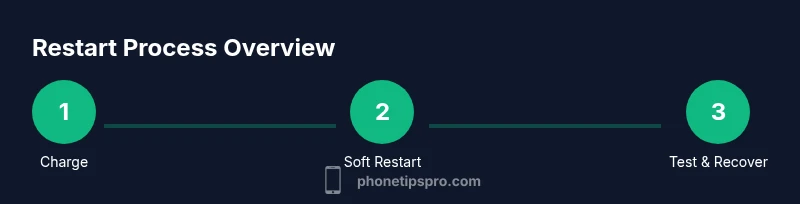
Charge the iPhone 16
Connect the device to a charger and ensure the battery is at least 20%. A stable power level reduces the risk of an interruption during the restart, especially if you plan to perform multiple troubleshooting steps.
Tip: If you’re low on battery, allow 15–20 minutes of charging before proceeding. - 2
Perform a soft restart
Press and release the volume up button, press and release the volume down button, then press and hold the side button until the Apple logo appears. This is the standard restart and preserves data.
Tip: Sometimes the logo takes a few seconds to appear — stay patient and avoid repeated button presses. - 3
Test device responsiveness
Once the device restarts, unlock and open a few apps to verify responsiveness and smoothness of operation. Check notifications and connections (Wi‑Fi, cellular, Bluetooth).
Tip: If apps crash again, note which apps were open to help pinpoint problematic software. - 4
If unresponsive, perform a force restart
If the screen is still frozen, quickly press and release volume up, then volume down, and press and hold the side button for about 10 seconds until the Apple logo reappears.
Tip: Release the buttons as soon as the Apple logo shows to avoid unnecessary resets. - 5
Consider advanced recovery if needed
If issues persist after a force restart, back up data and pursue advanced options like resetting network settings or contacting Apple Support for hardware checks.
Tip: Advanced recovery options can require data reinstallation; ensure backups are recent.
FAQ
What is the difference between a soft reset and a force restart on iPhone 16?
A soft reset restarts iOS without erasing data, while a force restart forcibly reboots the device when it is unresponsive. Use soft reset first, then move to force restart if needed.
Soft reset restarts without data loss, force restart reboots when the device is stuck.
Will restarting delete my data?
A standard restart does not delete data. Only certain advanced resets (like factory reset) erase data. Always back up first if you’re about to try deeper fixes.
A normal restart won't delete data; deeper resets might, so back up first.
How long should a restart take?
A typical soft restart completes within about 1 minute. If the Apple logo takes longer or the screen stalls, try a force restart.
Most restarts finish in about a minute; if it stalls, try a force restart.
What should I do if the Apple logo doesn’t appear after a restart?
Ensure the device is charged and attempt a force restart. If the problem persists, there may be a software or hardware issue that requires service.
If the logo doesn’t appear, charge and try a force restart; persistent issues need support.
Is restarting safe after an iOS update?
Yes. Restarting after updates helps finalize installation and stabilize new features. If you have battery issues after an update, back up and review settings.
Restart after updates is safe and often helpful.
What if my iPhone 16 still freezes after a restart?
Try a DFU or recovery mode with a computer, or contact Apple Support for hardware checks if issues persist.
If it still freezes, you may need recovery or support.
Watch Video
Quick Summary
- Soft restart resolves most issues.
- Know when to use force restart for unresponsive devices.
- Back up data before deep reset steps.
- If problems persist, seek official support.