Why Can't iPhone Receive Texts from Android? A Step-by-Step Troubleshooting Guide
iPhone not getting texts from Android? This urgent guide from Phone Tips Pro walks you through quick checks, the diagnostic flow, and step-by-step fixes to restore SMS delivery quickly.


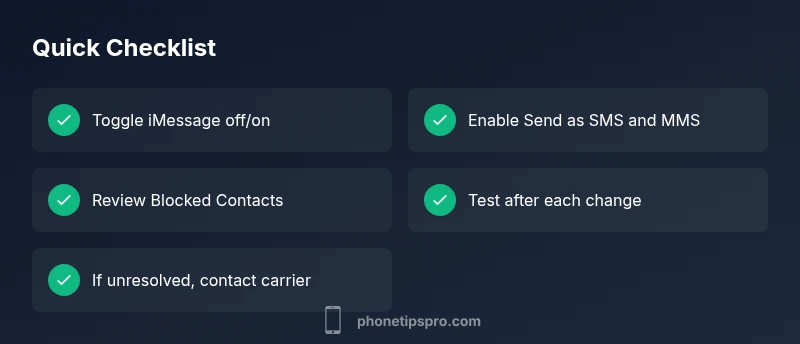
Most often, the issue is iMessage routing or a blocked contact. Start by turning off iMessage on your iPhone briefly, toggle Send as SMS, and check for blocked numbers. If messages still don’t arrive, verify MMS settings and ensure your carrier service is active. Try restarting your iPhone after each change.
Common quick checks you can do in minutes
If you’re asking why can’t iPhone receive text from Android, start with these fast checks. According to Phone Tips Pro, most delivery gaps stem from messaging settings or carrier routing rather than hardware faults. Begin by confirming your iPhone has a cellular service and can receive SMS/MMS from any source. Then test by asking an Android friend to send a simple text while you monitor the incoming message. If the message is still missing, move on to iMessage settings and your block list. Finally, perform a quick restart after each change to refresh the connection. These small steps often fix the issue without complicated tinkering and reduce frustration for iPhone users who rely on dependable texting.
Understanding why Android texts sometimes fail to arrive
Texts between Android devices and iPhone travel as SMS/MMS. If iPhone is configured to prefer iMessage for the same number, it can delay or block non-iMessage traffic. This confusion often causes a message to appear as not delivered even though cellular reception is fine. Other common culprits include a recently changed SIM, carrier SMS routing issues, or a number that’s blocked or filtered. The bottom line: the problem is usually a settings or routing glitch you can fix in minutes with the steps below. Phone Tips Pro emphasizes starting with the simplest checkpoints before diving into network-level fixes.
Check iMessage vs SMS routing and activation
The core distinction is that iMessage traffic can override plain SMS routing if the number is registered with Apple’s service. Ensure your iPhone properly activates iMessage by going to Settings > Messages and verifying that iMessage shows as “On.” If activation is delayed or stuck, toggle iMessage off, wait 15–30 seconds, then turn it back on. Also confirm that the option “Send as SMS” is enabled so texts fall back to regular SMS when iMessage can’t reach the recipient. If Android-to-iPhone texts appear as blue bubbles for a long time or never turn green, this often indicates iMessage routing confusion that needs clearing.
Review your iPhone contact blocks and filters
Blocking or filtering settings can silently prevent incoming texts from non-iPhone senders. Check Settings > Messages > Blocked Contacts for any numbers from Android users that you may have accidentally saved. Also review Settings > Messages > Filter Unknown Senders, which could misroute messages into a separate tab or hide them entirely. If you rely on Do Not Disturb or Focus modes, ensure “Silence” is not set to always on for unknown senders. After adjustments, test sending a message from an Android device again to confirm the fix.
Carrier and network considerations
Sometimes the problem lies with your carrier rather than your iPhone. Confirm your service plan includes SMS/MMS and that there are no outages in your area. If you recently ported or swapped SIMs, carrier provisioning can take time, during which texts may be delayed or dropped. Ensure your device has stable cellular data or Wi-Fi when testing, as poor connectivity can affect SMS/MMS delivery in some cases. If you suspect a carrier issue, contact customer support for a quick check on SMS routing and number provisioning.
Step-by-step fixes you can apply now
Apply the most effective fixes in order, testing after each step. Start with the simplest (toggle iMessage, enable SMS/MMS), then proceed to more involved actions (network reset, deregistration). If none of these resolve the problem, escalate to your carrier or seek professional help. Throughout the process, document the changes you make so you can revert if needed.
Prevention and maintenance to avoid future issues
Keep iOS updated to minimize messaging bugs, and periodically review your iMessage and SMS settings, especially after iOS updates or SIM changes. Maintain a clean block list and be mindful of any third-party messaging apps that may interfere with native SMS delivery. Regularly test messages with both Android and iPhone contacts to ensure ongoing reliability.
Steps
Estimated time: 25-40 minutes
- 1
Toggle iMessage off and back on
Open Settings > Messages. Turn off iMessage, wait 15 seconds, then turn it back on. This clears routing issues for the phone number.
Tip: Always test after toggling to verify result. - 2
Enable Send as SMS and MMS
In Settings > Messages, ensure Send as SMS is on and MMS Messaging is enabled. This ensures fallback delivery if iMessage fails.
Tip: Remember that SMS charges may apply for international messages. - 3
Check Blocked Contacts and Unknown Senders
Review Settings > Messages > Blocked Contacts and Filter Unknown Senders. Remove any legimate Android numbers by mistake.
Tip: Periodic cleanups prevent silent blocks. - 4
Restart the iPhone
Soft reboot clears caches and refreshes system networking that influence message delivery.
Tip: Hold power + volume if needed on newer models. - 5
Reset Network Settings
If messages still don’t arrive, reset Network Settings (Settings > General > Transfer or Reset iPhone > Reset > Reset Network Settings). This does not erase personal data but resets cellular data settings.
Tip: Note any custom APN settings you may need to reconfigure. - 6
Test with multiple contacts and call carrier
Send texts from different Android devices and confirm receipt. If none arrive, contact your carrier for routing/provisioning checks.
Tip: Document time of tests and outcomes for support.
Diagnosis: iPhone is not receiving text messages from Android devices.
Possible Causes
- highiMessage routing misconfiguration or activation issue
- mediumUnknown Senders/Block lists filtering Android messages
- mediumSMS/MMS settings disabled or carrier SMS routing problem
- lowSIM/porting or carrier-level provisioning delay
Fixes
- easyToggle iMessage off, then on again; restart after changes
- easyEnable 'Send as SMS' and ensure MMS messaging is turned on
- easyReview and remove any blocked contacts; disable unknown senders filter if needed
- mediumReset Network Settings or deregister iMessage and reactivate
- easyTest with multiple Android and iPhone contacts to isolate device vs carrier issue
- mediumIf issues persist, contact the carrier for SMS routing or provisioning support
FAQ
Why don’t Android-to-iPhone texts arrive even when my signal is fine?
Often this happens due to iMessage routing issues or the message being blocked or misclassified as iMessage. Start with toggling iMessage off/on and ensuring SMS/MMS are enabled. If the problem persists, check blocked contacts and carrier provisioning.
Texts from Android to iPhone often fail because of iMessage routing or a block. Try toggling iMessage off and on, verify SMS/MMS, and check blocks. If needed, contact your carrier.
Should I reset my network settings to fix this?
Resetting network settings can fix routing and connectivity issues that block texts. Use this as a later step after simpler checks. Remember you will need to re-enter Wi‑Fi passwords afterward.
Resetting network settings can help with routing issues. Use it after other steps and be ready to reconnect to Wi-Fi networks.
Can deregistering iMessage help if Android texts aren’t arriving?
Yes. If iMessage is misregistered, deregistering and reactivating can resolve persistent misrouting. Use the official Apple deregistration method or toggle iMessage off and on.
Deregistering iMessage can fix misrouting. Toggle it off and on or use Apple's deregistration option, then test texting again.
What should I do if messages still don’t come after all steps?
Escalate to your mobile carrier for SMS routing checks and provisioning status. There could be a network outage or number porting issue. Also consider a professional diagnostic if the problem is device-specific.
If it still doesn’t work, contact your carrier for routing help and consider a professional check if the device seems at fault.
Is there a difference between MMS and SMS for this problem?
Yes. SMS is text-only, while MMS can include media and requires data. Android-to-iPhone message delivery can stall if MMS is disabled or not enabled on iPhone. Ensure both are enabled.
SMS is text only; MMS handles media and needs data. Make sure both SMS and MMS are enabled on your iPhone.
Can I test this with Find My iPhone or other features?
Find My iPhone isn’t related to SMS delivery, but testing other services can confirm the device’s overall connectivity. If phone features work but texts don’t, focus on messaging settings and carrier routing.
Find My iPhone isn’t involved in texting, but test overall connectivity to rule out a broader issue.
Watch Video
Quick Summary
- Check iMessage activation and SMS fallback settings
- Review blocks and filters that could hide Android texts
- Test across multiple devices to isolate device vs carrier
- Escalate to carrier if routing or provisioning issues persist