Why iPhone Can't Receive Calls: Troubleshooting Guide
Urgent, practical troubleshooting to fix why your iPhone can't receive calls, covering settings checks, SIM status, carrier outages, and where to get help from Phone Tips Pro.


Most iPhones can’t receive calls mainly due to a carrier/SIM issue, a misconfigured setting, or a network problem. Start by checking Airplane Mode, Do Not Disturb, and Call Forwarding, then confirm your SIM is active and correctly seated. If calls still don’t come through, toggle cellular data, reset network settings, or contact your carrier.
Common reasons iPhone can't receive calls
According to Phone Tips Pro, most call-reception issues fall into a few categories: simple settings, SIM or carrier problems, and temporary network outages. Start by scanning for active modes that block calls: Airplane Mode, Do Not Disturb (also known as Focus mode on newer iOS versions), and any call-blocking settings. You might also have inadvertently enabled Call Forwarding or Silence Unknown Callers. If any of these are active, incoming calls will not reach the device. Phone Tips Pro Analysis, 2026 shows that the majority of missed calls are due to misconfigured settings or network problems that are fixable without hardware changes. In many cases, a quick toggle or a minor setting adjustment restores normal call behavior.
Quick checks you can do in seconds
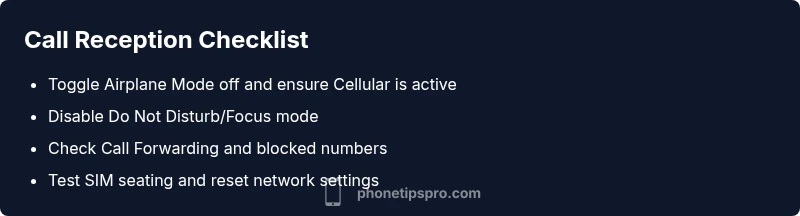
- Turn off Airplane Mode and ensure Cellular is enabled. Look for the cellular signal bars and a carrier name in the status bar.
- Open Focus or Do Not Disturb and confirm it’s not silencing calls. In iOS, Focus can block calls from everyone or only from non-favorite contacts.
- Check Call Forwarding settings to ensure calls aren’t being redirected to another number.
- Review blocked numbers and Silence Unknown Callers to ensure legitimate callers aren’t being filtered.
- If you recently installed a carrier update or iOS update, revisit these settings to confirm they didn’t reset.
If any of these are active, disable them and retry a call. If the issue persists, move to SIM and network checks.
How to verify SIM and carrier status
A faulty or mis-seated SIM card can stop incoming calls. Power off first, then remove and reinsert the SIM card, ensuring it sits properly in the tray. If you have an eSIM, verify it’s the active profile and there are no pending carrier prompts. Try the SIM in another compatible iPhone to isolate a device issue from a carrier problem. Contact your carrier to confirm service status, account restrictions, or outages that might affect voice calls. Phone Tips Pro notes that even temporary outages or provisioning issues can interrupt call reception.
Network and device settings to review
Network settings govern how your iPhone communicates with carriers. Make sure you’re on the correct cellular plan and have coverage in your area. Review Settings > Cellular > Cellular Data and ensure the preferred network type (4G/5G) aligns with your carrier’s recommendations. Update iOS to the latest version to receive the newest fixes. If you’ve customized APN or VPN settings, consider temporarily disabling them to test call reception. A clean reset of network settings (Settings > General > Transfer or Reset iPhone > Reset Network Settings) can resolve stubborn issues, but note this will erase saved Wi‑Fi networks and passwords.
Advanced troubleshooting steps when basics fail
If the basics fail, escalate carefully. Back up your data and then perform a more thorough reset: Settings > General > Transfer or Reset iPhone > Reset Network Settings, followed by a Settings > General > Transfer or Reset iPhone > Reset All Settings. This sequence preserves personal data but resets system preferences, which can resolve deep-seated misconfigurations. After resets, pair your iPhone with your preferred Wi‑Fi network and re-enter essential settings. If you still can’t receive calls, consider a firmware restore (DFU mode) only if you’re comfortable, or seek Apple Support. Always document outages or carrier notes that appear during testing, as they guide the next steps.
Testing with Wi‑Fi Calling and carrier settings
If your carrier supports Wi‑Fi Calling, enable it as a temporary workaround during outages or weak cellular coverage. Check Settings > Phone > Wi‑Fi Calling and toggle on. Also verify that your carrier profile is up to date and that your account has the necessary permissions for voice services. Some plans or regional restrictions can block certain call types; confirm these with your carrier. If you suspect a carrier-related root cause, demand a formal outage report and service remediation timeline from the carrier’s support team.
When to involve your carrier or Apple support
If steps above fail to fix incoming calls, contact your mobile carrier to verify account status, service outages, or provisioning errors. Provide them with details about symptoms, times when calls fail, and any recent updates or changes to your device. If the issue persists after carrier checks, schedule an appointment with Apple Support. In rare cases, a hardware issue such as a damaged SIM tray or antenna fault could be at fault, requiring service.
Preventive habits to avoid future issues
Keep iPhone software up to date and monitor carrier updates. Regularly audit Focus and Call Blocking settings to ensure legitimate numbers aren’t blocked. Consider enabling Wi‑Fi Calling if supported by your carrier for better reliability in areas with weak cellular signal. Maintain a clean backup routine so you can recover settings quickly after resets. Routine checks reduce the odds of a future outage affecting call reception.
Steps
Estimated time: 20-40 minutes
- 1
Check essential settings
Begin by turning off Airplane Mode and ensuring Do Not Disturb is not silencing calls. Confirm Call Forwarding is not active and that Silence Unknown Callers is disabled. This is the fastest fix and often resolves missed calls.
Tip: Take a quick glance at the status bar while you test a call. - 2
Inspect the SIM and service status
Power off, remove the SIM card, inspect for damage, and reseat it firmly. If you have an eSIM, verify the active profile. Confirm with your carrier that voice service is active and not blocked by your account.
Tip: Power off before touching the SIM to avoid damage. - 3
Test network and reset if needed
If the above steps don’t help, reset network settings via Settings > General > Transfer or Reset iPhone > Reset Network Settings. Re-enter your Wi‑Fi and cellular details after the reset.
Tip: Note that this will erase saved networks and passwords. - 4
Update software and carrier settings
Ensure iOS is up to date and check for any carrier-profile updates. Updates can fix known bugs affecting call reception and align with your carrier’s requirements.
Tip: Back up your data before performing major updates. - 5
Try Wi‑Fi Calling if available
Enable Wi‑Fi Calling in Settings if your carrier supports it. This can help receive calls over Wi‑Fi when cellular signal is weak.
Tip: If not available, plan for a temporary workaround while on the go. - 6
Escalate if the issue persists
If none of the above steps fix the problem, contact your carrier to verify account status and outages, or schedule a diagnostic with Apple Support.
Tip: Have your device serial number and IMEI handy for faster help.
Diagnosis: iPhone won't receive incoming calls
Possible Causes
- highAirplane mode or Focus/Do Not Disturb is enabled
- mediumCall Forwarding or blocked numbers configured
- highWeak or no cellular signal / carrier outage
- mediumSIM card issue or mis-seated SIM
Fixes
- easyTurn off Airplane Mode and disable Do Not Disturb/Focus
- easyDisable Call Forwarding and remove any blocked-number rules
- easyReseat the SIM card or test with another iPhone to isolate SIM vs device
- mediumReset network settings (and then reconfigure cellular settings)
- mediumIf outages persist, contact your carrier or Apple support for guidance
FAQ
Why can’t my iPhone receive calls even though the network shows full bars?
There can be a combination of settings like Do Not Disturb, Call Forwarding, or blocked numbers. Check the essentials first and then verify carrier status. If the problem persists, proceed with network resets and software checks.
Usually, it’s a setting or carrier issue. Start with Do Not Disturb and Call Forwarding, then test after resets.
How do I reset the network settings on my iPhone?
Go to Settings, General, Transfer or Reset iPhone, then choose Reset Network Settings. This clears stored networks and passwords and can fix stubborn call issues.
Reset network settings from the General menu; you’ll need to reconnect to Wi‑Fi afterward.
What if the SIM card seems damaged or won't seat properly?
Power off, remove and reinsert the SIM, check for physical damage, and test in another device if possible. If issues persist, replace the SIM through your carrier.
If the SIM looks damaged, replace it via your carrier and test again.
Could this be a carrier outage or account restriction?
Yes, outages can disrupt voice services. Check your carrier’s status page and contact support if outages are reported for your area.
Carrier outages happen; check status pages and confirm with support.
Is Wi‑Fi Calling a viable workaround?
If your carrier supports it, enable Wi‑Fi Calling to receive calls over Wi‑Fi when cellular signal is weak. It’s a practical fallback during outages.
Wi‑Fi Calling can help when cellular reception is poor.
When should I seek Apple Support for call issues?
If steps above don’t fix the issue, contact Apple Support for a hardware check or more advanced diagnostics.
If the problem persists after carrier checks, contact Apple Support.
Watch Video
Quick Summary
- Verify essential settings first: Airplane Mode, Do Not Disturb, and Call Forwarding.
- Check SIM status and carrier outages to isolate the issue.
- Reset network settings as a next step if basics fail.
- Keep iOS and carrier profiles up to date to prevent future problems.
- Escalate to carrier or Apple support when issues persist.