Why Your iPhone Can't Call Out and How to Fix It Now
Urgent guide to fix an iPhone that can't call out. Quick fixes, diagnostic flow, step-by-step repairs, and prevention tips from Phone Tips Pro.


Most iPhone call-out failures come from basic settings, network issues, or carrier provisioning. A quick fix is to toggle Airplane Mode off, restart the device, and verify you have cellular service. If the problem persists, check call settings and SIM status before contacting your carrier.
Why outgoing call failures happen on iPhone
According to Phone Tips Pro, the vast majority of "can't call out" scenarios originate from how the device connects to the network and how the carrier provisions service. The iPhone relies on a stable cellular connection, proper SIM detection, and correct call routing settings. When any of these components misbehave, you may experience silent dialing, failed call attempts, or calls that ring but never connect. Common culprits include airplane mode status, outdated carrier settings, corrupted network settings, or SIM-related issues. This block explains how these factors interact and why even small misconfigurations can block your ability to place calls. By understanding the root cause, you can prioritize fixes and avoid unnecessary steps. A methodical approach saves time and reduces frustration when every failed call feels urgent.
Quick checks you can perform now
Before diving into deeper troubleshooting, run through the fastest checks:
- Ensure Airplane Mode is off: swipe down (or up) to access Control Center and confirm the icon is not highlighted.
- Check cellular signal: look for bars and data indicator; if you have none, the issue may be network-related or indoors with poor reception.
- Inspect the SIM tray: reseat the SIM card gently and verify it isn’t loose or dirty.
- Verify provider service: confirm your account isn’t suspended or restricted for calling, and see if other numbers are blocked.
- Test with a second number: try calling a friend or voicemail to confirm whether the problem is general or targeted to a single contact.
If these quick checks don’t restore calling, move to the diagnostic flow in the next section. This is a common first-step pattern used by the Phone Tips Pro team to quickly isolate issues without plunging into complex resets.
Diagnostic flow: symptom → diagnosis → solutions (practical path)
When you can’t call out, follow a structured path to identify the root cause:
- Symptom: No outgoing calls despite a working display and ability to receive calls.
- Primary diagnosis: Check Airplane Mode, carrier settings, and SIM status. If Airplane Mode is on or there’s a SIM detection issue, resolve those first.
- Secondary checks: Review call blocking settings, emergency bypass, and any call-forwarding rules that might interfere with dialing.
- Network and account: Confirm carrier provisioning, roaming settings, and that your cellular plan is active.
- Advanced steps: If issues persist, reset network settings, reinstall profile updates, or perform a factory reset as a last resort after backing up data.
This flow keeps you from jumping to drastic fixes too soon and aligns with best practices from Phone Tips Pro for urgent troubleshooting.
Step-by-step fixes for the most common causes
Follow these steps in order, stopping if a prior step resolved the issue:
- Turn off Airplane Mode and reboot
- Power off the iPhone, wait 30 seconds, turn it back on, and test a call. Tip: a full restart clears many transient network hiccups.
- Update carrier settings
- Go to Settings > General > About. If an update prompt appears, install it. Tip: even small carrier updates can fix dialing problems.
- Re-seat or replace the SIM
- Remove, inspect for dirt, reinsert, and ensure it’s properly seated. Tip: avoid bending the SIM tray.
- Reset network settings
- Settings > General > Transfer or Reset iPhone > Reset > Reset Network Settings; then reconnect to cellular. Tip: you’ll need to re-enter Wi-Fi passwords afterward.
- Check call-related settings
- Confirm that Call Forwarding and Silence Unknown Callers aren’t misconfigured. Tip: enable Do Not Disturb temporarily to test if it’s related to routing.
- Test with a different SIM or contact carrier
- If possible, put another SIM in the iPhone to determine if the issue is SIM or device-related. Tip: contact carrier for provisioning checks if the SIM works in another phone but not in yours.
If none of these steps restore outbound calling, professional help may be required to review provisioning, hardware checks, or more invasive resets.
Safety, risks, and prevention tips
This section emphasizes safe handling of hardware and data:
- Always back up data before major resets or factory refreshes to prevent data loss.
- Avoid frequent factory resets; they rarely fix transient issues and can erase personalized settings.
- When in doubt, seek professional support rather than attempting risky hardware checks.
- Maintain updated iOS and carrier profiles to minimize future problems.
- Use official carrier channels for provisioning questions to avoid SIM lock or service limitations.
Prevention tips to avoid future outages
- Keep iOS and carrier settings up to date to minimize compatibility gaps.
- Periodically verify SIM status and call-blocking lists to ensure nothing interferes with calling.
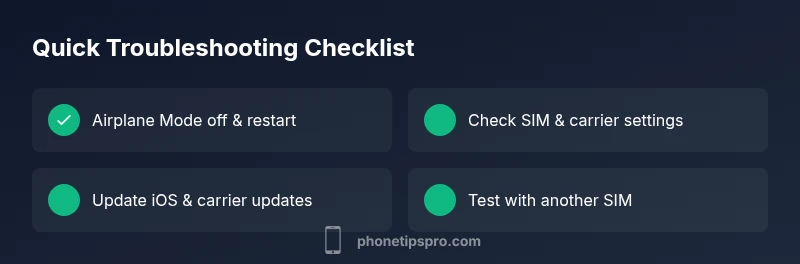
- Create a quick diagnostic checklist (Airplane Mode, SIM seating, carrier status) to run when issues arise.
- If you travel or switch carriers, re-check provisioning and roaming settings promptly to prevent silent failures.
- Consider enabling a backup contact method (VoIP app or messaging) for urgent communications while troubleshooting.
Steps
Estimated time: 25-40 minutes
- 1
Power cycle the iPhone
Turn off the iPhone, wait 30 seconds, then turn it back on. This clears minor glitches that can block calls. Check if you can place a test call after reboot.
Tip: A full power cycle fixes many transient network hiccups. - 2
Toggle Airplane Mode
Open Control Center and toggle Airplane Mode on, then off. Reconnect to your network and test calling again.
Tip: Sometimes toggling twice helps re-establish a clean connection. - 3
Update carrier settings
Go to Settings > General > About. If an update prompt appears, install it. This ensures your iPhone is using the correct carrier configuration for calling.
Tip: Carrier updates are lightweight but crucial for call routing. - 4
Check SIM status and reseat
Remove the SIM card, inspect for dirt or damage, then reinsert firmly. If available, test with a spare SIM in the same phone.
Tip: A dirty SIM contact can block detection and routing. - 5
Reset network settings
Settings > General > Transfer or Reset iPhone > Reset > Reset Network Settings. Reconnect to networks and re-test calls.
Tip: You’ll reconnect to Wi‑Fi; have passwords handy. - 6
Contact carrier or test with another SIM
If calls still fail, contact your carrier to verify provisioning or try a different SIM to rule out device lock or SIM issues.
Tip: Carrier provisioning problems are common after plan changes.
Diagnosis: iPhone can't make outgoing calls
Possible Causes
- highAirplane Mode is enabled
- highSIM card not detected or dirty
- mediumCarrier provisioning or account issue
- mediumOutdated carrier settings or iOS bugs
- lowCall restrictions or blocking rules
- lowNetwork settings corrupted
Fixes
- easyToggle Airplane Mode off and restart device
- easy reseat/replace SIM card and check for dirt
- easyUpdate carrier settings and install pending iOS updates
- easyReset network settings (back up data first)
- mediumContact carrier to verify provisioning and account status
- mediumTest with a different SIM or hardware check if needed
FAQ
Why can't I make outgoing calls but can receive calls on my iPhone?
This usually points to a misconfiguration in network or call settings, a blocked number, or carrier provisioning. Start with Airplane Mode, SIM status, and carrier updates. If the problem persists, check call blocking and routing settings, then contact your carrier for provisioning checks.
You may be facing network or carrier settings issues; start with Airplane Mode and SIM checks, then update carrier settings.
Could Airplane Mode cause this issue?
Yes. When Airplane Mode is enabled, all wireless connections are disabled, preventing calls. Turning it off and restarting often resolves the problem quickly.
Airplane Mode blocks calls. Turn it off and restart to restore service.
What should I do if my SIM card isn’t detected?
Remove and reseat the SIM, clean gently if needed, and check for any physical damage. If still not detected, try another SIM in the same device to determine if the issue is with the SIM or the iPhone.
If the SIM isn’t detected, reseat it and test with another SIM to isolate the cause.
Can updating iOS or carrier settings fix this problem?
Yes. Updates often include fixes for call routing and network compatibility. Install any available iOS or carrier updates and reboot afterward.
Updating iOS and carrier settings can fix routing problems; restart after.
When should I seek professional help?
If you’ve tried all steps and calls still fail, it’s time to contact your carrier or visit an authorized service provider. There may be provisioning issues, hardware faults, or SIM lock concerns requiring expert access.
If issues persist after all steps, contact your carrier or a service expert.
Is it safe to perform a factory reset?
Factory reset is a last resort and will erase data. Back up first, then proceed only if other fixes fail and you’re prepared to restore apps and data.
Factory reset erases data—backup first and use only if necessary.
Watch Video
Quick Summary
- Start with quick wins: Airplane Mode, restart, and SIM status.
- Update carrier settings and iOS to fix routing issues.
- Use a phased diagnostic flow; avoid drastic resets first.
- If problems persist, involve your carrier for provisioning checks.